

Logs are referred to as the “black box” of the Linux operating system. The main tool for accessing and modifying these logs is journalctl.
What is journalctl in Linux?
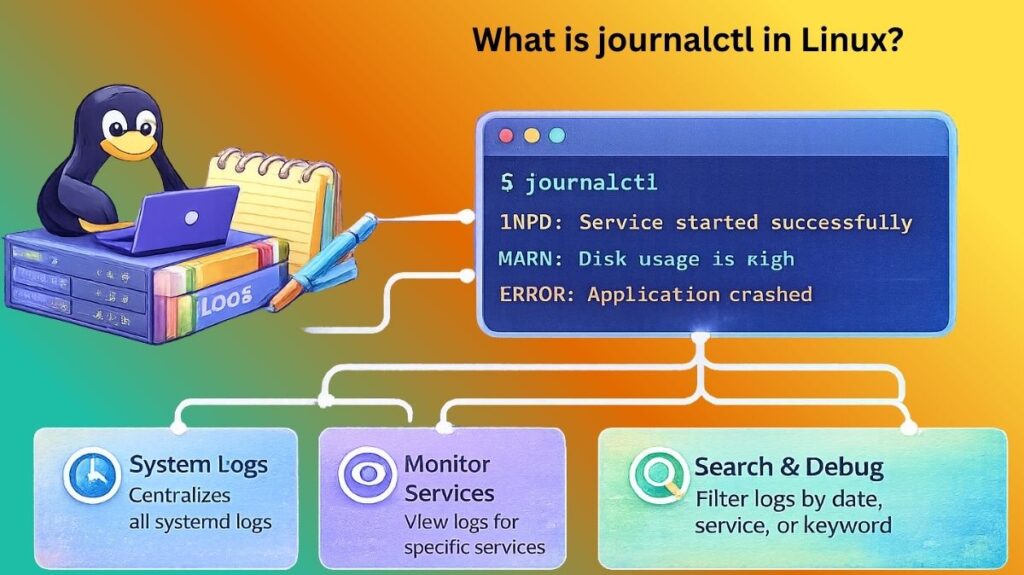
A command-line tool called journalctl is used to query and view logs from journald, the systemd logging service.
Logs were kept in plain text files (such as /var/log/syslog) on previous Linux systems. This was altered by systemd-journald, which gathered information from the kernel, system services, and boot process and stored it in a binary, structured format. You can read that binary data using the journalctl interface.
What It Does and Why It’s Used
- Centralization: It collects logs from all system services, the kernel, and the initial RAM disk in one location.
- Speed: Compared to using
grepon large text files, looking for a given timestamp in logs is much faster because they are indexed and binary. - Metadata: Each log entry contains metadata such as the particular service unit that generated it, the Process ID (PID), and the User ID (UID).
- Persistence: It ensures that your disk doesn’t fill up with outdated data by automatically managing log rotation and storage restrictions.
Also read about What Is Linux Logging? How It Works, Log Files, And Features
journalctl Command in Linux with examples
1. Basic Viewing
To see every log entry (starting from the oldest), simply type:
Bash

journalctl
Note: Use the arrow keys to scroll and q to quit.
2. Real-time Monitoring (Tail)
To watch logs as they happen (similar to tail -f):
Bash

journalctl -f
3. Filtering by Time
This is where journalctl it shines. You can use natural language.
Bash

# Logs from today only
journalctl --since today

# Logs from a specific window
journalctl --since "2026-03-10 12:00:00" --until "2026-03-11 15:00:00"

# Logs from 10 minutes ago
journalctl --since "10 minutes ago"
4. Filtering by Service (Unit)
To see logs for a specific background service (like Nginx or SSH):
Bash

journalctl -u sshd
5. Kernel Logs
To troubleshoot hardware or driver issues:
Bash

journalctl -k
6. Checking Boot Logs
Linux keeps track of previous boots.
Bash

# List all previous boots
journalctl --list-boots

# See logs from the previous boot
journalctl -b -1
Also read about What Are The Different Types Of Linux Logs? Beginners Guide
Common Applications
- Debugging Service Failures:
journalctl -u service_name -xeoffers the most current error messages and hints when a service fails to start. - Monitoring
sshdLogs to identify unsuccessful login attempts are known as security auditing. - Performance monitoring involves looking for disk I/O faults or kernel “Out of Memory” (OOM) kills.
- Finding the service that is slowing down the system startup process is known as boot troubleshooting.
Setting Up the Environment
Since journalctl is part of systemd, it is pre-installed on almost every modern Linux distribution (Ubuntu, Fedora, Debian, CentOS, Arch).
1. Verification
Check if the journal service is active:
Bash

systemctl status systemd-journald
2. Ensuring Persistent Logs
By default, some systems store logs in a “volatile” way (cleared on reboot). To make logs persist:
- Open the config file:
sudo nano /etc/systemd/journald.conf - Find the line
Storage=and change it toStorage=persistent. - Restart the service:
sudo systemctl restart systemd-journald
3. Managing Disk Space
To prevent logs from taking up too much room, you can “vacuum” them:
Bash

# Keep only the last 500MB of logs
sudo journalctl --vacuum-size=500M

# Keep only the last 2 weeks of logs
sudo journalctl --vacuum-time=2weeks
journalctl Cheat Sheet (Linux Logs)
journalctl is a command used to view and manage logs collected by systemd in modern Linux distributions.
Basic Commands
| Command | Description |
|---|---|
journalctl | Show all logs |
journalctl -b | Show logs from current boot |
journalctl -r | Show logs in reverse order |
journalctl -f | Follow logs in real-time (like tail -f) |
journalctl -n 50 | Show logs from the current boot |
Example
bash

journalctl -n 20
View Logs by Time
| Logs from the last hour | Description |
|---|---|
journalctl --since today | Logs from today |
journalctl --since yesterday | Logs from yesterday |
journalctl --since "1 hour ago" | Logs from last hour |
journalctl --since "2026-03-10" | Logs from specific date |
Example
bash

journalctl --since "2 hours ago"
Also read about What Is A Linux Container? How Do Containers Work On Linux?
View Logs by Service
Example for SSH service
bash

journalctl -u ssh
Example for Docker
bash

journalctl -u docker
This shows logs for a specific system service.
View Logs by Priority
| Priority | Meaning |
|---|---|
| 0 | Emergency |
| 1 | Alert |
| 2 | Critical |
| 3 | Error |
| 4 | Warning |
| 5 | Notice |
| 6 | Info |
| 7 | Debug |
Example
bash

journalctl -p err
Shows only error logs.
View Logs by Boot
| Command | Description |
|---|---|
journalctl --list-boots | Show boot history |
journalctl -b -1 | Previous boot logs |
journalctl -b -2 | Logs from two boots ago |
Example
bash

journalctl -b -1
Filter Logs by Process
bash

journalctl _PID=1234
or
bash

journalctl _COMM=sshd
Disk Usage of Logs
bash

journalctl --disk-usage
Example output
bash

Archived and active journals take up 250M
Also read about How To Use Shell Command In Linux & Basic Shell Commands
Clean Old Logs
Remove logs older than 7 days
bash

sudo journalctl --vacuum-time=7d
Remove logs if size exceeds 500MB
bash

sudo journalctl --vacuum-size=500M
Output Formatting
| Command | Description |
|---|---|
journalctl -o json | Output in JSON format |
journalctl -o short | Default short format |
journalctl -o verbose | Detailed output |
Example
bash

journalctl -o json
Useful Combinations
Show logs for the SSH service in real-time
bash

journalctl -u ssh -f
Show errors from last boot
bash

journalctl -p err -b
Show the last 100 logs from Docker
bash

journalctl -u docker -n 100
Journalctl vs syslog vs dmesg
| Feature | journalctl | syslog | dmesg |
|---|---|---|---|
| Purpose | View and query logs from the system journal | Traditional system logging service | Display kernel ring buffer messages |
| Logging System | Works with systemd-journald | Uses syslog daemons like rsyslog or syslog-ng | Reads messages directly from the Linux kernel |
| Log Storage Format | Binary structured logs | Plain text log files | Kernel ring buffer (temporary memory) |
| Default Log Location | /var/log/journal/ or /run/log/journal/ | /var/log/syslog, /var/log/messages, /var/log/auth.log | Not stored in files (temporary buffer) |
| Main Command | journalctl | cat /var/log/syslog or tail -f /var/log/syslog | dmesg |
| Focus Area | System services, kernel, boot logs, applications | General system events and service logs | Hardware, drivers, and kernel messages |
| Filtering Features | Advanced filters (time, service, boot, priority, PID) | Limited filtering using tools like grep | Basic filtering using grep |
| Boot Log Access | Can show logs from previous boots | Usually logs only current logs unless rotated | Shows messages from current boot only |
| Performance | Fast searching (indexed logs) | Slower search in large text files | Fast (small kernel buffer) |
| Shows messages from the current boot only | Modern Linux log analysis and troubleshooting | Traditional logging in older systems | Hardware troubleshooting and kernel debugging |
Also read about What Is Linux Kernel? Why It Is Important And Its Components