

Terminal in Linux
One of Linux’s most potent tools is the terminal. By entering instructions, users can interact directly with the operating system using this text-based interface. The terminal is still necessary because it provides greater control, efficiency, and flexibility than graphical tools, even if contemporary Linux systems come with graphical desktops.
In basic language, the terminal is a window where you write instructions, and the system executes them.
What is Terminal in linux?
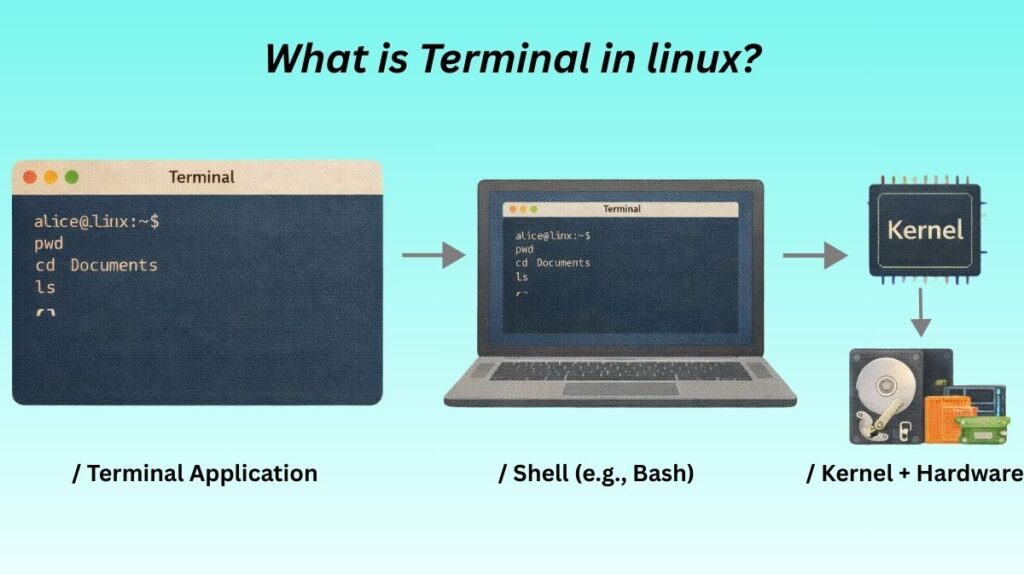
A terminal is a program that offers access to the shell. It serves as a conduit between the operating system and the user. The terminal is merely an interface. The shell, which decodes your commands and transmits them to the kernel, does the actual work.
A terminal window typically consists of a command prompt, which is where you enter commands, and a text area where the output of those commands is displayed. You can use the terminal to run commands, execute scripts, navigate the file system, manage processes, and perform other system administration tasks.
So the flow is:
User → Terminal → Shell → Kernel → Hardware
Users would only have access to graphical tools which are slower and less capable for complex tasks in the absence of a terminal.
Also Read About What Is A Linux Shell? And Different Types Of Shell In Linux
Why the Terminal is Important
The terminal is significant since it gives:
- Full control over the system
- Faster execution of tasks
- Capacity to use scripts to automate tasks
- SSH access to distant systems
- Better recovery and troubleshooting
The terminal is the only way to correctly do many system management tasks.
How to open terminal in linux?
The terminal may be opened on the majority of Linux systems by using:
- Ctrl + Alt + T is a frequent shortcut.
- Or look for Terminal in the application menu
Popular terminal programs include:
- GNOME Terminal
- Konsole (KDE)
- Xfce Terminal
- Tilix
- Alacritty
They all operate in the same manner.
Linux terminal command
A typical Linux command looks like this:
bash

command options arguments
Example:
bash

ls -l /home
Here:
ls→ command-l→ option/home→ argument
This structure is used in almost every Linux command.
Also Read About What Is Linux Kernel? Why It Is Important And Its Components
Understanding the Prompt
When you open the terminal, you see something like:
ruby

user@computer:~$
This means:
user→ your usernamecomputer→ system name~→ current directory (home folder)$→ normal user#→ root user
The prompt shows where you are and who you are.
Basic Navigation Commands
pwd (Print Working Directory)
Shows your current location.
bash

pwd
Output:
arduino

/home/user
ls (List Files)
Lists files and folders.
bash

ls
ls -l
ls -a-l→ long format-a→ show hidden files
cd (Change Directory)
Moves between directories.
bash

cd Documents
cd ..
cd /
cd ~..→ go back/→ root~→ home
File and Folder Management
Creating Files and Folders
bash

touch file.txt
mkdir myfolder
Deleting Files and Folders
bash

rm file.txt
rm -r myfolder
Be careful: deleted files cannot be recovered easily.
Also Read About How To Use Shell Command In Linux & Basic Shell Commands
Copying and Moving
bash

cp file1 file2
mv file1 newname
mv file1 folder/
Managing files is the bread and butter of terminal use.
| Command | Action | Example |
mkdir | Create a new folder | mkdir MyProjects |
touch | Create an empty file | touch notes.txt |
cp | Copy files or folders | cp file.txt backup.txt |
mv | Move or rename a file | mv old_name.txt new_name.txt |
rm | Delete a file | rm file.txt |
Viewing File Content
cat (Display content)
bash

cat file.txt
less (Scroll content)
csharp

less file.txt
Use q to exit.
head and tail
bash

head file.txt
tail file.txt
Shows first or last lines.
User and System Information
whoami
Shows current user.
bash

whoami
uname
Shows system info.
bash

uname -a
uptime
Shows system running time.
bash

uptime
Package Management (Example)
On Debian/Ubuntu:
bash

sudo apt update
sudo apt install nginx
sudo apt remove nginx
This is how software is installed using terminal.
Also Read About What Are System Utilities In Linux? Commands With Examples
Understanding sudo
sudο allows you to run commands as administrator.
Example:
bash

sudo reboot
sudo shutdown now
Without sudo, many system-level commands are blocked.
Command History
history
Shows all previous commands.
bash

history
You can reuse commands with:
diff

!25
(Executes command number 25)
Auto-completion
Press Tab while typing a command.
Example:
bash

cd Doc<Tab>
It completes to:
bash

cd Documents
This saves time and avoids mistakes.
Redirecting Output
Redirect to file
bash

ls > list.txt
Append output
bash

ls >> list.txt
Use output of one command in another
bash

ls | grep txt
This is called piping.
Searching Files
find
arduino

find /home -name file.txt
grep (search inside files)
perl

grep "error" logfile.txt
Also Read About System Library In Linux: Definition, Types And Examples
Process Management
ps
Shows running processes.
powershell

ps aux
top
Live process monitor.
css

top
kill
Stop a process.
bash

kill 1234
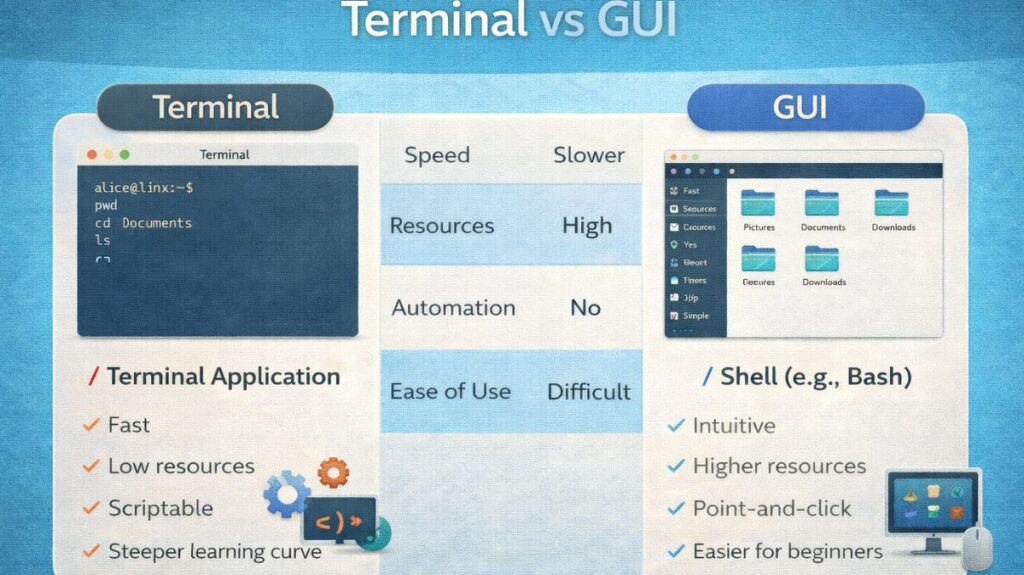
Terminal vs GUI
Why Professionals Prefer Terminal
System administrators, developers, and DevOps engineers like terminals because:
- Scripts can automate thousands of tasks
- Remote servers have no GUI
- Logs and errors are easier to analyze
- Advanced tools only exist in CLI
In real production environments, almost everything is managed through terminals.
Common Beginner Mistakes
- Forgetting spaces between command and options
- Running rm -rf / (very dangerous)
- Editing system files without backup
- Not understanding relative vs absolute paths
Conclusion
The terminal is the heart of Linux power. It controls OS directly, efficiently, and completely. Graphical tools help newcomers, but you won’t understand Linux unless you’re terminal-savvy.
Learn terminal basics to unlock:
- Faster workflows
- Better troubleshooting
- Automation skills
- Professional system control
In Linux, the terminal is not optional it is essential.
Also Read About Input and Output Handling in Linux Explained with Examples