

File permissions and ownership in linux
What is a file permissions in linux?
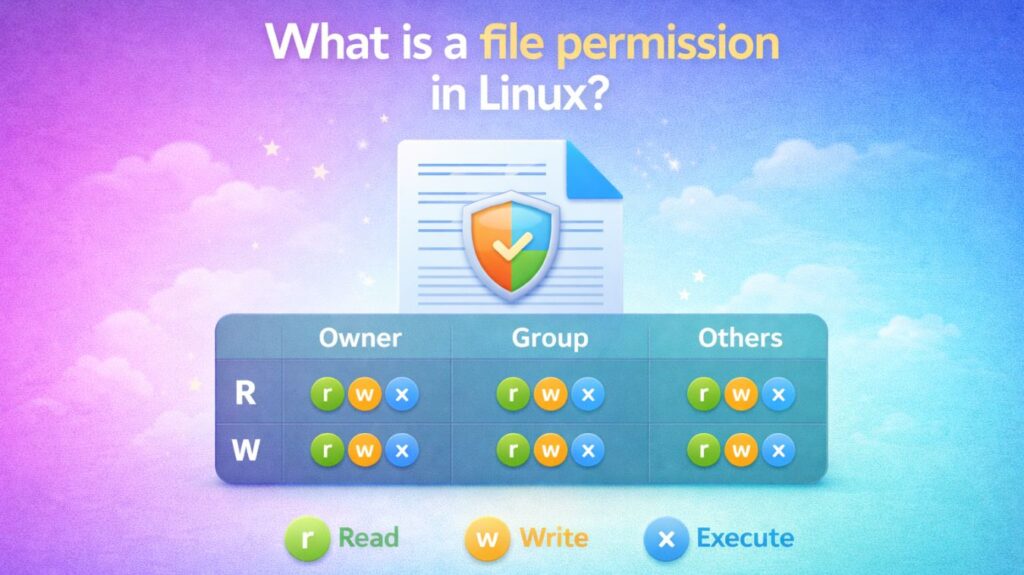
In the Linux ecosystem, security is built on the principles of Permissions and Ownership. Every single file and directory has a set of rules describing who can look at it, update it, or run it. This is what prevents a typical user from mistakenly destroying system files or peeking into another user’s sensitive data.
File permissions define access rights for files and directories. They determine:
- Who can read a file
- Who can modify it
- Who can execute it as a program
Every file and directory in Linux has a permission set attached to it.
Why are file permissions important?
File permissions are the “locks and keys” of your computer. Here is why they are essential:
System Protection: They prevent typical users from deleting or modifying key files that the computer needs to run. This keeps the operating system from crashing due to human error.
Privacy: They ensure that if numerous individuals use the same computer, one person cannot view at another person’s private images, emails, or papers.
Malware Prevention: Unless a virus is explicitly given “Execute” permission, it cannot operate or infect your system even if you download it. This serves as an enormous defense against hackers.
Access Control: They let you share a file with a certain “Group” (such as a project team) while keeping it private from other network users.
Server Security: For websites, permissions ensure that hackers who visit your site can read your pages but cannot change your code or steal your database.
Also read about Linux File System Structure Explained: Root And Directories
What are the three types of file permissions?
You can work with a file in three fundamental ways:
- Read (r): For a file, you can view the contents. You can list the files that are contained within a directory.
- Write (w): For a file, you can alter or remove it. You can add or remove files from a directory.
- Execute (x): A file can be executed as a script or program. It enables you to “enter” a directory (
cdinto it).
User Categories (The “Who”)
Permissions are assigned to three separate groups of people:
- Owner (u): The individual user who authored the file (or was assigned ownership).
- Group (g): A collection of people who have the same access level.
- Others (o): Everyone else on the system (the “world”).
Viewing Permissions with ls -l
A string of ten characters, such as -rwxr-xr--, appears when you execute ls -l. Here is how to decode it:
- 1st character: The file type (
-for file, d for directory). - Characters 2-4: Permissions for the Owner.
- Characters 5-7: Group Permissions.
- Characters 8-10: Permissions for Others.
Use the command:
bash

ls -l
Example output:
bash

-rwxr--r-- 1 root admin file.txt
Explanation:
powershell

-        → File type (- means file, d means directory)
rwx      → Owner permissions
r--      → Group permissions
r--      → Others permissions
Also read about What Is The GNOME Terminal In Linux? GNOME-Terminal Uses
Special Permissions (The Advanced Stuff)
Sometimes conventional permissions aren’t enough. Linux employs “Special Bits” for various scenarios:
SUID (Set User ID): Any user executing a file with SUID has the owner’s permissions. (Common in the passwd command).
Example:
bash

chmod u+s program
Common example:
bash

/ usr / bin / passwd
SGID (Set Group ID): Files produced in a directory with SGID will inherit the group of the parent directory, not the person who created it. Great for shared folders.
Command:
bash

chmod g+s directory
Sticky Bit: Used on directories (like /tmp) where anyone can write files, but only the owner of a file can delete it. It stops users from erasing each other’s work.
Command:
bash

chmod +t /shared
Example:
bash

/ tmp
Also read about How To Create A Startup Service In Linux Using Systemd
The umask (User Mask)
When you create a new file, why does it have specific permissions by default? That is determined by the umask.
The umask functions as a “filter” that subtracts permissions from the maximum possible.
Check current umask:
bash

umask
Example output:
bash

0022- Default for Files: 666
- Default for Directories: 777
Change umask:
bash

umask 007
If your umask is 022, your new files will result in 644 (666 – 022). It ensures that system files aren’t created with harmful “write” permissions for everyone by d
Changing file permissions and ownership in linux
Changing Permissions (chmod)
The chmod (Change Mode) command is used to change these rules. You can utilize two methods:
Symbolic Method (The Logical Way)
Uses letters and operators (+, -, =).
chmod u+x file.txt(Adds execute permission for the owner)
chmod g-w file.txt(Removes write permission for the group)
Symbolic Format
lua

rwxr-xr--
Numeric Method (The Fast Way)
Uses numbers to signify permissions: Read = 4, Write = 2, Execute = 1. You add them up for each category.
| Number | Permission | Description |
| 7 | rwx | Read + Write + Execute (4+2+1) |
| 6 | rw- | Read + Write (4+2) |
| 5 | r-x | Read + Execute (4+1) |
| 4 | r-- | Read only |
Example: chmod 755 script.sh (Owner gets 7/full access, Group/Others receive 5/read & execute).
Example:
ini

rwx = 4+2+1 = 7
r-x = 4+0+1 = 5
r-- = 4+0+0 = 4
So:
bash

rwxr-xr-- = 754
Changing Ownership (chown and chgrp)
Sometimes you need to hand a file off to someone else.
chown(Change Owner): Changes who the file belongs to.sudo chown bob report.txt
bash

chown user file.txt
chown user:group file.txt
Example:
bash

chown hemavathi:developers project.txt
sudo chown bob:devs report.txt(Changes both owner to Bob and group to ‘devs’).chgrp(Change Group): Specifically changes the group ownership only.
bash

chgrp groupname file.txt
Example:
bash

chgrp admin report.pdf
Also read about How To Open Terminal In Linux? And Linux Terminal Command
What are 755 and 644 permissions?
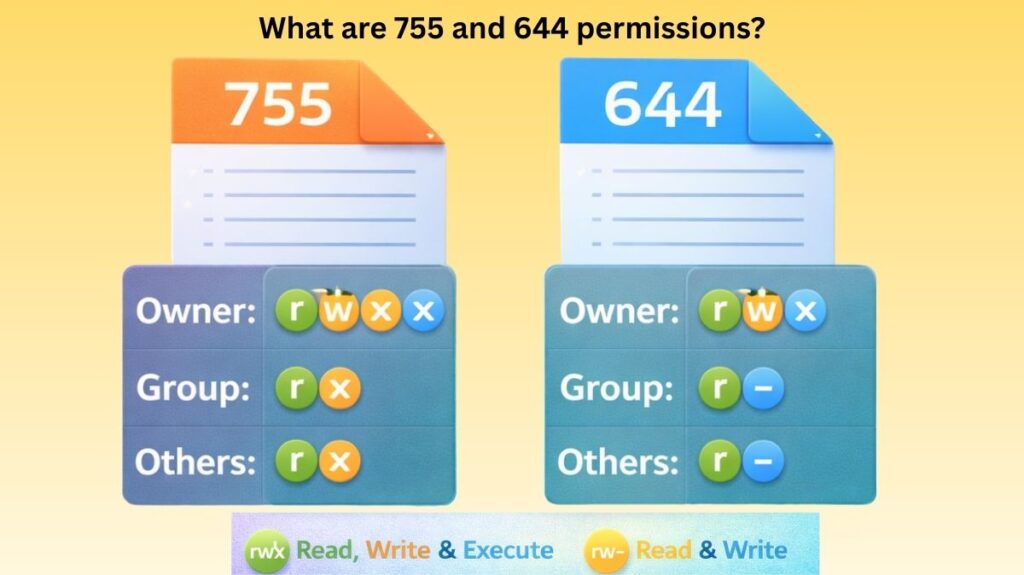
755 and 644 are the two most common permission sets you will encounter. These three-digit numbers are part of the Octal (Numeric) System, where each digit represents a specific category of user: Owner, Group, and Others.
To understand these numbers, you just need to remember the “value” of each permission:
- 4 = Read (r)
- 2 = Write (w)
- 1 = Execute (x)
- 0 = No Permission (—)
Permission 755: The “Public Script”
This is the standard permission for directories and executable files (like scripts or programs). It allows the owner to change everything, while everyone else can only see and run the file.
| Category | Calculation | Result | What they can do |
| Owner | 4 + 2 + 1 = \mathbf{7} | rwx | Read, Write, and Execute (Full Control) |
| Group | 4 + 0 + 1 = \mathbf{5} | r-x | Read and Execute only |
| Others | 4 + 0 + 1 = \mathbf{5} | r-x | Read and Execute only |
Common Use:
- Web Servers: Folders inside
/var/www/htmlare usually set to 755 so the public can view the website, but only the admin can change the code.
- Scripts: If you write a Python or Bash script and want to run it, you use
chmod 755 script.sh.
Permission 644: The “Safe Document”
This is the default permission for regular files (like text files, images, or HTML files). It ensures that files aren’t accidentally executed as programs.
| Category | Calculation | Result | What they can do |
| Owner | 4 + 2 + 0 = \mathbf{6} | rw- | Read and Write (Can edit the file) |
| Group | 4 + 0 + 0 = \mathbf{4} | r-- | Read only |
| Others | 4 + 0 + 0 = \mathbf{4} | r-- | Read only |
Common Use:
- Configuration Files: Most system config files use 644 so the system can read them, but unauthorized users can’t tamper with them.
- Images/Documents: Your personal PDFs or photos are typically 644.
| Permission | Typical Target | Key Characteristic |
| 755 | Folders & Scripts | Executable. Everyone can “enter” or “run” it. |
| 644 | Data Files | Non-executable. No one can “run” it as a program. |
If you ever try to cd into a folder and get a “Permission Denied” error even though you can see it, it’s usually because the folder is missing the Execute (1) bit required to enter it!
Also read about Basic Linux Commands For Beginners With Easy Examples