

What is Garuda Linux?
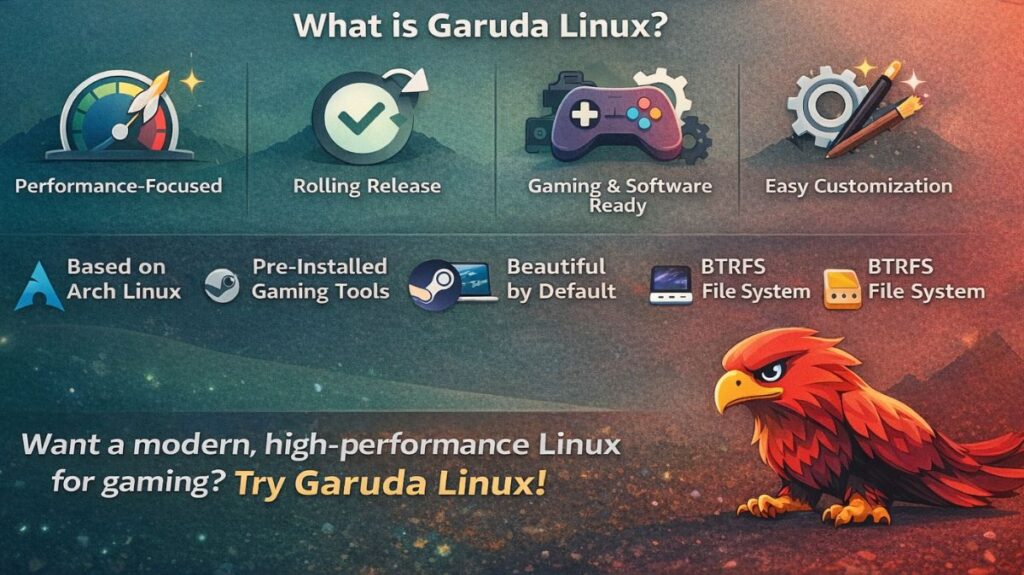
Garuda Linux is a modern, performance-focused Linux distribution based on Arch Linux. It is designed to deliver a fast, visually attractive, and ready-to-use system without the complexity of a traditional Arch installation. Garuda comes with many tools and optimizations pre-configured, making it ideal for gamers, developers, and power users who want high performance with minimal setup.
Garuda offers a fully functional desktop environment immediately upon installation, in contrast to minimal distributions. This comprises pre-configured drivers, codecs, gaming tools, and system utilities.
History and Philosophy
In 2020, Garuda Linux was introduced by Indian engineers. The Hindu mythological word “Garuda” denotes strength and speed, which is exactly what the technique is intended to accomplish.
Prioritizing Performance: Each part is adjusted for responsiveness and quickness.
Experience of the User: After installation, the system is useable and has a professional appearance.
Security: Prevents data loss by utilizing capabilities of contemporary file systems.
Desktop Environments
Garuda offers multiple editions:
| Edition | Best For |
|---|---|
| Dragonized KDE | High-end systems, gaming |
| KDE Lite | Balanced performance |
| GNOME | Simple modern UI |
| XFCE | Low-end PCs |
| Hyprland | Tiling window users |
| i3 | Keyboard-driven workflows |
The most popular is Dragonized KDE, which looks futuristic and gaming-oriented.
Also read about Arch Linux Distros List And Install Commands For Beginners
Package Management
Since Garuda is Arch-based, it uses:
Pacman (Official)
bash

sudo pacman -S firefox
sudo pacman -Syu
AUR Support (Huge Advantage)
Garuda includes AUR helpers by default:
bash

paru -S google-chrome
This gives access to almost every Linux application ever created.
Fundamental Principle: “Performance by Default”
Garuda’s optimizations are shamelessly “heavy” in contrast to other distributions that place more emphasis on battery life or wide compatibility.
- The Linux-zen kernel that comes with Garuda is specially tuned for desktop responsiveness and reduced latency in multimedia and gaming workloads.
- Aggressive Caching: It makes use of pre-configured performance profiles and zRAM (compressed RAM) to guarantee that your CPU and memory are always prepared for heavy workloads.
- Its “Dr460nized” (Dragonized) edition, a modified KDE Plasma configuration including neon icons, blur effects, and a macOS-style dock that appears like it belongs in Cyberpunk 2077, is its most well-known visual identity.
The “Safety Net”: Btrfs and Auto-Snapshots
With Arch-based systems, the main concern is that an update could “break” the system. Almost no other distro can solve this as well as Garuda.
- The Filesystem: By default, Btrfs is used.
- Instant Rollbacks: Garuda automatically creates a “snapshot” (a small backup) whenever you upgrade your system.
- The Magic Trick: You can easily choose a previous snapshot from the boot menu (GRUB) if an update fails and your system won’t start. Your computer returns to its pre-update state in a matter of seconds.
Killer Features for 2026
Garuda Gamer: Installing Steam, Lutris, Wine, Proton, and even older emulators without using the terminal is possible with Garuda Gamer, a one-click graphical user interface solution.
Chaotic-AUR: Arch users typically have to “build” community software in the Chaotic-AUR environment. To save you hours of waiting, Garuda comes with the Chaotic-AUR repository, which offers pre-built versions of thousands of AUR packages.
Garuda Assistant: A specialized dashboard for driver management, kernel switching, and system maintenance is called Garuda Assistant.
NVIDIA 590 Support: The 2026 “Ganymede” update removes compatibility for the GTX 1000 series but includes the latest NVIDIA drivers to simplify the system for modern GPUs.
Garuda linux advantages and disadvantages
| Advantages | Disadvantages |
| Peak Gaming: Optimized kernels mean better FPS and smoother frame times. | Resource Heavy: Not for old PCs. It thrives on 8GB+ of RAM and an SSD. |
| Bulletproof Updates: Btrfs snapshots mean you never have to fear “breaking” it. | Battery Drain: High-performance tweaks can eat laptop battery life quickly. |
| Stunning Visuals: The most beautiful “out of the box” Linux experience. | “The Look”: The neon aesthetic is polarizing; some find it “too much.” |
Also read about What Is Linux Kernel? Why It Is Important And Its Components
Who is Garuda For?
Gamers: If you play on Steam, Epic (via Heroic), or GOG, Garuda is your best Arch-based choice.
Creators: It handles video editing and 3D rendering exceptionally well due to the Zen kernel.
Visual Enthusiasts: If you spend hours “ricing” your desktop, Garuda gives you a 10/10 starting point.
Garuda Linux system requirements
Prior to starting, confirm that your hardware satisfies the 2026 editions’ “real-world” specifications (such as Dr460nized or Mokka):
- RAM: at least 4GB; 8GB or more is strongly advised.
- Free storage space: 30GB (SSD is highly recommended for Btrfs speed).
- 8GB or more on a USB drive.
- GPU: OpenGL 3.3 or higher is supported. The NVIDIA 590 drivers used in the 2026 ISO no longer support the GTX 1000 series and older.
| Component | Minimum |
|---|---|
| RAM | 4 GB |
| Storage | 30 GB |
| CPU | 64-bit |
| GPU | Intel / AMD / NVIDIA |
Step-by-Step Installation Guide
Step 1: Download the ISO
- The official Garuda Linux download site may be found here. Select the KDE Plasma Dr460nized edition to get the full feel.
- The “checksum” (SHA256) should always be checked after downloading to make sure the file isn’t corrupted.
Garuda Linux Download
Official website:
https://garudalinux.org/downloads
ISO size: 3–4 GB
Step 2: Create a Bootable USB
For Arch-based distributions, Rufus should not be used in “ISO mode,” since this may result in boot problems.
- Recommended Tool: It is advised to use Ventoy. Dragging and dropping the Garuda ISO file onto your USB is as easy as installing Ventoy.
- Alternative: Another option is to use Linux’s dd command or BalenaEtcher.
Also read about Manjaro Linux: Features, Download And Installation Process
Step 3: Boot from USB
- Put the USB in and turn your computer back on.
- To access your USB device, press the boot menu key, which is typically F12, F9, or Esc.
- In the Garuda boot screen, select either “Boot with NVIDIA proprietary drivers” (RTX 20 series or later) or “Boot with open-source drivers” (AMD/Intel).
Step 4: The Installer (Calamares)
Select “Install Garuda Linux” from the menu when the “Live” desktop has loaded.
- Partitions: Choose “Erase Disk” if you want Garuda to be your sole operating system. * Important: To activate the automatic snapshot functionality, make sure the filesystem is set to Btrfs.
- Pick “Swap to file” or “Swap with Hibernate” if you’re using a laptop.
- Set a strong password and your name, users. Using the same password for the root (administrator) account is an option.
The “Post-Install” Wizard
The first time you reboot, the Garuda Setup Assistant will launch by itself. This is the setup’s most crucial component:
- System Update: Selecting “Yes” will instantly initiate a complete system update.
- With only one click, install Lutris, Wine, and Steam using Garuda Gamer.
- During the Software Wizard, you will be prompted to install common applications, such as browsers and LibreOffice. To maintain a lean system, only choose what is necessary.
Garuda vs Other Distros
| Feature | Garuda | Manjaro | Ubuntu |
|---|---|---|---|
| Base | Arch | Arch | Debian |
| Rolling | Yes | Yes | No |
| Snapshots | Yes | No | No |
| Gaming Ready | Yes | Partial | No |
| Visuals | Extreme | Moderate | Simple |
| Safety | Very high | Medium | Low |
Also read about EndeavourOS Download & Install Commands step by step Guide