

What is SteamOS holo?
The 2026 “Console-Slayer” is SteamOS (Holo).
Early in 2026, SteamOS 3.x (codenamed “Holo”) has effectively transcended its function as the “Steam Deck OS.” It is still at the core of Valve’s handheld, but it has now spread into a wider range of “Powered by SteamOS” gadgets and the eagerly anticipated 2026 Steam Machine update.
By combining the functionality of Arch Linux with an interface that is ideal for a TV or portable device, SteamOS Holo is made to transform any PC into a gaming console.
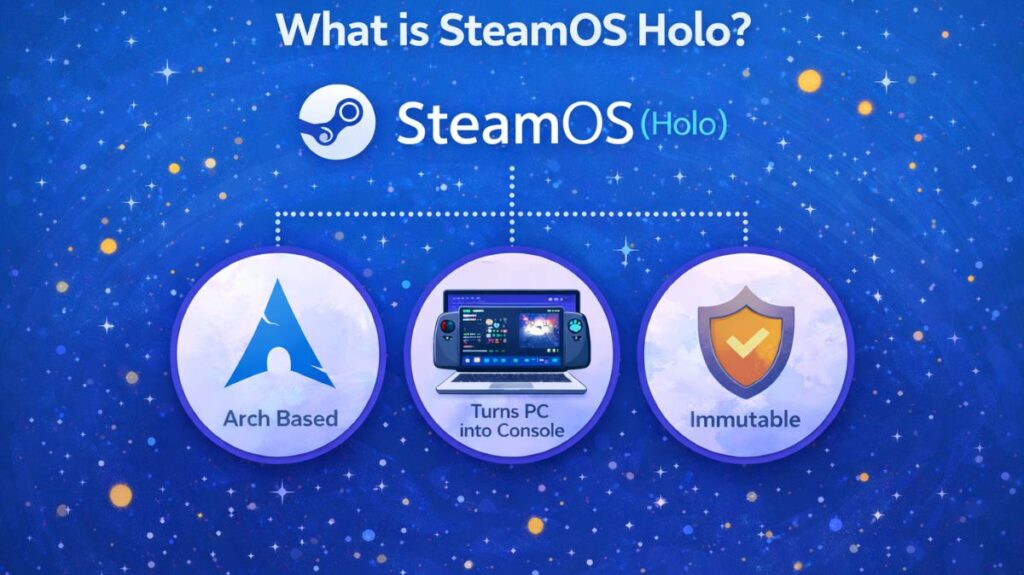
Core Architecture: Immutable and Arch-Based
“Normal” Linux distributions are not what SteamOS Holo is. It makes use of an unchangeable root filesystem.
Dual-Partition System: SteamOS simultaneously writes to a second partition during updates, switching to it upon startup. Just the previous version is booted if the update doesn’t work.
Flatpak vs. Pacman: Since the system is “locked,” installing software with the classic pacman command is difficult because it would overwrite them in the next update. Rather, in Desktop Mode, SteamOS uses Flatpak through the “Discover” store.
The Neptune Kernel: Valve employs a proprietary kernel designed for low latency and particular functions such as GameScope, a customized compositor that controls frame rates and resolution.
The Dual-Mode Experience
Essentially, SteamOS Holo is a hybrid of two distinct operating systems:
Gaming Mode (The Front Entrance)
Like the Steam Deck, the controller-first user interface is the same in gaming mode (the front entrance). It controls all system resources, has a single “Quick Access” menu for performance adjustments (TDP, FPS caps, and FSR), and controls “Verified” game settings.
Desktop Mode (The Side Door)
The Side Door, or Desktop Mode, is a complete KDE Plasma desktop environment. Upon selecting “Switch to Desktop,” you are presented with a standard PC that allows you to edit movies, access the web, and install other launchers like as Heroic or Lutris.
Also read about What Is Linux Kernel? Why It Is Important And Its Components
Key Features in 2026
- The 2026 update from Valve included an official dual-boot wizard that lets users install SteamOS and Windows 11 without manual partitioning.
- The 2026 kernel supports the Steam Deck and Legion Go S but improves AMD RDNA 4 and Intel Arc GPU support.
- A system-level feature called “native game recording” enables you to record and distribute games without the use of third-party programs like OBS.
- Nested Desktop enables you to utilize a browser or Discord without exiting your game session by launching the KDE Desktop as a “window” within Gaming Mode.
Performance
SteamOS applies multiple performance optimizations:
| Area | Optimization |
|---|---|
| CPU | Low-latency scheduling |
| GPU | Vulkan-first rendering |
| RAM | Smart memory compression |
| Storage | Read-only system layers |
| Power | Dynamic scaling |
SteamOS (Holo) dwonload
The Steam Deck Recovery Image, which has been modified (v3.7+) to handle a far wider range of hardware, including the Legion Go S and generic AMD-based PCs, is still the “official” method of downloading SteamOS for a general PC in 2026.
Official Download Links (2026)
The most recent stable images are directly available on Valve’s servers.
The official image of recovery (direct)
- Observation: Locate the URL that reads “Download the SteamOS image here.”
- The Image Repository: You can search the cloud directory to find the most recent beta or a specific earlier version if you require it:
- Typically, the file format is
steamdeck-recovery-[date].img.bz2.
Community “Holo” Alternatives
Although Valve’s official image functions, it is optimized for the Steam Deck. In 2026, the community-maintained versions are frequently far simpler to install on a conventional desktop PC, particularly one equipped with an NVIDIA card:
- Bazzite: Right now, Bazzite is the best option for a “SteamOS-like” PC experience. Better desktop compatibility and NVIDIA drivers are included right out of the box.
- HoloISO (Tweaked): The fan-made HoloISO (Tweaked) version converts the official SteamOS “Holo” files into a format that can be installed on a typical PC.
Also read about What Is The GNOME Terminal In Linux? GNOME-Terminal Uses
Step-by-Step Installation Guide
Step 1: Create the Bootable USB
- Get BalenaEtcher (Mac/Linux) or Rufus (Windows).
- Click on your USB drive and SteamOS image.
- The picture should be flashed.
When using Rufus, make sure to choose “DD Image mode” when requested.
Step 2: Booting the Installer
- Connect the target PC to the USB.
- On handhelds, this is typically F12, F11, or Volume Down + Power. Enter your boot menu.
- Then, pick “EFI USB Device.”
- After landing, you will be in the KDE Plasma Desktop environment. This version is operating “Live” from your USB.
Step 3: The “Re-Image” Process
There are a number of icons visible on the desktop.
- Steam Deck/PC Re-image: This is the “Nuclear Option.” Your whole hard drive will be erased, and SteamOS will be installed as the sole operating system.
- Click “Re-image” twice to launch a terminal window. When asked to confirm the disk wipe, enter “yes” in response.
- Disks will be extracted by the system. After it’s done, click “Proceed” to restart.
Step 4: Initial OOBE (Out of Box Experience)
- When you restart, the Steam logo will appear.
- Choose the language and time zone you like.
- Make a Wi-Fi connection. A 500MB download of the most recent Steam client upgrades will be made to the machine.
- Use your Steam account to log in.
Post-Installation Optimization
When you’re in “Gaming Mode,” you should perform these two things right away in 2026:
- To set a Sudo password, go to Power > Switch to Desktop and select Desktop Mode. Launch Konsole, the terminal, and enter
passwd. This enables you to carry out administrative duties. - In order to prevent the user interface from appearing small on a 4K TV, make sure “Automatic Scaling” is enabled under Settings > Display in Gaming Mode.
Can You Install SteamOS on a PC?
Officially, SteamOS (Holo) is optimized for Steam Deck.
However, many users install it on PCs using:
- HoloISO
- ChimeraOS
- Nobara Steam Edition
These provide similar experiences.
Also read about What Is Garuda Linux? History, Advantages and Disadvantages
How to Get It in 2026?
- Purchase a Steam Deck or a “Powered by SteamOS” third-party device to have it pre-installed.
- Official ISO: Valve has made available a “Recovery Image,” but a general-purpose “Installer ISO” for desktop computers is still in the “Coming Soon” stage. However, third-party clones such as HoloISO or Bazzite are an excellent substitute for this.
SteamOS (Holo) Advantages And Disadvantages
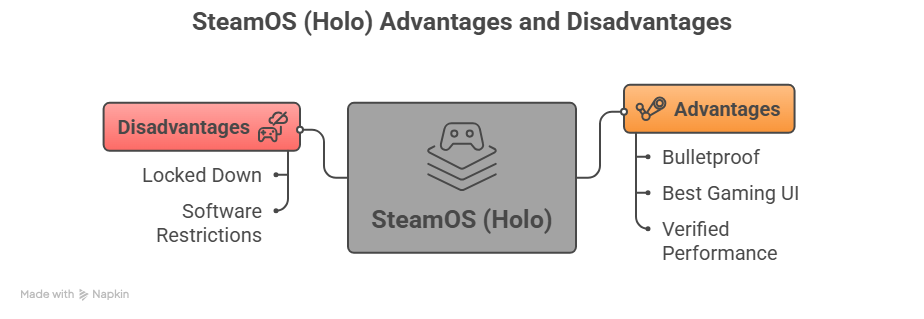
Advantages
- Bulletproof: It is nearly impossible for a user to inadvertently erase a system file to the “Immutable” technology.
- Best Gaming UI: Launches directly into a controller-compatible console interface.
- Verified Performance: Valve pre-tests games to make sure they function.
Disadvantages
- Locked Down: Installing numerous system-level utilities and using the pacman command are difficult without “unlocking” (and possibly damaging) the operating system.
- Software Restrictions: For the most part, you can only use Flatpaks for your desktop programs.
SteamOS vs Windows for Gaming
| Feature | SteamOS | Windows |
|---|---|---|
| Boot Speed | Very fast | Moderate |
| System Overhead | Very low | High |
| Updates | Background | Forced reboots |
| FPS Stability | Excellent | Good |
| Privacy | No telemetry | Heavy tracking |
| Ads | None | Start menu ads |
| Cost | Free | Paid |
SteamOS Proton
Proton, a compatibility layer created by Valve, is used by SteamOS.
Proton allows:
- Windows-only games to run on Linux
- DirectX games to use Vulkan
- Anti-cheat support for many titles
As of 2026:
- Thousands of AAA titles work flawlessly
- Over 90% of Steam games run on SteamOS
Because of this, SteamOS is among the most compatible gaming systems available.
Is steamos free
Yes, you may download and install SteamOS on your own hardware for free.
It adheres to the same “Free and Open Source” tenets as Fedora and Ubuntu, two major Linux variants, as of 2026. The underlying operating system is open source, but the Steam Client the interface you use to purchase games is proprietary software controlled by Valve.
Why is it free?
Unlike Microsoft with Windows, Valve does not make a living from selling operating systems. Rather, they distribute SteamOS for free in order to:
Promote the Steam Store: People are more likely to purchase games from Valve if they use SteamOS.
Encourage Hardware Innovation: By making the operating system free, other businesses (such as Lenovo or ASUS) can create “SteamOS Compatible” PCs and handhelds without having to pay license fees, which lowers the cost of the devices for you.
Are you required to pay for anything?
Hardware: Although the software is free, it is obviously expensive to purchase a device that comes with it pre-installed, such as the Steam Deck or the 2026 Lenovo Legion Go S.
Commercial Licensing: You must contact Valve for a commercial license agreement if your business plans to manufacture 10,000 PCs and market them under the “Powered by SteamOS” label.
You can make a “Steam Machine” out of an old PC that you have hanging around and a USB drive right now for free.
Also read about How To Install Garuda Linux On Virtualbox Easy Setup Guide