

Process Management in Linux
In Linux and UNIX-based operating systems, one of the most crucial ideas is process management. Whether you’re running a command at the terminal, playing a movie, or launching a browser, every action you take on a Linux system takes the form of a process. You can effectively manage system resources, solve issues, and monitor system performance by having a solid understanding of how processes operate.
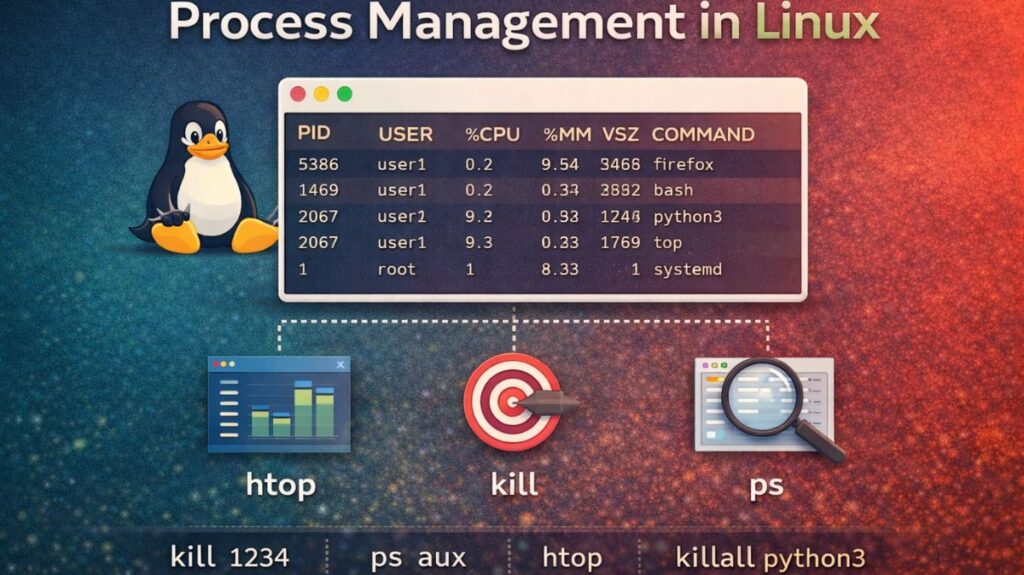
What is process in Linux?
A process is an instance of a program that is running on the system at the moment.
- Program: A static file sitting on your disk (e.g.,
/bin/bash). - Process: That file loaded into memory and actively running.
As an example:
firefoxbecomes a process when you enter firefox in the terminal.- If you type
ls, the command will execute as a temporary process.
Each process has:
- Its own memory space
- A unique ID (PID)
- A priority level
- A state (running, sleeping, etc.)
Linux multitasks, allowing thousands of processes to run simultaneously.
Also read about What Is SteamOS Holo? Features, Download & PC Install Guide
Processes States
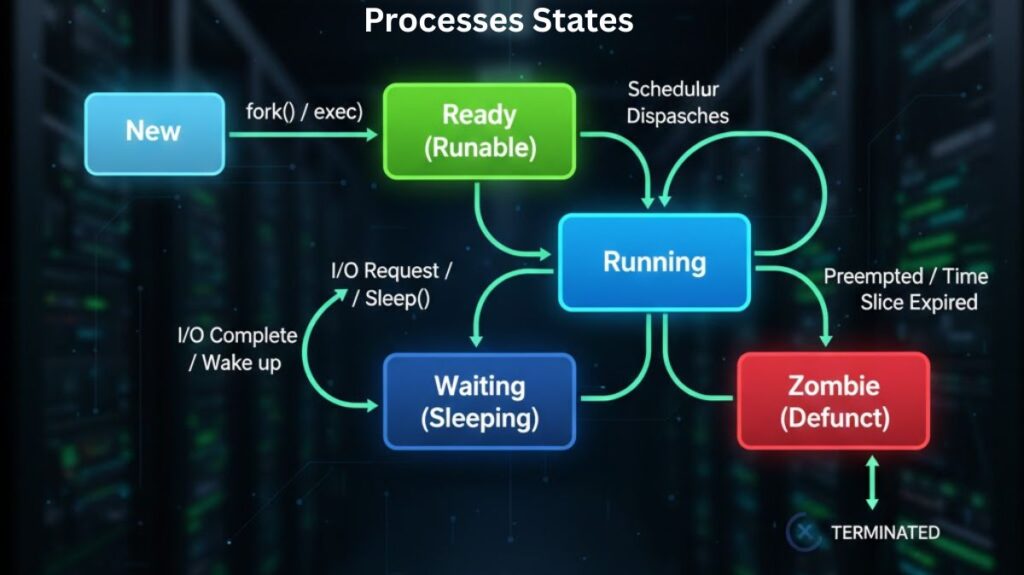
Each process in Linux has a state that indicates what it is doing at the moment.
Running (R)
- The CPU is being used actively by the process.
- As an example:
- Playing a video in a video player.
Sleeping (S)
- The process is waiting on something, such as disk data or human input.
- As an example:
- An open browser awaiting your click on a link.
Uninterruptible Sleep (D)
- It is unable to be stopped while it waits for hardware input.
- As an example:
- A process that is awaiting a disk read.
Stopped (T)
- The procedure is now on hold.
- As an example:
- On an active program, pressing Ctrl + Z.
Zombie (Z)
- Even though the process has completed running, its memory entry is still present.
- As an example:
- An exiting child process whose status has not been retrieved by the parent.
- Despite not using CPU, zombie processes are a sign of inadequate program cleanup.
- Processes don’t just “run”; they move through different states based on what the CPU is doing.
| Code | State | What it means |
| R | Running / Runnable | Actively using the CPU or waiting in line to use it. |
| S | Sleeping | Waiting for something to happen (like a keystroke or a file to load). |
| D | Uninterruptible Sleep | Waiting for hardware (usually a disk). It cannot be killed until the hardware responds. |
| T | Stopped / Traced | Paused by the user or a debugger. |
| Z | Zombie (Defunct) | A process that finished but its parent hasn’t acknowledged it yet. It uses no RAM but stays in the process table. |
Also read about How To Open Terminal In Linux? And Linux Terminal Command
Process commands in linux with examples
Linux provides multiple commands to view and monitor processes.
ps – Process Snapshot
The ps command shows a snapshot of currently running processes.
Basic Usage
bash

ps
Shows processes running in the current terminal.
Common Options
bash

ps -ef
Shows:
- All processes
- User who started them
- PID
- Parent PID
- Start time
Example output:
bash

UID   PID  PPID  CMD
root  1    0     systemd
user  2345 1     firefox
top – Live Process Monitor
The top command shows real-time process activity.
bash

top
It displays:
- CPU usage
- Memory usage
- Running processes
- System load
You can:
- Press
qto quit - Press
kto kill a process - Press
Mto sort by memory - Press
Pto sort by CPU
htop – Advanced Process Viewer
htop is an improved version of top with colors and mouse support.
bash

htop
Features:
- Tree view of processes
- Kill processes with keyboard
- Easy sorting and filtering
- Better visual display
It is not installed by default on all systems.
Install it using:
bash

sudo apt install htop
sudo pacman -S htop
pstree – Process Tree
pstree shows processes in a tree structure.
bash

pstree
This shows parent-child relationships.
Example:
bash

systemd
 ├─NetworkManager
 ├─sshd
 │   └─bash
 │       └─vim
This helps understand which process started which.
Also read about What Are The Two Major Linux Package Management Systems?
Process IDs (PID)
- Every process has a Process ID (PID).
- The PID is a unique number assigned by the system.
Example:
bash

ps -ef | grep firefox
Output:
bash

user  2345  1  firefox
Here, 2345 is the PID of Firefox.
The system process always has:
bash

PID 1 = systemd or init
This is the first process started at boot.
Killing Processes
Sometimes processes freeze, crash, or consume too many resources. Linux allows you to manually stop them.
kill – Terminate a Process
The kill command sends a signal to a process.
bash

kill PID
Example:
bash

kill 2345
This sends a SIGTERM signal (polite request to exit).
kill -9 – Force Kill
If a process does not stop:
bash

kill -9 PID
This sends SIGKILL, which:
- Immediately stops the process
- Does not allow cleanup
- Should be used only if necessary
Example:
bash

kill -9 2345
killall – Kill by Name
Instead of using PID:
bash

killall firefox
This kills all processes named “firefox”.
Be careful: It kills every instance.
Foreground and Background Processes
Linux allows running tasks in foreground or background.
Foreground Process
A process that runs directly in your terminal.
Example:
bash

ping google.com
It occupies the terminal until you stop it.
Background Process
A process that runs without blocking the terminal.
Example:
bash

ping google.com &
Now it runs in background.
Also read about What Is The GNOME Terminal In Linux? GNOME-Terminal Uses
Jobs Command
View background jobs:
bash

jobs
Bring a job to foreground:
bash

fg %1
Send job to background:
bash

bg %1
Stop a foreground process:
bash

Ctrl + Z
Nice and Renice (Process Priority)
Linux uses priority levels to decide which process gets more CPU time.
Nice Value
Nice values range from:
- -20 (highest priority)
- +19 (lowest priority)
Default nice value:
bash

0
nice – Start Process with Priority
Example:
bash

nice -n 10 firefox
This starts Firefox with lower priority.
renice – Change Priority of Running Process
Example:
bash

renice -5 -p 2345
This increases priority of PID 2345.
Only root can assign negative values.
Real-Life Examples
Example 1: Kill a frozen browser
bash

ps -ef | grep chrome
kill -9 PID
Example 2: Run long task in background
bash

tar -cvf backup.tar folder/ &
Example 3: Lower priority for heavy task
bash

nice -n 15 ffmpeg -i video.mp4 output.mp4
This ensures your system stays responsive.
Summary Cheat Sheet
| Task | Command |
| Find a PID | pidof [name] or `ps aux |
| Emergency Stop | Ctrl + C (Kill) or Ctrl + Z (Pause) |
| Check CPU/RAM | htop |
| Polite Kill | kill [PID] |
| Forced Kill | kill -9 [PID] |
| Boost Priority | sudo renice -n -10 -p [PID] |
Also read about Basic Linux Commands For Beginners With Easy Examples