

Kill process linux
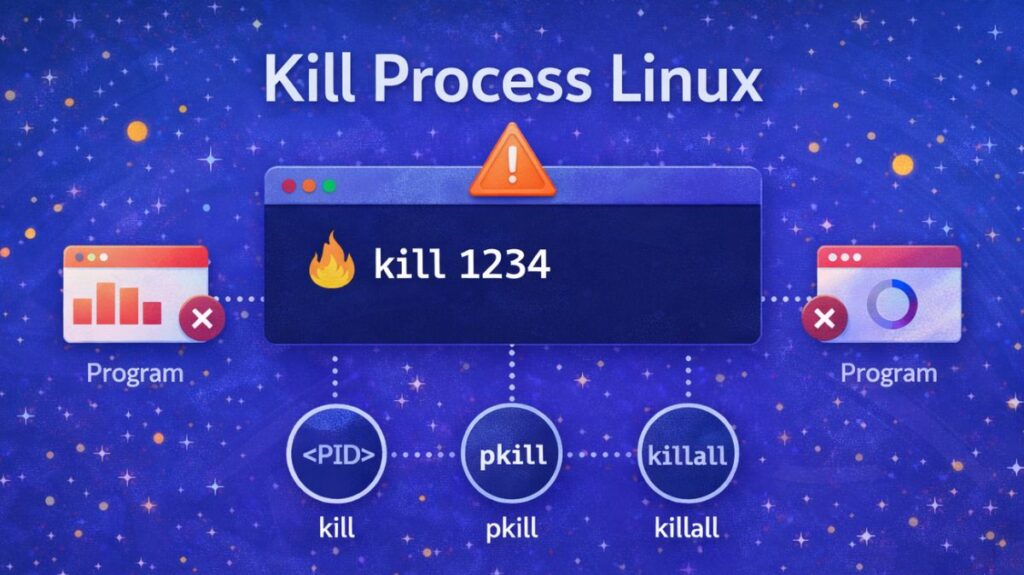
Killing a process in Linux refers to signaling an active program to cease executing. Because programs can freeze, utilize excessive amounts of resources, or behave improperly, this is a crucial component of system administration. Linux enables you to manage or end just the problematic process rather than restarting the entire system.
Killing a process does not always imply that it must end right away. Linux has a variety of signals, each of which stands for a certain kind of instruction. While some signals demand termination immediately, others kindly ask the process to stop.
Why Is Process Killing Necessary?
In numerous real-world scenarios, killing processes is required:
- A program stops responding and becomes unresponsive.
- A program uses all of the memory or CPU.
- A service hangs in the background.
- System shutdown is prevented by a process.
- An endless loop is entered by a script.
Restarting the entire system would be the only option without process control, which is dangerous and inefficient for servers.
You are not truly erasing the process when you use a “kill” command. You are requesting that the Linux kernel provide that process a particular signal. After that, the process responds according to the kind of signal it receives.
Understanding Signals
A signal is a message sent by the kernel to a process.
How Processes Receive Signals
You are not truly erasing the process when you use a “kill” command. You are requesting that the Linux kernel provide that process a particular signal. After that, the process responds according to the kind of signal it receives.
Common signals:
| Signal | Number | Meaning |
|---|---|---|
| SIGTERM | 15 | Politely ask process to terminate |
| SIGKILL | 9 | Force immediate termination |
| SIGSTOP | 19 | Pause the process |
| SIGCONT | 18 | Resume paused process |
| SIGHUP | 1 | Reload configuration |
The default signal used by most commands is SIGTERM (15).
Killing from Interactive Tools
Using top
- Press
k - Enter PID
- Choose signal (default 15)
Using htop
- Select process
- Press
F9 - Choose signal
Also read about Process Management In Linux Commands With Examples
Killing processes in linux with examples
Step 1: Finding the Process ID (PID)
Every running program has a unique number called a PID (Process ID).
You must know the PID before killing a process.
Using ps
bash

ps aux
Using pgrep
bash

pgrep firefox
Using top
bash

top
Using htop
bash

htop
These commands show running processes along with their PIDs.
Step 2: Killing a Process (Basic Method)
kill command
bash

kill PID
Example:
bash

kill 2456
This sends SIGTERM and gives the process a chance to shut down cleanly.
Force Kill (When Normal Kill Fails)
If the process ignores SIGTERM:
bash

kill -9 PID- This sends SIGKILL which the process cannot ignore.
- It immediately removes the process from memory.
- Use this only as a last option.
Killing by Name (No PID Required)
killall
bash

killall firefox
Kills all processes with the name “firefox”.
pkill
bash

pkill chrome
Matches and kills processes by name.
Also read about What Are The Types Of Process Management In Linux?Explain
Killing All Processes of a User
bash

killall -u username
Used in multi-user systems.
Stopping vs Killing
Stopping pauses the process:
bash

kill -STOP PID
Resume it:
bash

kill -CONT PID
Useful for temporarily freezing tasks.
Kill process command
A. Using kill (By PID)
The kill command requires the Process ID (PID). You find the PID using top, htop, or pgrep.
- Polite:
kill 1234(Sends Signal 15 by default). - Forceful:
kill -9 1234(Use only if the process is frozen).
B. Using pkill (By Name Pattern)
pkill is more convenient because you don’t need the PID. It looks for processes that match a name.
- Example:
pkill firefox - Precise Match:
pkill -f "python script.py"(Matches the full command line).
C. Using killall (Exact Name)
Unlike pkill, which matches partial names, killall looks for an exact match and kills every instance of it.
- Example:
killall chrome(Closes every single Chrome tab/process at once).
Also read about Linux File System Structure Explained: Root And Directories
Real World Example
A browser consumes 100% CPU.
Step 1:
bash

pgrep chrome
Step 2:
bash

kill PID
If it doesn’t work:
bash

kill -9 PID
Best Practices & Warnings
Try 15 before 9: SIGTERM (15) should always come first. If SIGKILL (9) is used right away, database files may become corrupted or “lock files” may be created that prevent the application from starting up later.
The Zombie Exception: It states that you cannot terminate a process that is in a zombie state (State Z). It’s dead already. To remove it from the table, you must either restart the computer or terminate its Parent Process.
Find parent:
bash

ps -o ppid= -p PID
Root Power: Only your own processes can be terminated. You must use sudo (e.g., sudo kill -9 1234) to terminate a system-level process or one that belongs to another user.
Summary
Killing processes is a core Linux skill. It allows you to control system behavior without restarting.
You should remember:
kill→ politekill -9→ forcekillall→ by namehtop→ visual control- Signals define behavior
Mastering process termination makes you efficient, safe, and professional in Linux system management.