

Services and system management in linux
A Linux system’s operational core is made up of services and system management. Linux is utilized as a desktop, server, cloud instance, or embedded device; daemons and background services make sure the system runs smoothly and continually. Administrators and IT workers need to understand how services function, are managed, and interface with the operating system.
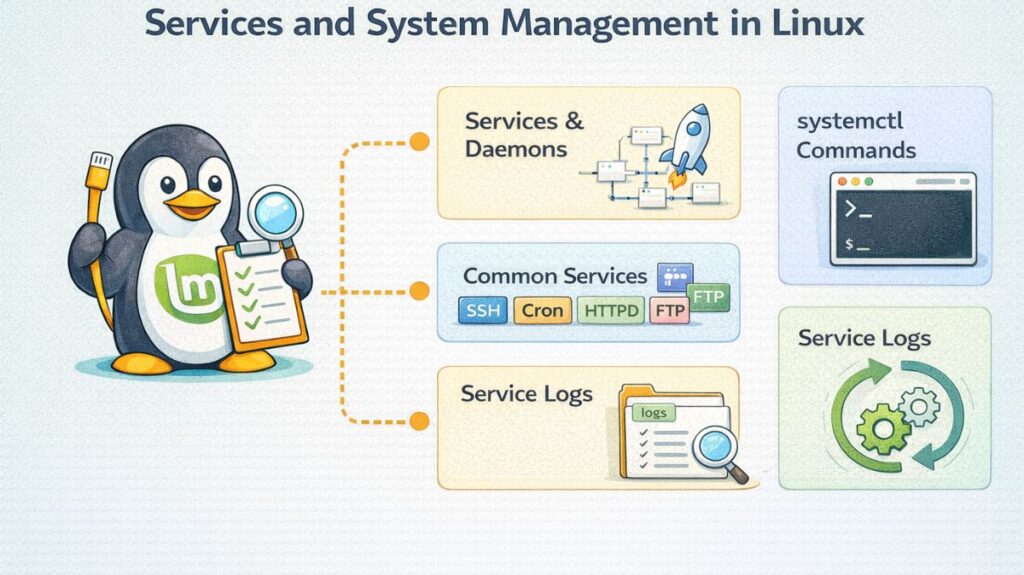
What Are Linux Services?
A Linux software or process that executes in the background to carry out particular duties is called a service. In contrast to interactive programs that need user interaction, services run continually and silently, frequently beginning when the system boots up.
Examples of tasks performed by services:
- Logging system events
- Handling remote connections
- Serving web pages
- Managing scheduled tasks
- Providing file transfer capabilities
Services are lengthy operations created to react to requests from users, network clients, or other programs.
Also read about Networking in Linux: Types, Advantages, and Disadvantages
What Are Daemons?
Service types that operate in the background without requiring direct user input are known as daemons. Early UNIX systems are the source of the term.
Daemon characteristics:
- Run in the backdrop
- Often begin at startup time.
- Function separately from a terminal
- Provide functionality at the system or network level.
- Frequently conclude with the letter “d” (e.g.,
sshd,httpd,crond).
In other words, not all services are necessarily classic daemons, but all daemons are services.
How Services Work in Linux
The init and service management mechanism for contemporary Linux systems is called systemd. Systemd takes the role of previous systems like Upstart and SysVinit.
An Overview of the Boot Process:
- The kernel of Linux loads.
- Systemd is the first user-space process (PID 1) to launch.
- Unit files are configuration files that systemd reads.
- It fixes dependencies between services.
- Whenever possible, services are launched in concurrently.
- Systemd keeps an eye on all services that are active.
Systemd can automatically restart a service if it fails, depending on how it is configured.
Systemctl Command
The systemctl command is the primary tool used to manage services in systemd-based systems.
Start a Service
bash

systemctl start service_name
Starts the service immediately.
Stop a Service
bash

sudo systemctl stop service_name
Stops a running service safely.
Restart a Service
bash

sudo systemctl restart service_name
Stops and then starts the service again.
Enable a Service
bash

sudo systemctl enable service_name
Configures the service to start automatically at boot.
Disable a Service
bash

sudo systemctl disable service_name
Prevents the service from starting automatically at boot.
Check Status
bash

systemctl status service_name
Displays detailed information including:
- Current state
- Main process ID
- Recent log entries
- Loaded unit file path
| Command | Action |
sudo systemctl start <service> | Starts a service immediately (current session). |
sudo systemctl stop <service> | Stops a service immediately. |
sudo systemctl restart <service> | Stops and then starts a service (updates changes). |
sudo systemctl enable <service> | Configures the service to start automatically at boot. |
sudo systemctl disable <service> | Prevents the service from starting at boot. |
systemctl status <service> | Checks if a service is running and shows recent logs. |
Also read about How To Change Hostname In Linux Permanently Command Line
Common Linux Services
SSH (Secure Shell)
Managed by OpenSSH server.
- Service name:
sshd - Provides secure remote login access
- Encrypts communication
- Commonly used for server administration
Function:
- Remote management
- Secure file transfers (SCP/SFTP)
Importance:
- Essential for remote server environments
Cron
- Service name:
crond - Schedules automated tasks
- Executes commands at specific times
Function:
- Backup automation
- System maintenance
- Log cleanup
Importance:
- Reduces manual workload
- Ensures routine tasks are executed consistently
HTTPD (Apache Web Server)
Managed by Apache HTTP Server.
- Service name:
httpd - Hosts websites and web applications
Function:
- Processes HTTP requests
- Delivers web pages
Importance:
- Foundation of web hosting
FTP (File Transfer Protocol)
Common implementations:
vsftpdproftpd
Function:
- Transfers files between systems
- Supports authentication and file management
Importance:
- Used in legacy systems and internal networks
Also read about What Is A Shell Script In Linux? How It Works And Examples
Service Logs
Logging is critical for monitoring and troubleshooting services.
journalctl (systemd Logging)
bash

journalctl -u service_name
Displays logs related to a specific service.
Features:
- Real-time monitoring
- Timestamped entries
- Filter options
Traditional Log Files
Located in:
bash

/var/log/
Common files:
- syslog
- messages
- auth.log
Logs help diagnose:
- Startup failures
- Permission errors
- Configuration mistakes
- Security incidents
Managing a Service Lifecycle
| Goal | Command Example |
| Go live now | sudo systemctl start httpd |
| Fix after config change | sudo systemctl restart httpd |
| Make it permanent | sudo systemctl enable httpd |
| Troubleshoot a crash | journalctl -u httpd -n 20 |
Also read about Loops In Shell Scripting For Automation And Task Management
Service Management & Logs
How it Works
When you run systemctl start, the systemd manager looks for a “Unit File” (usually in /lib/systemd/system/). This file contains instructions on how to run the program, what user it should run as, and what other services it depends on.
Features & Functions in the OS
- Parallelism: Systemd starts services at the same time to make boot-up faster.
- On-Demand Loading: Some services only start when they are actually needed (socket activation).
- Automatic Recovery: If a critical service crashes, systemd can be configured to restart it automatically.
Importance
Service management is the “nervous system” of a server. Without it, you would have to manually start every single component (like your network or firewall) every time the computer turned on.
Advantages and Disadvantages
| Advantages | Disadvantages |
| Automation: Services manage themselves once enabled. | Complexity: Systemd is large and can be difficult for beginners to debug. |
| Security: Services can be “sandboxed” to limit what files they can see. | Resource Usage: Too many enabled services can slow down the system. |
| Reliability: Ensures critical background tasks never stop. | Boot Issues: A single broken service can sometimes stall the boot process. |
Importance of Services in Linux
Booting and Automation
A Linux system can work as soon as it is turned on thanks to services. System services load the Wi-Fi, display, and keyboard drivers automatically on bootup, saving you the trouble of launching them manually.
Self-healing and stability
The capacity of contemporary Linux services to self-monitor is one of their best qualities. Without human assistance, the system manager (systemd) can identify and immediately restart a key service, such as your web server, if it crashes.
Effectiveness (Management of Resources)
Services only operate when required. Certain services are “socket-activated,” which means that until they are really called upon by a user or another software, they remain inactive and use no CPU power.
Remote Accessibility
You would need to be physically there in front of a server in order to fix it without services like SSH. Remote management is made possible by services that listen for connections from all over the world or just across the room.
Safety and Separation
It is possible to set Linux services to operate with extremely restricted permissions. A web service, for instance, can be blocked to prevent hackers from viewing your sensitive user files or altering system settings.
Centralized Logging
All of the services’ “notes” (logs) are kept in one location since they are administered by a single system. This makes it very simple for an administrator to determine the precise cause of a system slowdown or a failed login.
Also read about Important Hostname Files In Linux Explained With Examples