

Basic Linux Commands
Linux is a robust operating system based on the principle that anything can be controlled by commands. Whether you are a student, system administrator, or developer, mastering basic Linux commands provides the foundation for working successfully in a Linux environment.
The most crucial Linux commands for file management, file viewing, searching, and system information are explained in this article in an understandable and useful manner.
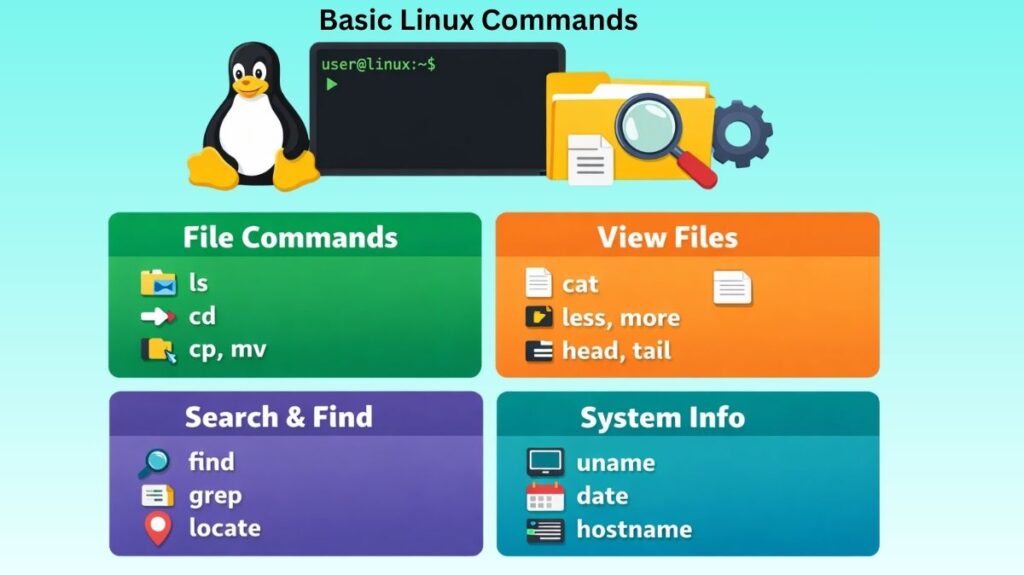
1. File and Directory Commands
These commands help you navigate and manage files and folders in the Linux file system.
1.1 ls – List Directory Contents
The ls command shows the files and directories in the current location.
Usage:
bash

ls
Common options:
ls -l→ Detailed view (permissions, owner, size, date)ls -a→ Shows hidden files (starting with.)ls -lh→ Human-readable file sizes
This command is usually the first one people learn because it helps you see what exists in a directory.
1.2 pwd – Print Working Directory
Displays the full path of your current directory.
bash

pwd
It is useful when you are deep inside folders and want to know exactly where you are.
1.3 cd – Change Directory
Moves you from one directory to another.
bash

cd Documents
Special shortcuts:
cd ..→ Move one level upcd ~→ Go to home directorycd /→ Go to root directory
Also read about What Is Linux Kernel? Why It Is Important And Its Components
1.4 mkdir – Create Directory
Creates a new folder.
bash

mkdir projects
Create nested folders:
bash

mkdir -p dev/linux/scripts
1.5 rmdir – Remove Empty Directory
Deletes a directory only if it is empty.
bash

rmdir oldfolder
For non-empty folders, use rm -r.
1.6 cp – Copy Files and Directories
Copies files from one place to another.
bash

cp file1.txt backup.txt
Copy directories:
bash

cp -r folder1 folder2
1.7 mv – Move or Rename
Moves files or renames them.
bash

mv file.txt newfile.txt
Move to another directory:
bash

mv file.txt /home/user/Documents/
1.8 rm – Remove Files or Directories
Deletes files permanently.
bash

rm file.txt
Delete directories:
bash

rm -r folder
Force delete:
bash

rm -rf folder
This command is dangerous because deleted files cannot be recovered easily.
Also read about Linux File System Structure Explained: Root And Directories
1.9 tree – Show Directory Structure
Displays folders in a tree-like format.
bash

tree
This helps visualize project structures clearly.
2. File Viewing Commands
These commands allow you to read file contents without editing.
2.1 cat – Display File Content
Prints the entire file to the terminal.
bash

cat file.txt
Useful for small files, but not recommended for very large files.
2.2 less and more – Scroll Through Files
Used for large files.
bash

less file.txt- Scroll with arrow keys
- Press
qto quit
less is more powerful than more.
2.3 head – View First Lines
Shows first 10 lines by default.
bash

head file.txt
Custom lines:
bash

head -n 20 file.txt
2.4 tail – View Last Lines
Shows last 10 lines.
bash

tail file.txt
Live monitoring:
bash

tail -f logfile.log
Used heavily in system logs.
Also read about Linux Check glibc Version: What Is glibc And Why It Matters
3. File Creation Commands
3.1 touch – Create Empty File
Creates a new empty file.
bash

touch notes.txt
Also used to update file timestamps.
3.2 Redirection (> and >>)
Redirection sends output into a file.
Overwrite file:
bash

echo "Hello Linux" > file.txt
Append to file:
bash

echo "New line" >> file.txt
This is commonly used in scripting and automation.
Also read about What Are System Utilities In Linux? Commands With Examples
4. Searching and Filtering Commands
4.1 find – Search Files in Real Time
Searches for files inside directories.
bash

find /home -name "*.txt"
Find files larger than 100MB:
bash

find / -size +100M
4.2 locate – Fast Search
Searches using a database.
bash

locate notes.txt
Much faster than find, but requires updated database.
4.3 grep – Search Inside Files
Searches text patterns.
bash

grep "error" logfile.txt
Search recursively:
bash

grep -r "linux" /home/user/
This is extremely useful for log analysis.
5. System Information Commands
5.1 uname – System Details
Shows kernel and system information.
bash

uname
Detailed:
bash

uname -a
5.2 date – Current Date and Time
bash

date
Set date (admin):
bash

sudo date -s "2026-01-30 10:00:00"
5.3 hostname – System Name
bash

hostname
Shows the network name of the machine.
Also read about Explain Different Types Of Linux Shells In Operating System