

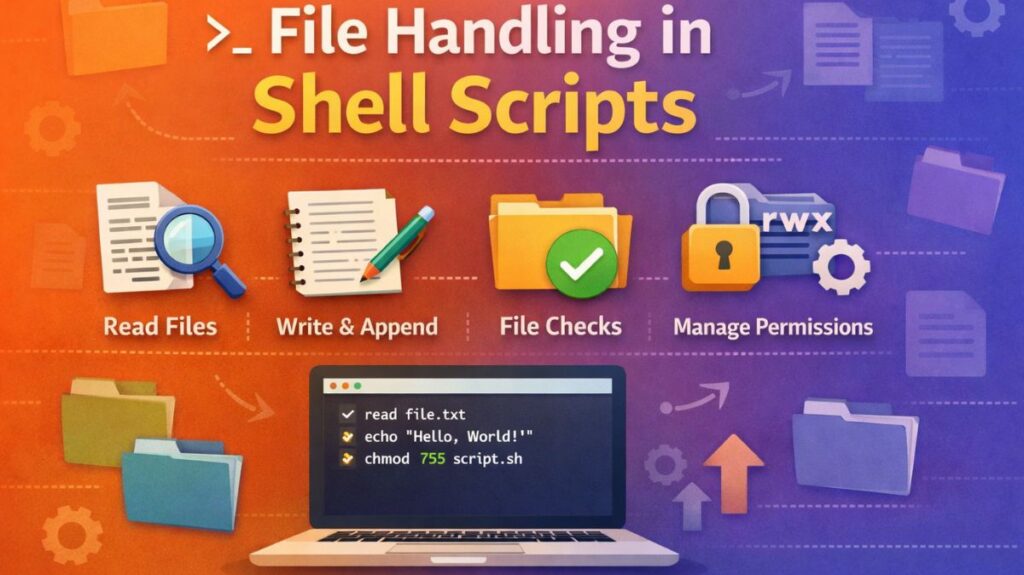
File Handling in Shell Scripts
File management is one of the most frequent activities in Linux shell programming. Safe and effective file system interaction is essential whether you are automating backups, analyzing logs, or managing system configurations.
File Existence Checks
Before performing any operation on a file, it is a best practice to verify it exists to avoid script crashes. To use the test command (shorthand [ ] or [[ ]]) with specific flags.
-e: Returns true if the path exists (file or directory).-f: Returns true if the file exists and is a regular file.-d: Returns true if the path exists and is a directory.-s: Returns true if the file exists and has a size greater than zero.
Bash

if [[ -f "config.txt" ]]; then
    echo "Config file found."
else
    echo "Error: Config file missing."
fi
Also Read About Loops In Shell Scripting For Automation And Task Management
Reading Files Line by Line
The most memory-efficient way to read a file in a shell script is using a while loop combined with the read command. This processes the file one line at a time rather than loading the entire content into memory.
Bash

input_file="data.txt"
while IFS= read -r line; do
    echo "Processing: $line"
done < "$input_file"IFS=: Clears the internal field separator to preserve leading/trailing whitespace.-r: Prevents backslashes from being interpreted as escape characters.
Writing and Appending to Files
Shell scripting uses redirection operators to send output to files.
>(Overwrite): Creates a new file or clears an existing one before writing.>>(Append): Adds text to the end of an existing file.
Bash

# Overwrite/Create
echo "New session started" > log.txt

# Append
echo "User logged in at $(date)" >> log.txt
File Permission Checks
Security is paramount in scripting. You can check if your script has the necessary permissions before attempting to read or modify a file.
| Flag | Permission Check |
-r | Is the file readable? |
-w | Is the file writable? |
-x | Is the file executable? |
Bash

if [[ -w "/etc/hosts" ]]; then
    echo "I have permission to edit the hosts file."
else
    echo "Permission denied. Please run with sudo."
fi
Also Read About Conditional Statements In Shell Scripting: If, Else & Case
Directory Operations
Managing folders is as important as managing files. Common operations include creating, moving, and deleting directories.
mkdir -p: Creates a directory and any missing parent directories (prevents “no such file” errors).rm -rf: Recursively and forcibly removes a directory and all its contents. Use with extreme caution.cd: Changes the current working directory.
Bash

# Safely create a backup folder
backup_dir="./backups/$(date +%Y-%m-%d)"
mkdir -p "$backup_dir"

# Move all logs to the new folder
mv *.log "$backup_dir"
Summary
- [ ] Use
[[ -f file ]]to check for regular files. - [ ] Use
while read -rfor memory-efficient file reading. - [ ] Use
>>to keep a history of logs rather than overwriting them. - [ ] Always check for
[[ -w file ]]before writing to system-critical paths.
Command line arguments in shell programming
Command-line arguments are inputs given to a script during execution in Linux shell scripting. Instead of being hard-coded for a single activity, these enable your scripts to be dynamic and reusable.
Positional Parameters
When you run a script, the shell assigns each part of the command to a set of special variables called positional parameters. They are named based on their “position” in the command line.
| Parameter | Meaning | Example |
$0 | The name of the script itself. | ./backup.sh |
$1 | The first argument passed. | data.txt |
$2 | The second argument passed. | /tmp/backup |
${10} | The tenth argument. | Braces are required for 10+. |
Special Argument Variables
Beyond individual positions, the shell provides three critical variables to handle groups of arguments.
$#(Count): Stores the total number of arguments provided (excluding the script name).$@(List): Represents all arguments as individual, quoted strings. This is the preferred method for looping.$*(String): Represents all arguments as a single joined string.
Argument Validation
To prevent errors, a professional script should always validate its inputs at the very beginning. The most common check is verifying that the user provided the correct number of arguments.
Checking Argument Count
Bash

# Check if exactly 2 arguments were provided
if [[ $# -ne 2 ]]; then
    echo "Usage: $0 <source_file> <target_directory>"
    exit 1
fi
Checking for Specific Types
You can use the test flags discussed previously to ensure the arguments are valid files or folders.
Bash

if [[ ! -f "$1" ]]; then
    echo "Error: Source file '$1' does not exist."
    exit 1
fi
Processing with shift
The shift command is used when you want to process arguments one by one. It “pops” the first argument ($1) off the list, moving $2 into the $1 position, and so on.
Bash

while [[ $# -gt 0 ]]; do
    echo "Processing: $1"
    shift
done
Best variables
| Requirement | Best Variable/Tool |
| Get the script’s name | $0 |
| Count arguments | $# |
| Loop through all arguments | for arg in "$@" |
| Check for missing input | if [[ -z "$1" ]] |
Also Read About Role Of Shell In Linux And Kernel vs Shell vs Terminal