

Linux File System Structure
The Linux file system is a hierarchical, tree-like structure defined by the Filesystem Hierarchy Standard (FHS), with a single root directory represented by a forward slash (/). All files, directories, and even hardware devices are represented as files under this single unified structure.
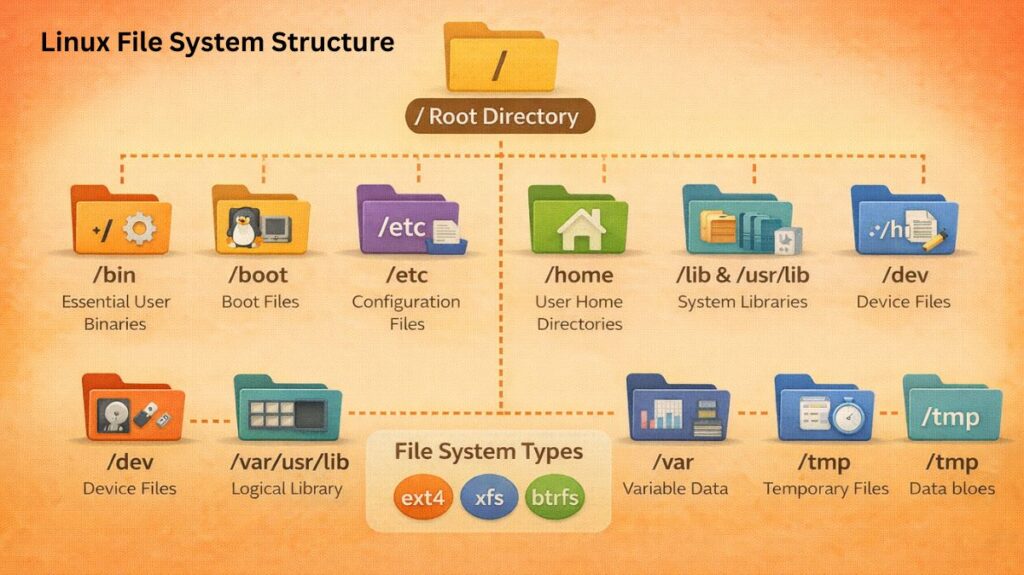
Essential Features
- All data and devices (such as hard disks, printers, and processes) are handled as files under Linux, which makes system interaction easier.
- Case Sensitivity: “File1” and “file1” are regarded as separate files because filenames are case-sensitive.
- Hierarchical Structure: Every directory in the system branches out of the root (/) directory, which is where the system begins.
- Mount Points: In the primary hierarchy, existing directories (mount points) can have additional file systems, partitions, or network shares linked to them.
Also Read About What Is The Difference Between Linux And Windows? Explain
File system components in Linux
Virtual File System (VFS)
The Linux kernel and the underlying file systems (such as ext4 or XFS) are separated by an abstraction layer called the VFS.
No matter the underlying hardware, you may use the same cp or mv commands to the VFS. Because it serves as a “translator,” the kernel may read and write data without having to be familiar with the intricate technical specifics of each type of file system.
Inodes (Index Nodes)
A filename is merely a label in Linux. The Inode is the “soul” of a file. Each directory and file has a distinct inode number that contains the file’s metadata, such as:
- File type and size.
- Permissions for the owner and group (Read/Write/Execute).
- Creation, access, and modification timestamps.
- References to the disk’s actual data chunks.
Important Note: The filename is not stored in the inode. The Directory Entry contains the filename.
Superblocks
The “master record” of the whole file system is the Superblock. It includes the disk partition’s high-level metadata. The OS won’t be able to load the file system if the Superblock is corrupted. It keeps:
- The file system’s overall size.
- The quantity of accessible free blocks.
- The type of file system (ext4, for example).
- The file system’s state (clean or unclean).
The Superblock is so important that Linux typically maintains many backup copies of it on the drive.
Data Blocks
The real “storage bins” on your physical drive are called data blocks. Your files’ contents such as the text in a document, the code in a script, or the pixels in a picture are stored here.
- Blocks often have a fixed size, typically 4KB.
- The Inode offers a map of all the many blocks where the data in a file is dispersed if the file is greater than one block.
Directory Entries (Dentries)
In essence, a directory is basically a unique file with a list of filenames and the Inode numbers that correspond to them. when attempting to open a picture.jpg, Linux searches for that name in the Dentry, locates Inode #12345, and then visits the Inode to determine the location of the actual data blocks.
Also Read About Input and Output Handling in Linux Explained with Examples
The root directory(/)
The foundation of the entire file system is the root directory. This slash is where all of your computer’s files, devices, and folders are located. If the file system were an upsidae-down tree, / would be the trunk from which all other branches emerge.
Linux file directory structure
To keep the system organized, Linux follows the Filesystem Hierarchy Standard (FHS). Here is what each major directory actually does:
/bin – Essential User Binaries
- Contains essential command binaries that need to be available in single-user mode (like
ls,cp, andgrep).
Examples include:
- ls (list files)
- Cp (copy files)
- Mv (move files)
- Cat (view file content)
- Echo
These commands must be accessible even when the system is in rescue mode.
/sbin – System Binaries
- Similar to
/bin, but contains commands intended for the system administrator (root) for system maintenance (likeiptablesorreboot).
Examples:
- Shutdown
- Reboot
- Fsck (file system check)
- Ifconfig / ip
These tools are critical for system maintenance and repair.
Also Read About Linux Architecture Layers: Kernel, Shell, And Hardware
/etc– Configuration Files
- This is the “control panel” of your Linux system. It contains all the system-wide configuration files (e.g.,
/etc/passwdfor users or/etc/fstabfor drives). It does not store programs, only text files that define how services behave.
Examples:
- /etc/passwd – user accounts
- /etc/fstab – disk mount rules
- /etc/hostname – system name
- /etc/network – network settings
Almost every system customization involves editing files in /etc.
/home (User Directories)
- This is where users store their personal documents, photos, and settings. Each user gets a subfolder (e.g.,
/home/jane).
Each user has their own folder:
- /home/hhh
- /home/aaa
This directory contains:
- Documents
- Downloads
- Desktop files
- User settings
It is safe to back up or reinstall the OS while keeping /home intact.
/var (Variable Files)
- Contains files that are expected to grow in size over time, such as system logs (
/var/log), databases, and email spools.
It includes:
- Log files (/var/log)
- Mail files
- Printer queues
- Database files
- Cache files
If /var fills up, the system may crash or services may fail.
Also Read About How Linux Works And Why Linux Is Important For Developers
/usr (User Programs)
- Historically stood for “Unix User Resources.” It contains the majority of user utilities and applications. It has its own
/usr/binand/usr/sbinfor non-essential commands.
It contains:
- /usr/bin – user commands
- /usr/sbin – admin commands
- /usr/lib – libraries
- /usr/share – documentation
This is usually the largest directory on the system.
/tmp (Temporary Files)
- A place for applications to store temporary data. These files are usually deleted when you reboot.
Files in /tmp:
- Can be deleted anytime
- Are usually removed on reboot
- Should not store important data
It is often stored in RAM for faster performance.
/boot (Boot Loader Files):
- Contains everything needed to boot the system, including the Linux Kernel and the GRUB bootloader configuration.
Includes:
- Linux kernel (vmlinuz)
- initramfs
- GRUB configuration
Without /boot, the system cannot start.
/dev (Device Files)
- In Linux, hardware is represented as files. Your hard drive might be
/dev/sda, and your keyboard or mouse also has a file representation here.
Examples:
- /dev/sda – hard disk
- /dev/tty – terminals
- /dev/null – discard output
Linux treats devices as files, allowing programs to interact with hardware easily.
/proc (Process Information)
- This is a “virtual” file system. It doesn’t exist on your disk; it exists in memory. It contains information about running processes and system resources (like CPU info).
It contains live system information:
- CPU details
- Memory usage
- Process status
Example:
cat /proc/cpuinfoThis shows real-time CPU data.
Also Read About What Is The Difference Between FAT And NTFS File Systems?
File system types in linux
When you format a partition in Linux, you choose a “file system” which determines how data is indexed and retrieved.
| File System | Best For | Key Features |
| ext4 | General Use | The “standard” Linux file system. Extremely stable, reliable, and supports huge file sizes. |
| XFS | High Performance | Excellent for large-scale servers and handling massive files or high-concurrency workloads. |
| Btrfs | Advanced Users | Uses “Copy-on-Write.” Supports snapshots (like system restore points) and easy drive pooling. |
Mounting and Unmounting
In Linux, connecting a storage device (like a USB drive or a second hard drive) to the file tree is called Mounting.
Mounting a Drive
To access a partition, you must “mount” it to a specific directory (a mount point).
Example:
bash

sudo mount /dev/sdb1 /mnt
Now, if you navigate to /mnt/my_usb, you are actually looking inside your USB drive.
Unmounting a Drive
Before unplugging a device, you must unmount it to ensure all data is written and nothing is corrupted.
Example:
bash

sudo umount /mnt/my_usb- This safely detaches the disk.
- Never remove storage without unmounting, or data corruption may occur.
- The command is
umount(no “n” after the “u”), which is a common typo for beginners!
Also Read About What Are System Utilities In Linux? Commands With Examples
Automatic Mounting (fstab)
Linux uses /etc/fstab to mount disks automatically at boot.
Example entry:
ini

UUID=xxxx /data ext4 defaults 0 2
This ensures the disk always mounts on startup.
How to Check Your Current Structure
If you want to see how your own system is currently mapped out, run this command in your terminal:
lsblk (List Block Devices) or df -h (Disk Free – Human Readable).
Also Read About What Is The Difference Between Systemd And Systemctl?