

Linux Performance Monitoring
Linux performance monitoring has evolved from simple command-line checks to a sophisticated mix of real-time terminal tools and AI-driven observability stacks. Whether you are managing a single local machine or a global cloud cluster, the goal remains the same: identify bottlenecks in CPU, Memory, Storage, and Network before they cause a crash.
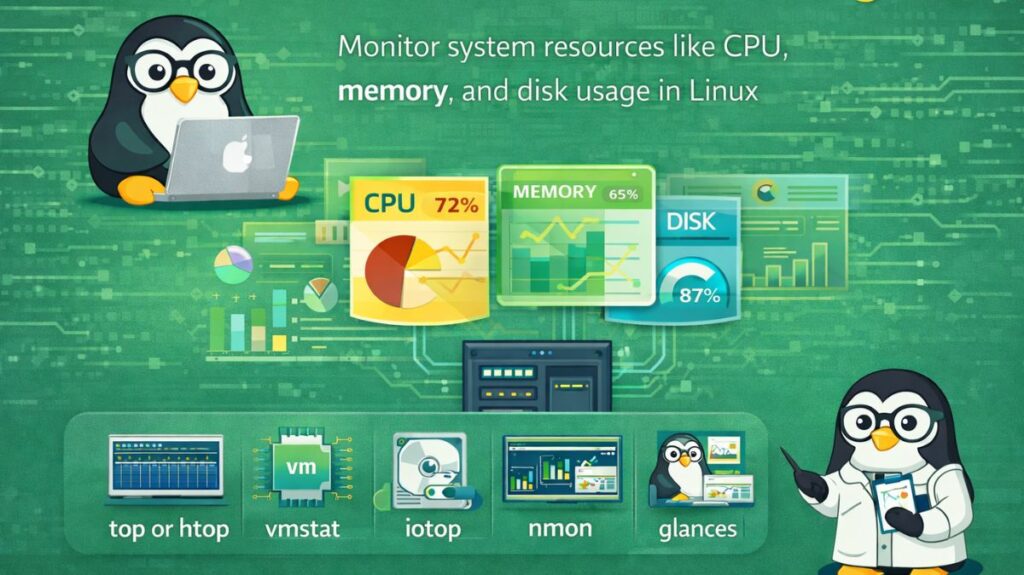
You need to keep an eye on these four resources to comprehend system health:
- CPU Utilization: Are user programs or system duties overwhelming the processor?
- RAM: Does the system make use of Swap? If so, performance is killed since your physical RAM is full.
- Disk I/O: Is the system awaiting a read or write from the hard drive? The most prevalent “hidden” reason for slowness is this.
- Network Throughput: Are packets being dropped, or is your bandwidth saturated?
Also read about What is Linux Virtualization? Types, Tools, and Use Cases
Linux performance monitoring tools
The “Real-Time” Dashboards
top: All systems have the “old reliable”. A real-time process list appears.
htop: The contemporary replacement fortop. It is vibrant, mouse-compatible, and uses visual bars to display CPU use per core.
btop/bpytop: High-end terminal monitors with stunning graphs and comprehensive network/disk statistics include btop and bpytop.
“Deep Dive” Diagnostics
vmstat 1 5: Updates virtual memory, system processes, and CPU activity every second.
iostat -xz 1: A component of thesysstatpackage is iostat -xz 1. It shows you just how hard your drives are operating and whether they are “bottlenecked.”
free -h: The fastest method for determining the exact amount of RAM that is accessible (look at the available column, not just “free”).
ss -tan: The contemporary substitute for netstat is ss-tan. It provides a list of all open listening ports and network connections.
Advanced Observability (Modern Stack)
In 2026, “Agentic” and “AI-driven” applications will be used in professional settings to forecast failures:
- Netdata: An elegant web dashboard with per-second granularity for a single server that requires no configuration.
- The industry standard for extensive monitoring is Prometheus + Grafana. Grafana creates expert charts from the data that Prometheus gathers.
- High-performance tracing tools (such as bpftrace) that can view inside the Linux kernel without causing the system to lag are known as eBPF Tools.
Also read about What Is Linux AI? Best Distros, Commands, and Applications
Quick Troubleshooting Checklist
Run the following instructions sequentially if your Linux system seems sluggish:
uptime: Examine the average load. The system is overloaded if the numbers exceed the number of CPU cores.
dmesg -T | tail: Search the kernel logs for “OOM-Kill” or hardware failures using dmesg -T | tail.
iostat -xz 1: Examine the%utilcolumn with iostat -xz 1. Your disk is the issue if it is constantly at 90–100%.
iotop: To find out precisely which process is now writing to the disk, run iotop.
Linux Performance Monitoring
| Resource | Primary Tool | Key Metric to Watch |
| CPU | htop | Load Average & %User vs %System |
| Memory | free -h | Available RAM & Swap usage |
| Storage | iostat | %util and await (latency) |
| Network | nload or ss | Incoming/Outgoing bandwidth |
| Files | lsof | Open files per process |
Real-Time Dashboards: Top vs htop vs atop
Although these tools offer a real-time view of system operations, their usability and level of detail differ greatly.
top (The Foundation):
- What it is: Every Linux distribution comes with a default process monitor.
- Ideal For: Checking systems in an emergency when installing new software is not possible.
- Limitation: It has a plain-text interface and is largely non-interactive.
htop (The User’s Choice):
- What it is: An interactive, vibrant top.
- Ideal For: Manual process management and daily desktop use.
- Important features include mouse support, CPU/RAM visual bars, and a “Tree View” (F5) to view parent-child process relationships.
atop (The Administrator’s Choice):
- What it is: A sophisticated monitor that displays “critical” resources in color (a disk at 90% utilization, for example, glows red).
- Ideal For: Identifying transient spikes. In order to “play back” what transpired during a crash ten minutes ago, it records system activity in the background.
Also read about Linux Quantum Computing: Tools, Distros, and Applications
Top vs htop vs atop
| Feature | top | htop | atop |
| Availability | Installed by default on almost every Linux system. | Needs to be installed (sudo apt install htop). | Needs to be installed (sudo apt install atop). |
| User Interface | Monochromatic, plain text. | Colorful, visual bars (CPU/RAM). | Detailed text; highlights critical issues in color. |
| Interactivity | Very limited (keyboard only). | Fully interactive (Mouse support, function keys). | Highly interactive for deep diagnostics. |
| Process Tree | Not supported by default. | Built-in “Tree View” (Press F5). | Supported but dense. |
| Historical Logging | No (Real-time only). | No (Real-time only). | Yes. Can record data to a file for later “playback.” |
| Resource Focus | Mostly CPU and Memory. | Mostly CPU and Memory. | Everything (Disk I/O, Network, CPU, GPU, RAM). |
| Complexity | Simple/Low. | Moderate/User-friendly. | Advanced/Administrator-level. |
| Best Use Case | Quick check when no other tool is available. | Daily desktop monitoring and killing processes. | Debugging “hidden” spikes or disk bottlenecks. |
vmstat: Virtual Memory Statistics
A high-level overview of your system’s “vital signs” is given by vmstat. It is ideal for determining whether your system is “swapping” that is, running out of RAM.
Command: Use the command vmstat 1 5 to update five times every second.
Also read about Best Linux AI Tools to Run Local LLMs and AI Models in 2026
Important Columns to Monitor:
- r (runnable): Your CPU is overloaded if this exceeds the number of CPU cores.
- si/so (swap-in/swap-out): Your system is actively using the sluggish hard drive as RAM if si/so (swap-in/swap-out) is not zero.
- wa (IO wait): A high percentage indicates that your hard disk is operating too slowly, causing your CPU to be idle.
iostat: Input/Output Statistics
The gold standard for identifying disk bottlenecks is this tool, which is included in the sysstat package.
Command: iostat -xz 1
-x: Displays “extended” statistics, which are crucial for specifics.
-z: Hides inactive drives so you can concentrate on active ones.
%utilis the key column. A disk is saturated and will slow down any application attempting to read or write data if it is at 100% utilization.
sar: System Activity Reporter
Your Linux system’s “historian” is sar. sar tells you what happened at three in the morning, whereas other tools show you what is happening right now.
How it operates: It stores system data to files /var/log/sa/ and operates as a background service (cron job).
Useful Commands:
sar -u: View the current day’s CPU usage history with sar -u.
sar -r: View the history of memory usage with sar -r.
sar -f /var/log/sa/sa15: See every statistic as of the fifteenth day of the month.
When to use which tool?
| If you want to… | Use this Command |
| Kill a frozen process quickly | htop |
| Check if you need more RAM | vmstat -s |
| Find out why the disk is slow | iostat -xz 1 |
| See why a server crashed last night | sar -A |
| Monitor everything at once (Modern) | btop |
Also read about Understanding Linux Use Cases With Examples and Commands