

Process management in shell scripting examples
Process management in shell scripting involves using specific commands and techniques to monitor, control, and automate how programs run on a Unix/Linux system. This is essential for managing resources, automating tasks, and ensuring system stability.
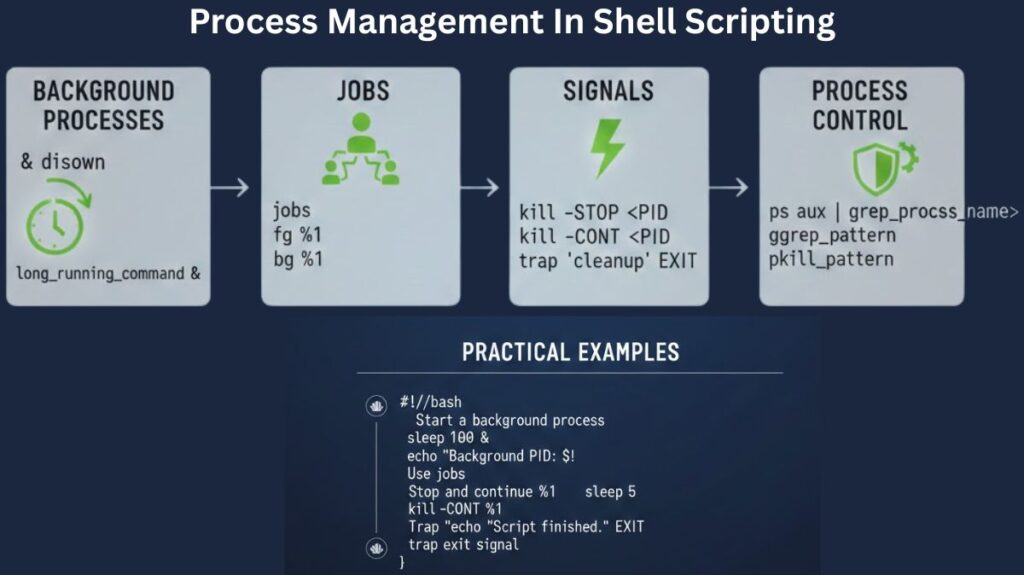
Foreground and Background Processes
In the terminal, commands are usually executed in the foreground. This indicates that before allowing you to type another command, the shell waits for the previous one to be completed.
- Foreground: The input and output of the terminal are taken up by the operation.
- Background: By adding an ampersand (&) to the command, you can execute a task in the background. This instantly gives the shell back control.
Bash

# Runs a script in the background
./long_running_script.sh &
Also Read About File Handling In Shell Scripts: Read, Writing Files In Linux
Process IDs (PID)
Every process is assigned a unique numerical identifier called a PID. The operating system uses this ID to track the process’s state, priority, and resource usage.
- Parent PID (PPID): The process that started the current process.
- Checking PID: You can find the PID of the last backgrounded process using the special variable
$!. To find the PID of the script itself, use$$.
Job Control
Job control allows a single shell instance to manage multiple tasks simultaneously. This is particularly useful when you need to pause or resume scripts.
| Command | Action |
jobs | Lists all active jobs associated with the current shell. |
Ctrl + Z | Suspends (pauses) a running foreground process. |
bg %1 | Resumes a suspended job in the background. |
fg %1 | Brings a background or suspended job to the foreground. |
Signals and Killing Processes
Signals are software interrupts sent to a process to trigger a specific behavior. The kill command is the primary tool for sending these signals.
Common Signals
- SIGINT (2): Equivalent to
Ctrl + C. Requests the process to interrupt gracefully. - SIGTERM (15): The default kill signal. It asks the process to terminate, allowing it to save progress or close files.
- SIGKILL (9): Forces the process to stop immediately. It cannot be ignored or “cleaned up” by the process.
Example:
Bash

kill -15 1234  # Request PID 1234 to stop gracefully
kill -9 1234   # Force PID 1234 to stop immediately
Monitoring Processes
To keep a system running smoothly, you must be able to observe what processes are doing in real-time.
ps(Process Status): Provides a snapshot of current processes. Useps auxto see every process running on the system.top: Provides a dynamic, real-time view of running processes, including CPU and memory usage.htop: An interactive, more user-friendly version oftop(usually requires installation).pgrep: Searches for processes by name and returns their PIDs.
Summary Script Example
Here is how these concepts look in a practical script:
#!/bin/bash

echo "Starting a background task..."
sleep 100 &
PID=$!

echo "The task is running with PID: $PID"
echo "Monitoring task..."
ps -p $PID

echo "Terminating the task..."
kill $PID
Also Read About Conditional Statements In Shell Scripting: If, Else & Case
Scheduling and automation in shell scripting examples
Efficiency in Linux and Unix environments is mostly dependent on automation. Utilize built-in tools to do these things for you rather than manually executing a script each day or sitting up until 2:00 AM to initiate a backup.
The two primary tools for scheduling in shell scripting are Cron (for recurring tasks) and At (for one-time tasks).
Cron Jobs
A cron job is a command or script that the system runs automatically at fixed intervals. These intervals are managed by the crond daemon, which checks the system’s “cron tables” (crontabs) every minute to see if any tasks are due.
Crontab Commands
You manage your scheduled tasks using the crontab utility:
crontab -e: Edit your personal crontab file (opens in your default text editor).crontab -l: List all currently scheduled cron jobs.crontab -r: Remove all your scheduled cron jobs.
Crontab Syntax
Each line in a crontab file represents a single job. The syntax consists of five time-and-date fields followed by the command to be executed.
Field Breakdown
| Field | Meaning | Range |
| 1 | Minute | 0 – 59 |
| 2 | Hour (24-hour format) | 0 – 23 |
| 3 | Day of Month | 1 – 31 |
| 4 | Month | 1 – 12 (or JAN-DEC) |
| 5 | Day of Week | 0 – 7 (0 or 7 is Sunday) |
Special Operators
*(Asterisk): Matches every value (e.g.,*in the hour field means “every hour”).,(Comma): Matches a list of values (e.g.,1,15in the day field means the 1st and 15th).-(Hyphen): Matches a range of values (e.g.,1-5in the weekday field means Monday to Friday)./(Slash): Specifies increments (e.g.,*/10in the minute field means “every 10 minutes”).
Example
30 02 * * 1 /home/user/scripts/backup.sh
This script runs at 2:30 AM every Monday.
The at Command
While cron is for habits, at is for one-off appointments. Use at when you want to run a script exactly once at a specific time in the future.
How to use at
- Type
atfollowed by the time (e.g.,at 10:30 PMorat now + 2 hours). - The terminal will provide a prompt (
at>). Type your command or script path. - Press Ctrl+D to save and exit.
Example
Bash

$ at 04:00 PM tomorrow
at> /home/user/scripts/cleanup.sh
at> <Ctrl+D>
Managing at Jobs
atq: Lists all pending “at” jobs and their Job IDs.atrm [ID]: Deletes a specific job using its ID.
Best Practices for Automating Scripts
Automated scripts run in a “non-interactive” shell, which means they don’t have the same environment variables (like $PATH) as your terminal. Follow these rules to ensure success:
- Use Absolute Paths: Never use relative paths like
./script.sh. Use/home/user/scripts/script.sh. This applies to commands inside the script too (e.g., use/usr/bin/python3instead of justpython3). - Set Permissions: Ensure your script is executable by running
chmod +x script.sh. - Log Output: Since you won’t be there to see errors, redirect output to a log file:0 0 * * * /path/to/script.sh >> /var/log/script.log 2>&1
- Use Shebangs: Always start your scripts with
#!/bin/bash(or your preferred shell) so the system knows which interpreter to use.
Also Read About Loops In Shell Scripting For Automation And Task Management