

What is a shell script in Linux?
A shell script is essentially a plain text file containing a sequence of commands. These files usually have a .sh extension, though it isn’t strictly required by Linux. When you run the script, the shell reads the file line-by-line and executes the commands as if you were typing them manually into the terminal.

How Shell Scripting Works
The general procedure of executing a shell script is as follows:
Text file with a script: A plain text file with a series of commands is called a shell script. Usually, it begins with a “shebang” line that instructs the system which interpreter to use (for example, #!/bin/bash).
Permissions: Before the system can run it as a program, you must specifically provide execute permissions using the chmod command (for example, chmod +x script.sh) for security reasons.
Execution: Each command is carried out sequentially by the designated shell, such as Bash, which reads the script line by line.
Also Read About What Are System Utilities In Linux? Commands With Examples
Types of Shell Scripts
Depending on their application and function, shell scripts can be divided into several categories. Each kind is crucial to the automation and operation of Linux systems.
System Administration Shell Scripts
The purpose of system administration scripts is to assist administrators with operating system management and upkeep. Disc cleanup, system upgrades, service monitoring, and backup scheduling are just a few of the chores that these scripts automate. Administrators rely on system scripts to carry out routine inspections and maintenance chores automatically rather than manually performing several commands every day. These scripts are frequently scheduled to run at certain times using tools like Cron, and they are frequently launched with administrative capabilities.
User-Level Shell Scripts
Individual users write user-level shell scripts to make their daily duties easier. File organisation, multiple file renaming, content search, and application activation are a few examples of these scripts. They are customised to individual workflows and don’t require special permissions like system scripts do. People can save time and avoid repeatedly executing the same instructions by utilising user-level scripts.
Startup and Login Shell Scripts
When a system powers up or a user logs in, startup and login scripts are automatically run. These scripts set environment variables, load user preferences, start background services, and customise shell environment. Common examples are.bashrc,.bash_profile, and.profile. Before interactive work, they prepare the system and user environment.
Application and Utility Shell Scripts
Shell scripts can control or support software. Many installers and software packages include shell scripts for updating, initiating services, and configuring dependencies. Utility scripts, small programs that automate reporting or log analysis, are also affected. These scripts bridge application logic and system commands.
Also Read About What Is Ext4 File System In Linux? Features And Advantages
Benefits of Shell Scripting
Because of its many benefits, shell scripting is powerful in Linux and Unix.
Automation: One script run can automate human-interactive tasks. In repetitive task environments, this dramatically reduces effort and enhances productivity.
Time savings: By scripting many commands, users may complete complex jobs faster. This helps system administrators who manage multiple servers or systems.
Accuracy and consistency: When scripts follow instructions, human error is reduced. System deployment and maintenance require constant task completion.
Lightweight and resource-efficient: They’re ideal for servers and tiny systems because they don’t need complicated software or powerful hardware. They work quickly and efficiently due of their close relationship with the OS.
Common Uses of Shell Scripting
Shell scripting is popular in many domains because to its adaptability and efficiency.
- Popular applications include system management. Administrators utilise shell scripts to automate backups, manage users, control services, and monitor system performance. These programs reduce downtime and stabilise systems.
- Task automation is another popular use. Batch, data, and file management can be automated with shell scripts. For instance, scripts make it easy to analyse a lot of files or create daily reports.
- The distribution and installation of software also makes extensive use of shell scripting. Shell scripts are used in many installation procedures to configure applications, install dependencies, and build up environments. This guarantees consistent and seamless deployments across many systems.
- Shell scripts are also frequently used for monitoring and log analysis. Scripts can analyse log files, extract data, and alert administrators. This speeds up and improves troubleshooting.
Shell Script’s structure
Every professional shell script follows a specific structure.
The Shebang (#!)
The first line of any script should be the Shebang. It tells the operating system which interpreter to use to run the code.
#!/bin/bash(For Bash scripts)#!/bin/sh(For generic Shell scripts)#!/bin/zsh(For Zsh scripts)
Also Read About What Is Btrfs File System In Linux? And Btrfs Vs Ext4 Vs XFS
Basic Syntax Example:
Bash
#!/bin/bash
# This is a comment - it won't be executed
echo "Starting the backup process..."
date
echo "Backup complete!"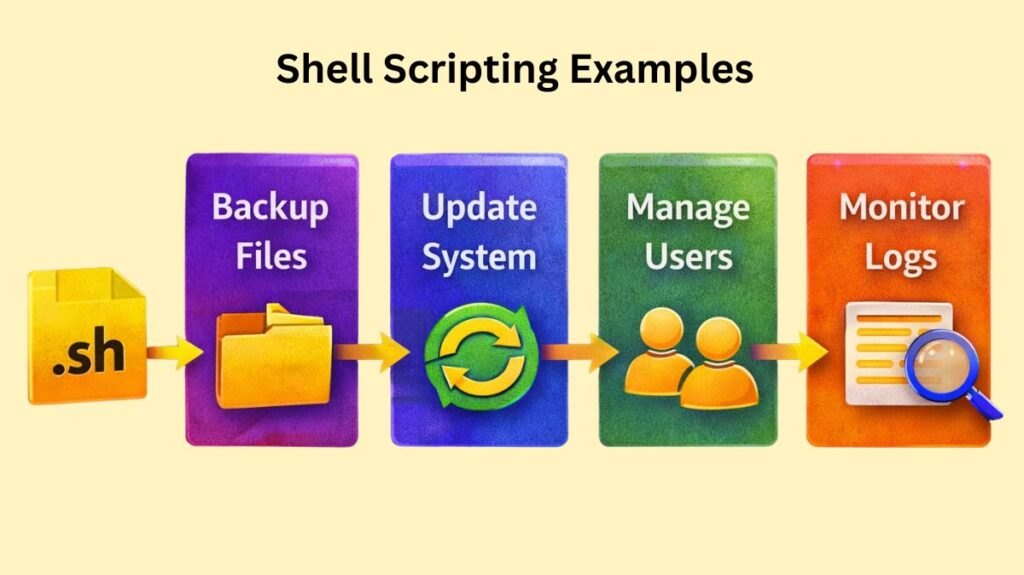
Shell Scripting Examples
Variables
Variables store data for later use. In Linux, there are no spaces around the = sign when assigning.
Bash
NAME="Gemini"
echo "Hello, $NAME"
Input and Output
You can make scripts interactive using the read command.
Bash
echo "Enter your age:"
read user_age
echo "You are $user_age years old."
Conditional Logic (If/Else)
Decision-making is vital for automation.
Bash
if [ $user_age -ge 18 ]; then
    echo "You are an adult."
else
    echo "You are a minor."
fi
Loops
Loops allow you to repeat actions. For example, renaming 100 files at once.
Bash
for file in *.txt; do
    echo "Processing $file"
done
How to Execute a Shell Script
Creating the file isn’t enough; you must give it execution permissions.
- Create the file:
nano myscript.sh - Write the code: (Add your shebang and commands).
- Make it executable: Run
chmod +x myscript.sh - Run it:
./myscript.sh
Also Read About XFS File System Commands And Ext4 Vs XFS File System