

Shell Script Security
Hardening Your Automation
Writing a functional script is the first step; writing a secure one is what separates a hobbyist from a professional. Shell scripts often run with elevated privileges, making them prime targets for “Command Injection” and “Privilege Escalation” attacks.
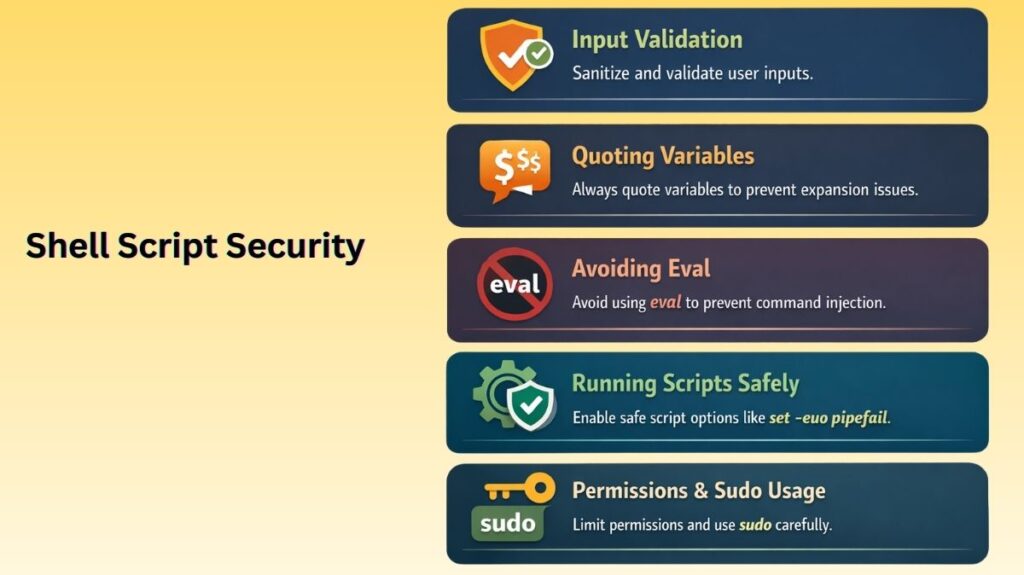
Input Validation: The First Line of Defense
Never trust user input. Whether it comes from a command-line argument, an environment variable, or a prompt, it must be sanitized.
- The Risk: An attacker might pass
; rm -rf /as an argument. If your script executes that argument directly, it will wipe your system. - The Fix: Use regular expressions or whitelist patterns to validate data.
Example: Validating a Numeric ID
Bash

read -p "Enter User ID: " user_id
if [[ ! "$user_id" =~ ^[0-9]+$ ]]; then
    echo "Error: Invalid ID format. Numbers only."
    exit 1
fi
Quoting Variables: Preventing Word Splitting
One of the most common vulnerabilities in shell scripting is the failure to use double quotes. Without quotes, the shell performs Word Splitting and Globbing.
- The Risk: If a variable contains spaces or special characters (like
*), the shell may interpret them as separate commands or filenames. - The Fix: Always wrap variable expansions in double quotes:
"$VARIABLE".
Example:
Bash

file_name="My Secret File.txt"
# Dangerous:
rm $file_name  # Tries to remove 'My', 'Secret', and 'File.txt' separately.
# Secure:
rm "$file_name" # Correctly identifies the single file.
Also Read About Shell Scripting Error Handling Examples And Debugging Tools
Avoiding eval: The “Evil” Command
The eval command takes a string and executes it as a shell command. It is notoriously difficult to secure because it adds an extra layer of shell interpretation.
- The Risk: If any part of the string passed to
evalcontains unsanitized user input, the user gains full control over your script’s execution. - The Fix: Use indirect references or arrays instead of
eval.
Running Scripts Safely: Path and Environment
Where a script looks for programs matters. If your script calls ls instead of /bin/ls, an attacker could place a malicious executable named ls in a directory like /tmp and manipulate your PATH to execute it.
- Secure Pathing: Explicitly set the
PATHat the start of your script to ensure only trusted directories are searched.BashPATH="/usr/local/bin:/usr/bin:/bin" export PATH - Temporary Files: Avoid using predictable filenames in
/tmp. Usemktempto create secure, unique temporary files that aren’t easily hijacked.
Permissions and Sudo Usage
The principle of Least Privilege dictates that a script should only have the permissions it absolutely needs.
- Execution Bits: Never set a script to
777(world-writable). Use755(owner can write, others can only read/execute) or700for private scripts. - The Sudo Problem: Avoid running the entire script with
sudo. Instead, usesudoonly for the specific commands that require root access within the script.
Best Practice
If your script requires root, check for it at the beginning rather than failing halfway through.
Bash

if [[ $EUID -ne 0 ]]; then
   echo "This script must be run as root"
   exit 1
fi
Also Read About Shell Scripting Advanced Examples & Optimizing Shell Scripts
Security for Shell Scripts
| Security Measure | Why it matters | Quick Fix |
| Double Quotes | Prevents command injection | Use "$VAR" not $VAR |
| Shebang | Ensures the correct interpreter | Use #!/bin/bash |
| Sanitization | Blocks malicious input | Use [[ "$input" =~ regex ]] |
| Explicit Paths | Prevents binary hijacking | Use /usr/bin/cp or set PATH |
| mktemp | Prevents symlink attacks | Use tmp=$(mktemp) |
Real-World Use Cases for Shell Scripting
Shell scripting remains the backbone of system administration and DevOps because it provides a direct line to the operating system’s kernel and utilities. By automating repetitive tasks, to reduce human error and ensure system consistency.
Here are five essential real-world use cases for shell scripting.
Automated Backup and Restore
Data integrity is the highest priority for any admin. A backup script typically compresses sensitive directories, timestamps the archive, and moves it to a secure location (like an off-site server or cloud bucket).
Key Components:
tarfor archiving.rsyncorscpfor secure transfer.findto delete backups older than 30 days.
#!/bin/bash
BACKUP_SRC="/var/www/html"
BACKUP_DEST="/mnt/backups"
DATE=$(date +%Y-%m-%d)

tar -czf "$BACKUP_DEST/site_backup_$DATE.tar.gz" "$BACKUP_SRC"
# Keep only last 7 days of backups
find "$BACKUP_DEST" -type f -mtime +7 -name "*.tar.gz" -delete
Log Monitoring and Cleanup
Servers generate massive amounts of log data. If left unmanaged, logs can fill up a disk, causing system crashes. Scripts can monitor these logs for errors or clear out old entries to save space.
Key Components:
greporawkto scan for “ERROR” or “404” strings.truncateto clear files without deleting them.tail -ffor real-time monitoring.
Disk Usage Alerts
A “Disk Full” error can stop a database or web server in its tracks. A simple shell script can check disk capacity every hour and send an alert (via email or Slack) if a threshold is crossed.
Key Components:
df -hto check disk space.mailorcurl(for Webhooks) to send notifications.
#!/bin/bash
THRESHOLD=90
CURRENT_USAGE=$(df / | grep / | awk '{ print $5 }' | sed 's/%//')

if [ "$CURRENT_USAGE" -gt "$THRESHOLD" ]; then
    echo "Disk space is critical: ${CURRENT_USAGE}%" | mail -s "Disk Alert" admin@example.com
fi
Service Health Monitoring
Sometimes services like Nginx, MySQL, or Docker might crash. A “watchdog” script can check if a process is running and attempt to restart it automatically if it’s down.
Key Components:
pgrepto check for a running process.systemctlto restart services.
Practical Logic:
The script checks for the process ID. If it finds none, it logs the failure, sends a notification, and executes a systemctl restart command.
Deployment Automation
In a CI/CD pipeline, shell scripts often handle the “last mile” of deployment pulling the latest code from Git, installing dependencies, and restarting the application.
Key Components:
git pullto fetch updates.npm installorpip installfor dependencies.pm2orsystemdto reload the app.
Summary of Tools Used
| Use Case | Primary Command | Frequency |
| Backups | tar, rsync | Daily / Weekly |
| Log Cleanup | find, truncate | Weekly |
| Disk Alerts | df, awk | Hourly |
| Health Checks | pgrep, systemctl | Every 5 Minutes |
| Deployment | git, ssh | Per Release |
Also Read About Process Management In Shell Scripting: Commands & Examples