

Shell Scripting Error Handling and Debugging
Writing commands is only one aspect of effective shell scripting; other aspects include foreseeing issues, gracefully resolving failures, and effectively debugging when something goes wrong. In order to make sure your scripts are solid and dependable, this article examines fundamental error handling and debugging strategies in shell scripting.
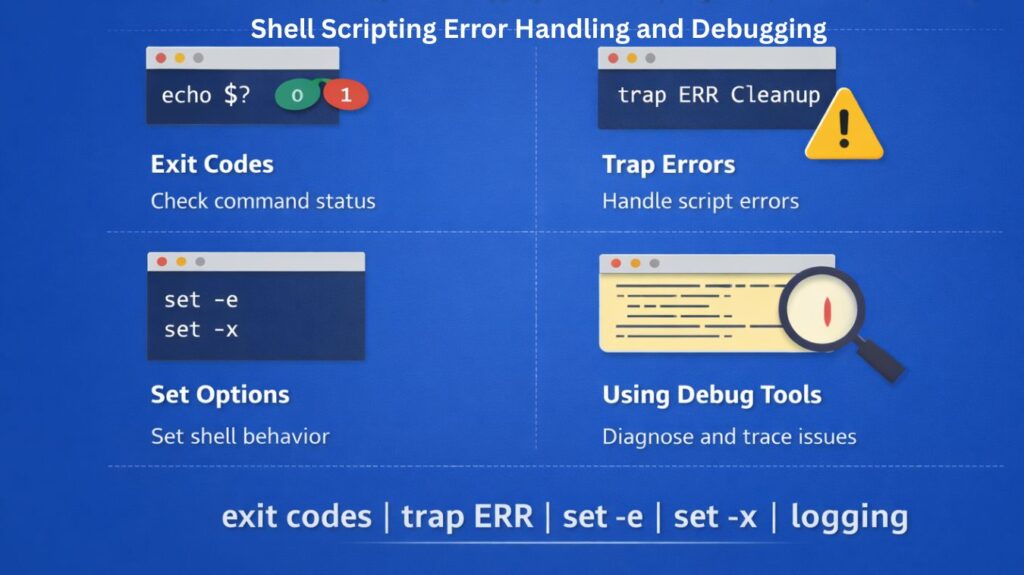
1. Exit Status Codes: The Silent Messengers
Every command executed in the shell returns an “exit status code,” a numerical value indicating the success or failure of its operation.
- 0 (Zero): Conventionally signifies successful execution.
- Non-zero (1-255): Indicates an error or abnormal termination. Different non-zero codes can represent specific types of errors, though this is command-dependent.
Example:
Bash

ls /nonexistent_directory
echo $? # Will likely output 1 or 2 (non-zero)

ls /
echo $? # Will output 0
Also Read About What Is A Linux Shell? And Different Types Of Shell In Linux
2. The $? Variable: Your Instant Feedback
The special shell variable $? stores the exit status code of the most recently executed foreground command. It’s your primary tool for immediately checking the outcome of a command.
Practical Use:
You can use $? in conditional statements to take different actions based on a command’s success or failure.
#!/bin/bash

# Try to copy a file
cp source.txt destination.txt

if [ $? -ne 0 ]; then
  echo "Error: Failed to copy source.txt. Please check if it exists and you have permissions."
  exit 1 # Exit script with an error code
fi

echo "File copied successfully."
3. set Options: Enforcing Strictness
The set command allows you to enable or disable shell options that can significantly improve error handling and script reliability.
set -e(errexit): When this option is enabled, the script will immediately exit if a command fails (returns a non-zero exit status). This prevents the script from continuing with potentially invalid data or an inconsistent state.
#!/bin/bash
set -e

echo "Starting script..."
ls /nonexistent_directory # This command will fail
echo "This line will not be executed if 'set -e' is active."
Caveat: Commands in if, while, until conditions, or parts of && or || lists do not trigger set -e if they fail, as their failure is expected and handled.
set -u(nounset): When enabled, the script will exit if it tries to use an unset variable. This helps catch typos and ensures all variables are explicitly defined.
#!/bin/bash
set -u

echo "Hello, $name" # This will cause the script to exit if 'name' is not set
echo "This line will not be reached."
set -x(xtrace): This is a powerful debugging option. It prints each command and its arguments to standard error (stderr) just before it is executed, prefixed by+. This gives you a step-by-step trace of your script’s execution flow.
#!/bin/bash
set -x

name="Alice"
echo "Hello, $name"
sleep 1
echo "Done."
Output:
+ name=Alice
+ echo 'Hello, Alice'
Hello, Alice
+ sleep 1
+ echo Done.
Done.
You can enable and disable set -x in specific parts of your script for targeted debugging:
#!/bin/bash

echo "Doing something non-critical..."
# ...

set -x # Start tracing
echo "Now, for the critical part."
# Critical operations
set +x # Stop tracing

echo "Back to normal operations."
Also Read About Most Commonly Used C Standard Library Functions On Linux
4. Debugging Scripts
Beyond set -x, here are other debugging strategies:
#!/bin/bash
file="my_data.txt"
echo "Checking file: $file"
if [ -f "$file" ]; then
  echo "$file exists."
  # ... further processing
else
  echo "$file does not exist."
fi
bash -x script.sh: You can also enablextracedirectly from the command line when executing your script, without modifying the script file itself.
Using trap for Cleanup: The trap command allows you to execute a command when a specific signal is received or when the script exits. This is useful for cleaning up temporary files or releasing resources in case of an error.
#!/bin/bash

# Function to clean up temporary files
cleanup() {
  echo "Cleaning up temporary files..."
  rm -f /tmp/my_temp_file_*.txt
}

# Register the cleanup function to run on EXIT (script termination)
trap cleanup EXIT

echo "Creating a temporary file..."
touch /tmp/my_temp_file_$(date +%s).txt

# Simulate an error
non_existent_command

echo "This line might not be reached if an error occurs before it."
5. Logging Errors
Instead of just printing errors to the console, direct them to a log file for later review and analysis.
- Redirecting Output:
#!/bin/bash

LOG_FILE="script.log"

# Redirect both stdout and stderr to the log file
# Append to the log file (>>), instead of overwriting (>)
# 2>&1 redirects stderr (file descriptor 2) to the same place as stdout (file descriptor 1)
{
  echo "Script started at $(date)"
  ls /nonexistent_directory # This will generate an error
  echo "Script finished at $(date)"
} >> "$LOG_FILE" 2>&1

echo "Check '$LOG_FILE' for script output and errors."
Using a Logging Function: For more complex scripts, a dedicated logging function can provide structured output, timestamps, and different log levels (INFO, WARNING, ERROR).
#!/bin/bash

LOG_FILE="script.log"

log_message() {
  local type="$1"
  local message="$2"
  echo "$(date +'%Y-%m-%d %H:%M:%S') [$type] $message" | tee -a "$LOG_FILE"
  # 'tee -a' prints to stdout AND appends to the log file
}

log_message INFO "Script started."

# Simulate a command that might fail
cp non_existent_source.txt /tmp/destination.txt
if [ $? -ne 0 ]; then
  log_message ERROR "Failed to copy file."
  exit 1
fi

log_message INFO "File copied successfully."
log_message INFO "Script finished."
You will create automation solutions that are more robust, dependable, and maintainable by incorporating these error handling and debugging strategies into your shell scripts.
Also Read About Role Of Shell In Linux And Kernel vs Shell vs Terminal