

Different types of linux logs
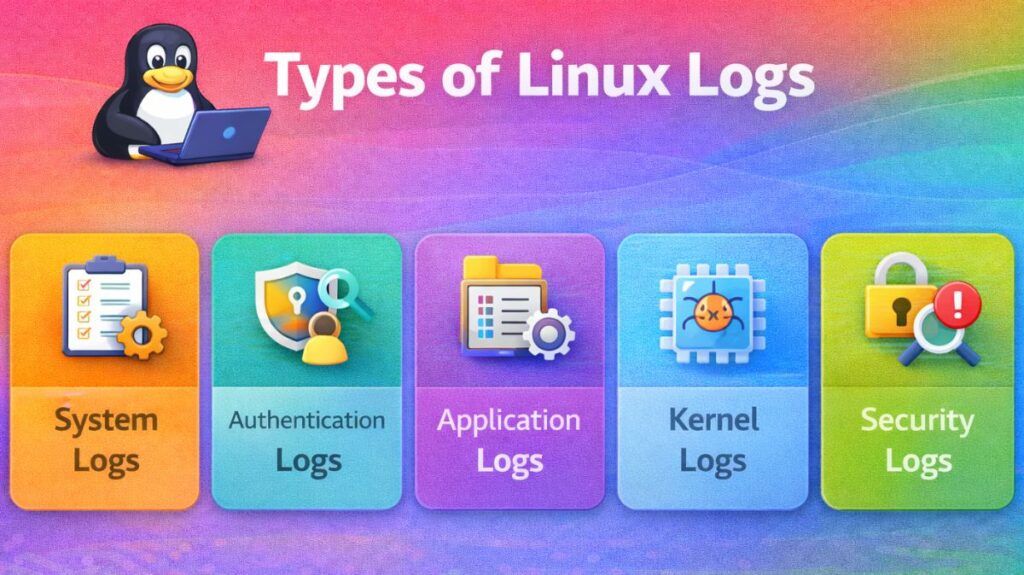
System Logs
These logs record events related to the underlying operating system and its background services (daemons).
syslogormessages: The general-purpose log. It tracks everything from system startup messages to background service heartbeats.dmesg: The Kernel Ring Buffer. It records hardware-level events, such as a USB device being plugged in or a hard drive sector failing.boot.log: A chronological record of what happens during the system boot sequence.
Authentication and Security Logs
These are the most critical logs for system administrators concerned with hacking or unauthorized access.
auth.log(Debian/Ubuntu) orsecure(RedHat/CentOS): Records every login, logout, andsudoattempt. It flags failed password attempts, which might indicate a brute-force attack.faillog: Specifically tracks failed login attempts to help identify account locking issues.lastlog: Displays the last time each user logged into the system.
Application-Specific Logs
Many high-level applications maintain their own log files outside of the standard system logs to avoid clutter.
- HTTP Logs: Web servers like Apache or Nginx store data in
/var/log/apache2/or/var/log/nginx/. They track every IP address that visits your site and every “404 Not Found” error. - Database Logs: MySQL or PostgreSQL logs record slow queries, database crashes, and connection errors.
- X11/Desktop Logs: Logs for the graphical user interface (GUI), usually found in
/var/log/Xorg.0.log.
Binary Logs (Systemd Journal)
Modern Linux distributions use systemda tool that records logs in a binary format rather than plain text.
journald: This service collects data from all the sources mentioned above.- How to read it: You cannot open these with a text editor. You must use the
journalctlcommand. - Advantage: It is much faster to search and cannot be easily tampered with by a simple text editor.
Linux Logging Commands with Examples
To examine, monitor, filter, and analyze system logs, Linux has a number of strong commands. These commands assist administrators in tracking system performance, keeping an eye on security, and troubleshooting problems.
A useful tutorial with examples of the most popular Linux logging commands can be found below.
1. journalctl – View Systemd Logs
Modern Linux distributions use systemd-journald to manage logs.
View All Logs
bash

journalctl
View Logs from Current Boot
bash

journalctl -b
View Logs in Real Time (Live Monitoring)
bash

journalctl -f
View Logs for a Specific Service
Example: SSH service
bash

journalctl -u ssh
View Logs for a Specific Date
bash

journalctl --since "2026-03-01" --until "2026-03-02"
Show Only Errors
bash

journalctl -p err
2. dmesg – Kernel Logs
Displays kernel ring buffer messages (hardware and driver logs).
View Kernel Messages
bash

dmesg
Show Only Errors
bash

dmesg | grep -i error
Real-Time Kernel Monitoring
bash

dmesg -w
3. cat – Display Log File Content
Used to print entire log files.
Example:
bash

cat /var/log/syslog
4. less – View Large Log Files
Allows scrolling through large log files.
bash

less /var/log/syslog
Navigation:
- Press
Space→ Next page - Press
b→ Previous page - Press
q→ Quit
5. tail – View Last Lines of Log
Very useful for monitoring logs.
Show Last 10 Lines
bash

tail /var/log/syslog
Show Last 50 Lines
bash

tail -n 50 /var/log/syslog
Monitor Log in Real Time
bash

tail -f /var/log/syslog
6. head – View First Lines of Log
bash

head /var/log/syslog
Show first 20 lines:
bash

head -n 20 /var/log/syslog
7. grep – Search Inside Logs
Used to filter specific keywords.
Search for “error”
bash

grep -i error /var/log/syslog
Search Failed Login Attempts
bash

grep "Failed password" /var/log/auth.log
8. awk – Advanced Log Filtering
Extract specific fields from log entries.
Example:
bash

awk '{print $1,$2,$3}' /var/log/syslog
9. rsyslog Service Commands
Check rsyslog status:
bash

sudo systemctl status rsyslog
Restart rsyslog:
bash

sudo systemctl restart rsyslog
10. logrotate – Manage Log Size
Linux uses logrotate to prevent logs from growing too large.
Force Log Rotation
bash

sudo logrotate -f /etc/logrotate.conf
11. Check Authentication Logs
View login attempts:
bash

less /var/log/auth.log
Find failed SSH logins:
bash

grep "Failed" /var/log/auth.log
12. Monitor Disk Usage for Logs
Check log folder size:
bash

du -sh /var/log
Check available disk space:
bash

df -h
13. View Boot Logs
bash

journalctl -b
Or:
bash

less /var/log/boot.log
14. Check Service Logs
Example: Apache web server
bash

journalctl -u apache2
Example: Nginx
bash

journalctl -u nginx
Common Log File Locations
/var/log/syslog
/var/log/messages
/var/log/auth.log
/var/log/kern.log
/var/log/boot.log
Practical Troubleshooting Examples
Example 1: Check Why SSH Login Failed
bash

grep "Failed password" /var/log/auth.log
Example 2: Check System Errors
bash

journalctl -p err -b
Example 3: Monitor Logs Live During Testing
bash

tail -f /var/log/syslog
Linux logging levels
In Linux, system logs follow the syslog standard, which categorizes events by severity. These levels are defined by a numerical code (0–7).
| Level | Keyword | Description | Example Scenario |
| 0 | Emergency | Disk space is reaching 90% capacity. | Complete kernel panic or hardware failure. |
| 1 | Alert | Action must be taken immediately. | Corruption in a primary database. |
| 2 | Critical | Critical conditions. | A core service (like SSH) failed to start. |
| 3 | Error | Non-critical errors. | An application failed to open a file. |
| 4 | Warning | Warning conditions. | Disk space reaching 90% capacity. |
| 5 | Notice | Normal but significant. | A security setting was changed. |
| 6 | Informational | Standard operational logs. | A user successfully logged in. |
| 7 | Debug | Detailed info for developers. | Trace data for troubleshooting code. |
How to filter by level
When using journalctl You can isolate these levels instantly using the -p (priority) flag:
- View only Errors and above:
journalctl -p 3 -xb - View Warnings:
journalctl -p 4 - Follow live Errors:
journalctl -f -p 3
What are the best practices for Linux logging?
Turn on Log Rotation: To prevent your disk from filling up, use logrotate to automatically compress and remove outdated data.
Use a Dedicated Partition: To stop log overflows from crashing the operating system as a whole, keep /var/log on its own disk partition.
Centralize Log Storage: In the event that the local system is compromised or fails, send copies of your logs to a distant server to keep them secure.
Standardize on UTC Time: To facilitate fault tracking across several machines, set all servers to Coordinated Universal Time (UTC).
Sync Clocks using NTP: To ensure precise timestamps, use the Network Time Protocol to maintain perfect synchronization across all system clocks.
Limit File Permissions: To stop unauthorized individuals from viewing private system information, restrict log access to the root user.
Establish Severity Levels: To prevent becoming overwhelmed with pointless “Information” logs, only record “Warning” and “Error” messages in production.
Monitor Log Integrity: If an intruder modifies or deletes a log file, you can be promptly notified by using tools such as AIDE.
Use Binary Journals: Instead of scrolling through text files, use journalctl commands to scan contemporary systemd logs much more quickly.
Audit Authentication: To spot unsuccessful login attempts and any brute-force assaults, regularly review /var/log/auth.log.