

Ubuntu Use Cases
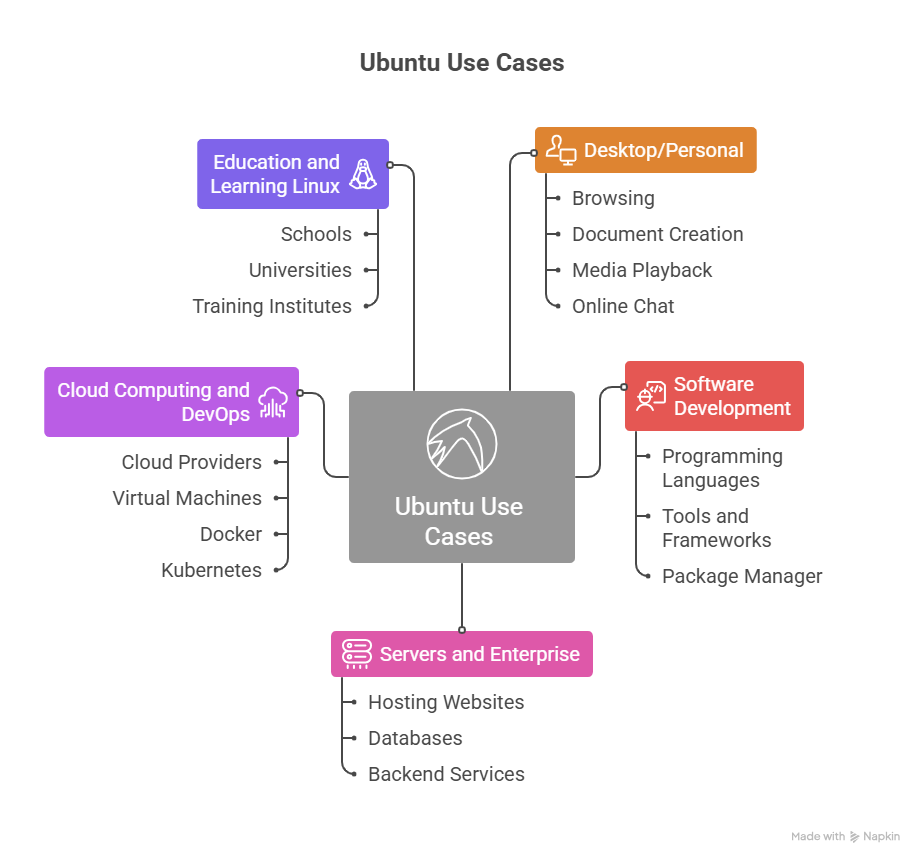
Desktop/Personal
- Ubuntu is a popular desktop OS. Browsering, document creation, media playback, and online chat are its uses. Ubuntu’s sleek, clear graphical interface helps beginners switch operating systems.
- Ubuntu is free, safe, and requires little hardware, thus students and household users pick it. Regular updates keep it secure and stable for daily usage.
The Software Development
- Software engineers like Ubuntu. Useful with programming languages, tools, and frameworks. Developers may install compilers, interpreters, databases, and code editors with our package manager.
- Since Ubuntu is popular on cloud platforms and servers, developers build and test apps on it before publishing. This consistency enhances development efficiency and compatibility.
Also Read About Ubuntu Operating System: History, Features And Advantages
Servers and Enterprise
- Hosting websites, databases, and backend services with Ubuntu Server is common. The lightweight, stable, and secure construction makes it appropriate for prolonged operation.
- Long-Term Support (LTS) Ubuntu Server versions give prolonged security updates, therefore organizations choose them. Ubuntu is ideal for enterprise systems, data centers, and essential infrastructure because to its stability.
Cloud Computing and DevOps
- Ubuntu is a popular cloud computing Linux distribution. Many cloud providers ship Ubuntu images, making virtual machine deployment easy.
- Ubuntu DevOps engineers employ Docker, Kubernetes, and CI/CD pipelines. It works with modern cloud technologies for scalable and automated settings.
Education and Learning Linux
- Linux is taught at schools, universities, and training institutes using Ubuntu. Students may focus on learning rather than system configuration with its simple installation and interface.
- Ubuntu’s vast documentation and active community help novices and experts learn.
Ubuntu Installation Step-by-Step
Step 1: Digital Survival Kit
Two prerequisites must be met before you can alter your computer’s settings:
- Go to the Ubuntu download site for the ISO image. Select the LTS (Long Term Support) version at all times. This is probably Ubuntu 24.04 or 26.04 in 2026. This version isn’t simply for testing new features; it’s designed for stability.
- The “Flasher”: Simply dragging the ISO file onto a thumb drive is not an option. Get Rufus or BalenaEtcher.
- Insert a USB disk with a minimum capacity of 8GB.
- Click Flash after opening your flashing tool, choosing the Ubuntu ISO, and choosing your USB.
- Note: This will entirely erase that USB disk.
Also Read About Linux Shell Scripting For DevOps Interview Questions Guide
Step 2: Entering the BIOS
- People are afraid of this portion, but timing is everything.
- The computer you wish to install Ubuntu on must be shut down.
- Connect the USB that has been flashed.
- As soon as the power is turned on, begin tapping your Boot Menu Key. (Typically, Esc, F11, or F12).
- There will be a list. The one that reads “UEFI: [Your USB Name]” should be chosen.
Phase 3: The “Try Before You Buy” Display
A black menu (the GRUB menu) will appear. Next, choose “Try or Install Ubuntu.” You are not truly “installed” till the desktop loads. It’s a “Live Environment.” Here, you can establish a Wi-Fi connection to check the functionality of your internet devices. Double-click the “Install Ubuntu” icon on the desktop if everything appears to be in order.
Phase 4: The Installation Wizard
The installation for 2026 is highly visual. Simply adhere to these particular decisions:
- Keyboard and Layout: Typical.
- Choose “Normal” over “Minimal” in this situation. It comes with the media players and workplace software you’ll really need in the future.
- Check the box labeled “Install third-party software for graphics and Wi-Fi.” If you have an NVIDIA card or certain Wi-Fi chips, this is essential; if not, you may eventually get a blank screen or no internet.
- The Disk Option:
- Erase the disk: easiest. It turns the computer into an Ubuntu-only machine by erasing everything.
- Install Alongside: This provides Ubuntu its own “room” on the drive and reduces the size of Windows if you have it.
- Who are you? Decide on a name. Remember your password. Every time you update the system or install an app, you will require it.
Also Read About Linux Shell Scripting Best Practices For Writing Scripts
Phase 5: The Final Details
- For perhaps ten to fifteen minutes, the computer will whir. After that, you will be prompted to “Remove the installation media and press Enter.” After removing the USB, press Enter.
- First, launch the Terminal (Ctrl+Alt+T) and execute sudo apt update && sudo apt upgrade -y when the desktop starts.
- This guarantees that the most recent security updates released in the last few hours are present in even the freshly installed software.
Command-based installation steps
1. Pre-Installation: Creating the Media (Linux/macOS)
If you are already on a Unix-like system, don’t use a GUI tool. Use the dd command to burn your ISO.
Warning: Be extremely careful with /dev/sdx. Use lsblk to identify your USB drive first.
Bash

# Identify your USB drive
lsblk

# Flash the ISO (Replace 'sdx' with your actual drive letter)
sudo dd bs=4M if=ubuntu-26.04-desktop-amd64.iso of=/dev/sdx status=progress oflag=sync
2. The “Minimal” Server-Style Install
When you boot into the Ubuntu Server installer, you are greeted by a text-based interface. While it looks like a menu, it is executing these backend steps:
- Network Setup:
ip addr show(To verify your Ethernet is picked up). - Partitioning (The Manual Way): If you choose “Custom Storage Layout,” the system uses
fdiskorpartedto create:- /boot/efi: 512MB (FAT32)
- / (Root): Remaining space (EXT4 or ZFS)
3. Post-Install: The “First 5 Minutes” Script
Once you reboot and log in, the GUI is slow for installing apps. Use this sequence to “humanize” your system and get the essentials running immediately.
Step 1: The Global Refresh
Never install anything until the repositories are synced.
Bash

sudo apt update && sudo apt upgrade -y
Step 2: Essential Build Tools
If you plan on coding or compiling anything, you need the “Meta-package” that contains GCC, Make, and other basics.
Bash

sudo apt install build-essential git curl wget -y
Step 3: Enable the “Ubuntu Pro” Security (Free)
This gives you the extended security maintenance mentioned earlier.
Bash

sudo ua attach [YOUR_TOKEN_FROM_CANONICAL]
Step 4: Installing the “Must-Haves” via Snap & APT
Instead of searching the web for .deb files, run this block:
Bash

# Media and Productivity
sudo apt install vlc libreoffice -y

# Modern tools via Snap
sudo snap install code --classic   # VS Code
sudo snap install spotify
sudo snap install discord
Also Read About Shell Script Compiler SHC: Features, Usage, And Examples
4. Housekeeping: Cleaning Up
Ubuntu keeps old headers and packages that can clutter your drive. A “pro” user runs this once a month to keep the system lean:
Bash

# Remove unnecessary dependencies
sudo apt autoremove

# Clear out the local repository of retrieved package files
sudo apt clean
Ubuntu vs Linux
| Feature | Linux | Ubuntu |
|---|---|---|
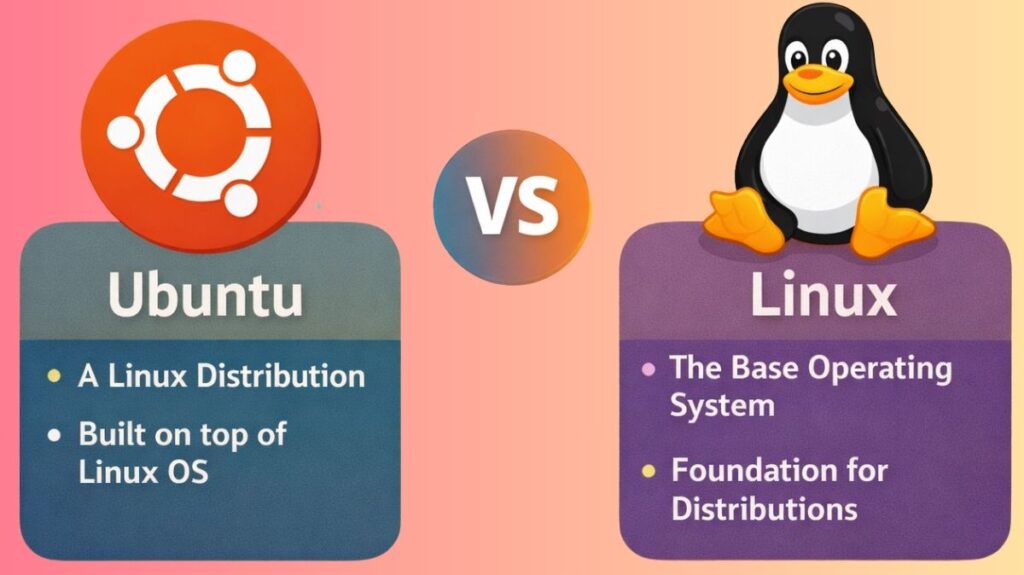
| Definition | Linux is an open-source operating system kernel that forms the core of many operating systems. | Ubuntu is a Linux distribution built on the Linux kernel, designed for ease of use. |
| Type | Kernel (core component) | Complete operating system (distro) |
| Developed By | Created by Linus Torvalds and maintained by the open-source community. | Developed and maintained by Canonical Ltd. |
| First Release | 1991 | 2004 |
| Ease of Use | Depends on the distribution; can be complex for beginners. | Very user-friendly, ideal for beginners. |
| Target Users | Developers, system administrators, and advanced users (varies by distro). | Beginners, desktop users, enterprises, and developers. |
| User Interface | No default GUI; depends on the distro. | Comes with GNOME desktop by default. |
| Software Installation | Package management varies by distribution. | Uses APT package manager with .deb packages. |
| Hardware Support | Varies across distributions. | Excellent hardware and driver support out of the box. |
| Stability | Depends on distribution (e.g., Debian is very stable). | Highly stable, especially LTS versions. |
| Security | Strong security model but depends on configuration. | Regular security updates and patches from Canonical. |
| Customization | Extremely customizable across all Linux distros. | Customizable, but less than some advanced distros. |
| Enterprise Use | Widely used in servers and cloud environments. | Popular in enterprises, cloud, and DevOps environments. |
| Examples | Debian, Fedora, Arch, CentOS, Ubuntu | Ubuntu Desktop, Ubuntu Server, Kubuntu, Xubuntu |
Also Read About What Is Linux Distributions (Distros)? Types And Features