

Linux Boot Process
Understanding how a Linux system transitions from a powered-off state to a functional desktop is essential for troubleshooting and system administration. This process, known as the boot sequence, involves a hand-off between hardware, firmware, and various software layers.
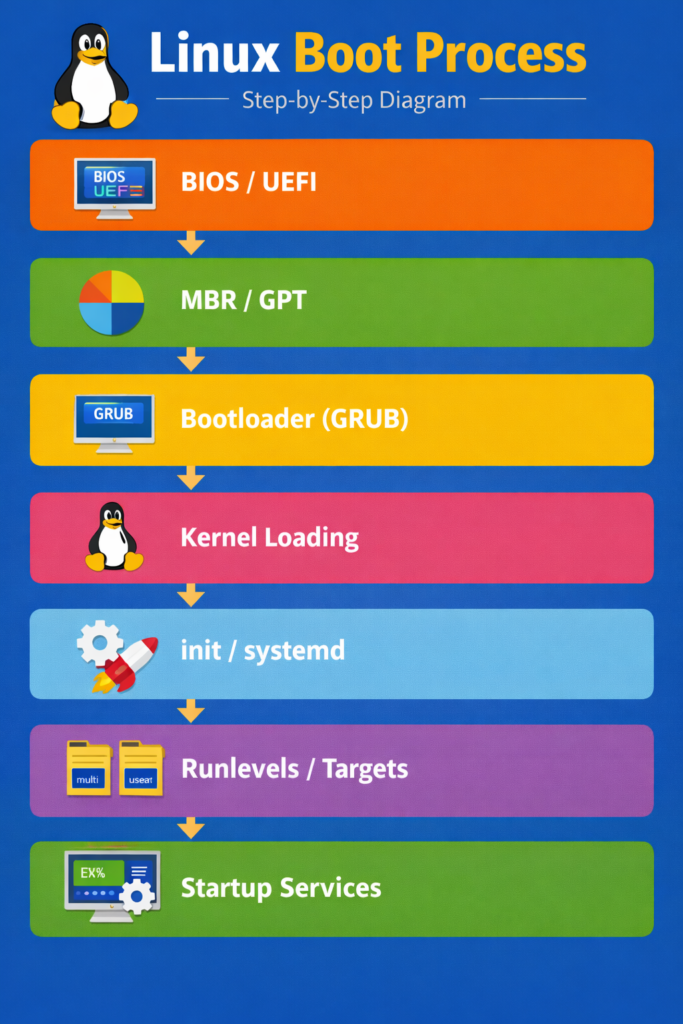
Hardware Initialization: BIOS and UEFI
The firmware of the computer takes over as soon as you push the power button.
- The outdated standard is called BIOS (Basic Input/Output System). It runs a POST (Power-On Self-Test) to make that CPUs and RAM are operating. Then, using a predetermined priority list, it searches for a bootable drive.
- The contemporary replacement for BIOS is called UEFI (Unified Extensible Firmware Interface). It has “Secure Boot” to guarantee that only trusted code is run at startup, is quicker, and supports larger hard drives.
| BIOS | UEFI |
|---|---|
| Older system | Modern replacement |
| Supports disks up to 2 TB | Supports very large disks |
| Uses MBR | Uses GPT |
| Text-based interface | Graphical interface |
Also Read About What Is Linux Distributions (Distros)? Types And Features
Partitioning Standards: MBR vs. GPT
The firmware has to find the boot instructions on the disk before the operating system can load.
- Master Boot Record, or MBR, is mostly utilized with older BIOS. Boot data is stored in the disk’s first sector. Disks less than 2 TB and four primary partitions are the only options.
- The current standard combined with UEFI is called GPT (GUID Partition Table). It supports enormous disk sizes and permits almost infinite partitions. In the case that the primary sector is corrupted, it also maintains copies of the partition data to guard against system failure.
The Bootloader (GRUB)
The firmware loads the Bootloader after determining the boot device. This is GRUB (GRand Unified Bootloader) for the majority of Linux computers.
The function of the bootloader is to:
- If there are several OSs installed, present a menu.
- Find the Initial RAM Disk (initrd) and the Linux Kernel on the hard disk.
- Put them into the RAM, or system memory.
Initialization and Kernel Loading
The operating system’s “brain” is the kernel. When GRUB transfers command, the Kernel:
- Hardware drivers are initialized.
- Mounts the root file system (
/) that the boot parameters provide. - Initiates PID 1, the system’s very first process.
The Init System: systemd
Systemd, which serves as the manager for the remainder of the boot process, is launched by the kernel in contemporary Linux distributions.
- PID 1: All other processes are descended from systemd.
- Parallelization: Systemd launches several services at once, greatly reducing boot times, in contrast to earlier systems that launched services one at a time.
Also Read About What Is A Linux Shell? And Different Types Of Shell In Linux
Runlevels and Targets
In order to decide which state the system should boot into, Linux employs “Targets” (formerly known as Runlevels).
| Target | Legacy Runlevel | Description |
| poweroff.target | 0 | System shutdown. |
| rescue.target | 1 | Single-user mode for administrative repairs. |
| multi-user.target | 3 | Command-line mode with networking (no GUI). |
| graphical.target | 5 | Standard desktop environment with GUI. |
| reboot.target | 6 | System restart. |
Final Login and Startup Services
Systemd initiates a number of Startup Services when it meets the intended goal. This comprises:
- Launching the network management.
- The PulseAudio/PipeWire sound server is loading.
- Bringing up the login screen, or Display Manager.
The system switches from the system-wide boot procedure to your specific user session when you provide your credentials.
Troubleshooting Advice
You may frequently modify boot options by pressing E at the GRUB menu if your machine won’t boot. You can correct configuration problems by forcing the system into Rescue Mode by appending the number 1 or the word single to the end of the kernel line.
Why It’s Important to Understand the Linux Boot Process
Understanding how Linux boots up benefits you:
- Resolve boot issues.
- Personalize the behavior of the startup.
- Enhance the functionality of the system.
- Work with servers and cloud systems with assurance.
Boot expertise is crucial for system maintenance and disaster recovery for DevOps experts and system administrators.
Also Read About How To Use Shell Command In Linux & Basic Shell Commands
Linux boot process interview questions
- Explain the Linux boot process step-by-step. (Focus on the stages above).
- What is the difference between BIOS and UEFI?.
- What is the role of GRUB? (Kernel loading, config file location:
/boot/grub/grub.cfg). - What is
initramfsand why is it needed? (Temporary root FS for kernel drivers). initvs.systemd? (SysVinit vs. modern parallel startup).- What are runlevels (SysVinit) or systemd targets? (Levels of system operation).
- Troubleshooting: How to fix a slow boot or boot failure? (e.g., check logs, GRUB,
systemctl statusservices). - Key Files:
/etc/fstab(filesystem mounts),/etc/inittab(SysVinit),grub.cfg,/var/log/messages.
Troubleshooting/Advanced Questions
- How to troubleshoot a server slow to boot?
- How to find which services start at boot? (
systemctl list-unit-files --type=service). - How to recover from a lost root password?
- What is
/procfilesystem? (Virtual FS for kernel info).
Examples:
- Q: What is the difference between “Runlevels” (SysVinit) and “Targets” (systemd)?
A: While they serve the same purpose, Targets are more flexible.
- Runlevels (0-6): Sequential and rigid (e.g., Runlevel 3 is CLI, 5 is GUI).
- Targets (.target files): Can be loaded in parallel. For example,
graphical.targetincludesmulti-user.target. You can switch them usingsystemctl isolate.
| Legacy Runlevel | systemd Target | Purpose |
| 1 | rescue.target | Single-user/Repair mode |
| 3 | multi-user.target | Command-line with networking |
| 5 | graphical.target | Standard Desktop GUI |
- Q: What is a “Kernel Panic,” and what are common causes during boot?
A: A Kernel Panic occurs when the kernel encounters an error it cannot recover from. Common causes during boot include:
- Inability to mount the root filesystem (incorrect
root=parameter in GRUB). - A corrupted
initramfsimage. - Incompatible hardware drivers.
- Faulty RAM or hardware.
Scenario-Based Questions
- Q: You see the error “GRUB Rescue>” on your screen. What does this mean?
A: This indicates that GRUB can find its initial stage but cannot find its configuration file or the rest of its modules. This usually happens if the partition containing /boot/grub was deleted, moved, or the disk UUID has changed.
- Q: How do you identify which service is slowing down your boot time?
A: In systemd-based systems, you use:
systemd-analyze: Shows total boot time.systemd-analyze blame: Lists all running services and how long each took to initialize.systemd-analyze critical-chain: Shows a tree of time-critical unit dependencies.
Also Read About Linux Installation Step By Step For Beginners Complete Guide