

BIOS and UEFI Difference
When a computer is turned on, its initial software layers are called BIOS and UEFI. They provide as a link between the operating system and the actual hardware, enabling Linux or any other OS to boot up. A computer wouldn’t be able to connect with its own parts without BIOS or UEFI.
What is BIOS?
BIOS (Basic Input/Output System) is a small firmware program stored on a chip on the motherboard. It has existed since the earliest personal computers and follows a very traditional design.
When you press the power button, BIOS wakes up before anything else. It performs a basic hardware inspection called POST (Power-On Self-Test). During POST, BIOS checks whether essential components like RAM, CPU, keyboard, and storage devices are available and functioning correctly. The conventional firmware that has been in use since the 1970s is called BIOS (Basic Input/Output System).
- Architecture: Because it runs in 16-bit mode, its addressable memory is limited to 1 MB.
- Sequential Booting: The startup procedure feels sluggish because the BIOS examines each piece of hardware keyboard, mouse, and drives one at a time.
- Interface: The majority of BIOS menus are text-only, blue or grey panels that can only be accessed with a keyboard.
Limitations of BIOS
Because BIOS was created decades ago, it has a number of technical limitations.
- Only disks up to 2 TB are supported.
- Only four primary partitions are compatible with it.
- It operates in the antiquated and sluggish 16-bit mode.
- There are no security mechanisms included into it.
Many older computers and virtual machines still use BIOS in spite of these limitations.
Also Read About Input and Output Handling in Linux Explained with Examples
What is UEFI?
UEFI (Unified Extensible Firmware Interface) is the modern replacement for BIOS. It was created to solve the problems of BIOS and to support modern hardware. When the machine turns on, UEFI also runs, although it functions significantly differently.UEFI can read data from the EFI System Partition (ESP) instead of disk sectors. Booting becomes faster and more flexible.
Speed: It may initialize hardware in parallel (several things at once) by operating in 32-bit or 64-bit mode. Boot times are greatly accelerated as a result.
Interface: A Graphical User Interface (GUI) with mouse capabilities and even animations is typically included with UEFI.
Flexibility: UEFI may execute its own tiny “apps” or shells before the operating system ever boots up, and it is not restricted to any particular processor architecture.
Important UEFI Features
Compared to BIOS, UEFI brought numerous improvements:
- Uses GPT to support drives bigger than 2 TB.
- Operates in either 32-bit or 64-bit mode.
- Quicker startup time.
- Support for networking is integrated.
- Boot menus that are graphical.
- Secure Boot will stop unwanted software.
- Uses NVRAM rather than CMOS to save settings.
- Most current laptops and PCs use UEFI firmware.
Also Read About Linux Installation Step By Step For Beginners Complete Guide
Why BIOS and UEFI Matter in Linux
BIOS or UEFI for Linux users establishes:
- The bootloader you’re using.
- If Secure Boot is necessary.
- How disks are divided up.
- Whether big disks and other contemporary technologies like NVMe function as intended.
Due to its improved compatibility, security, and performance, UEFI mode is advised by the majority of contemporary Linux distributions.
Real World Comparison
BIOS and UEFI can be conceptualized as follows:
- BIOS functions similarly to an antiquated security guard who merely verifies your identity and unlocks the door.
- Similar to a smart building system, UEFI controls access, scans for dangers, verifies identification, and handles all digital management.
Both permit access, but one is obviously made for contemporary requirements.
MBR vs GPT
Your hard drive’s organization is determined on the firmware you use:
- BIOS and MBR (Master Boot Record) are paired. Boot data is stored in the disk’s first sector. The disk won’t boot if that sector is corrupted.
- GPT (GUID Partition Table): Associated with UEFI. The boot data is stored in many copies on the disk. GPT can use the backup to automatically fix itself if one copy becomes corrupt.
BIOS vs UEFI
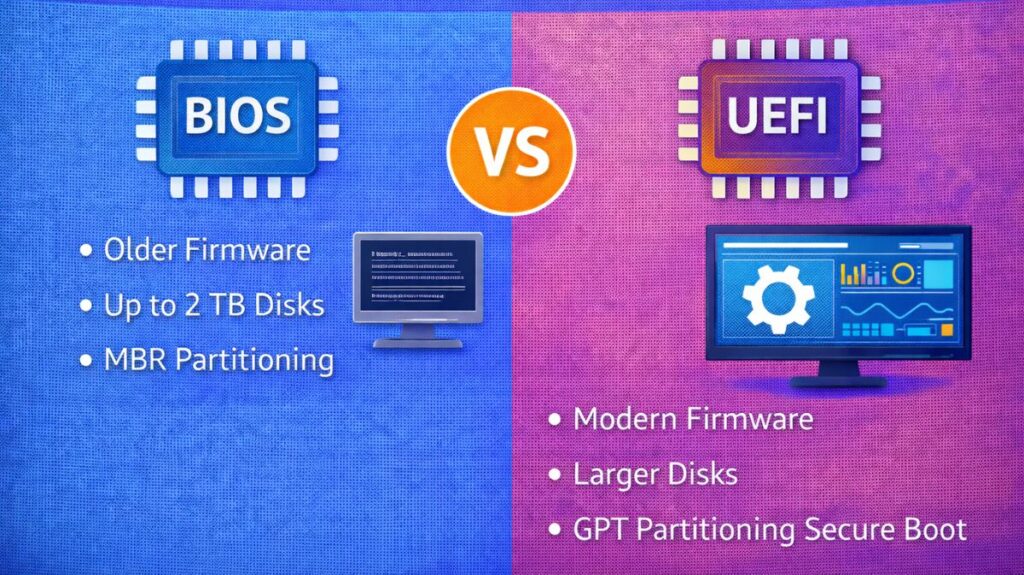
| Feature | BIOS | UEFI |
|---|---|---|
| Boot Mode | Legacy | Native |
| Disk Support | Up to 2 TB | Up to 9.4 ZB |
| Partition Type | MBR | GPT |
| Interface | Text-based | Graphical |
| Boot Speed | Slower | Faster |
| Security | None | Secure Boot |
| CPU Mode | 16-bit | 32/64-bit |
| Network Boot | Basic | Advanced |
Also Read About What Is The Difference Between Linux And Windows? Explain
BIOS and UEFI settings
The “hidden” step that decides whether your Linux installation will go smoothly or result in a string of annoying failures is correctly configuring your BIOS or UEFI.
- How to Access the Configuration
You must access the BIOS/UEFI menu as soon as the machine is powered up in order to modify these settings.
- Common Keys:
F2,F12,Del, orEsc - Linux Terminal Shortcut: Use systemctl reboot –firmware-setup to restart a Linux system straight into the settings.
- Essential Settings for Linux
Check these four crucial categories before launching the installer:
A. Boot Mode (Legacy vs. UEFI)
- Setting: “Boot Mode” or “Boot List Option.”
- Recommended: Set to UEFI.
- Why: Modern distros are designed for UEFI. Avoid “Legacy” or “CSM” (Compatibility Support Module) unless you are on a computer older than 2012.
B. Secure Boot
- The setting is “Secure Boot Enable.”
- Disabled is advised (generally safer for novices).
- Why: It is supported by some distributions, such as Fedora and Ubuntu, but not by many others, such as Arch or specialist gaming distributions. “Security Violation” problems at boot are avoided by disabling it.
C. Mode of Storage (SATA/NVMe Function)
- Choosing between “SATA Mode” and “Storage Interface.”
- AHCI is advised.
- Why: A lot of laptops are preconfigured with Intel RST or RAID. If your hard drive is in RAID mode, Linux frequently cannot see it. The best solution for “hard drive not found” issues is to switch to AHCI.
D. Fast Boot
- Configuration: “Quick Boot” or “Fast Boot.”
- Disabled is advised.
- Why: In order to save time, Fast Boot does not initialize USB interfaces. This prevents your Linux installation USB from booting.
- Dual-Booting Checklist (Windows + Linux)
Before you even touch the BIOS, you need to adjust one Windows parameter if you intend to keep Windows running alongside Linux:
Disable Windows Fast Startup:
- Select Control Panel > Power Options to disable Windows Fast Startup.
- Select “Choose what the power buttons do.”
- Select “Change settings that are currently unavailable.”
- Turn on fast startup is unchecked.
Why? Windows “Fast Startup” locks the hard disk and puts the kernel into hibernation. Linux won’t be able to access your files or even properly install the bootloader if this is enabled.
Summary
BIOS is the conventional firmware, which has several technical limitations and uses extremely simple methods to start the computer. Large disks, quicker booting, enhanced security, and graphical user interfaces are all supported by the contemporary substitute, UEFI.
While BIOS primarily exists for compatibility with older hardware and operating systems, UEFI is the default and preferred option in today’s computers.
Also Read About Linux Boot Process Step By Step And Interview Questions