

Create a startup service in linux
The standard, contemporary method for managing Linux background processes is to create a systemd service. It guarantees that your program or script launches automatically upon bootup, restarts in the event of a crash, and accurately logs output.
This is a detailed guide on how to put one up.
Create your Service File
Systemd looks for user-defined services in /etc/systemd/system/. You’ll need sudo privileges to create a file here.
Example: sudo nano /etc/systemd/system/myapp.service
Also Read About What Is The Difference Between Systemd And Systemctl?
Define the Configuration
Paste the following template into your file. For this example, let’s assume you’re running a Python script:
Ini, TOML

[Unit]
Description=My Custom Startup Service
After=network.target

[Service]
ExecStart=/usr/bin/python3 /home/user/scripts/myscript.py
WorkingDirectory=/home/user/scripts
StandardOutput=inherit
StandardError=inherit
Restart=always
User=username

[Install]
WantedBy=multi-user.target
Analysis of Important Fields:
- After=network.target: Makes sure the service doesn’t start until the network is up.
- ExecStart: Your script’s absolute path to the executable. Use absolute paths at all times.
- Restart=always: Attempts to restart the service automatically in the event that it fails.
- User: The particular user account that should execute the process; for security reasons, try to avoid running as root.
Also Read About What Is GRUB Bootloader? Linux Boot Process And Commands
Register and Start the Service
Once the file is saved, you need to tell Linux it exists and set it to run at boot.
- Reload the daemon to pick up the new file:
sudo systemctl daemon-reload - Enable the service (this ensures it starts on boot):
sudo systemctl enable myapp.service - Start it now:
sudo systemctl start myapp.service
Managing Your Service
Now that it’s running, you can manage it like any other system process:
| Action | Command |
| Check Status | sudo systemctl status myapp.service |
| Stop Service | sudo systemctl stop myapp.service |
| Restart Service | sudo systemctl restart myapp.service |
| View Logs | journalctl -u myapp.service -f |
How to check startup services in linux
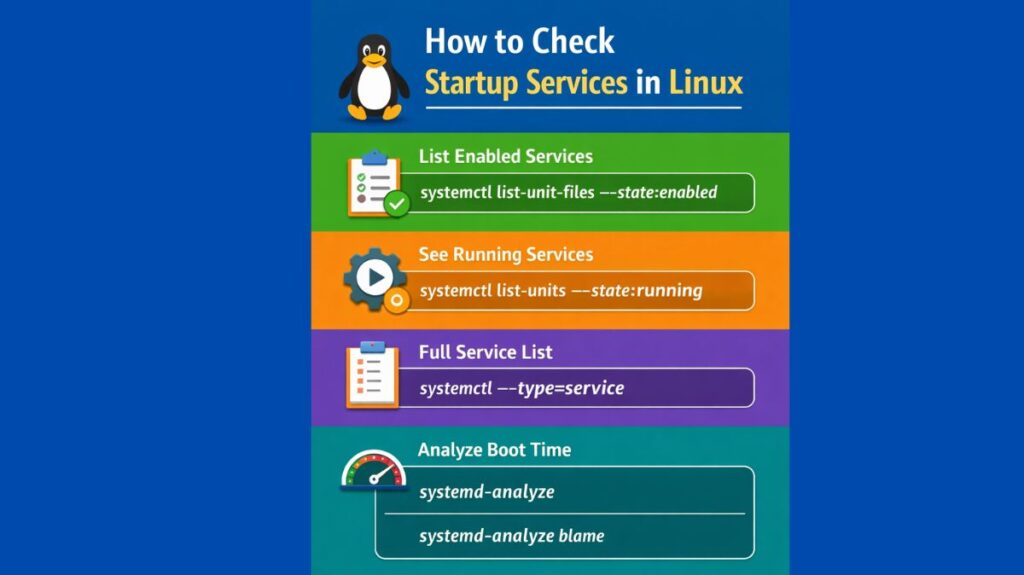
Depending on whether you want to see what is currently running or what is scheduled to run at boot, there are a few go-to commands. Since most modern Linux distributions (Ubuntu, Fedora, Debian, CentOS) use systemd, systemctl will be your primary tool.
List All Enabled Services
To see every service that is configured to start automatically when the system boots, use:
Bash

systemctl list-unit-files --type=service --state=enabled- STATE enabled: Means it will start on boot.
- STATE disabled: Means it stays off unless started manually or by another process.
See What is Currently Running
If you want to see which services are active and running right now:
Bash

systemctl list-units --type=service --state=running
The “Master List” (Status & Description)
For a comprehensive view that shows the load status, active state, and a short description of every service on the system:
Bash

systemctl --type=service
Also Read About Linux Boot Process Step By Step And Interview Questions
Analyzing Boot Performance
Sometimes you want to check startup services because the computer is booting slowly. Linux has a built-in “blame” tool for this:
- Total Boot Time:
systemd-analyze - Service Rankings:
systemd-analyze blame(This lists services in order of how long they took to initialize, which is great for troubleshooting lag.)
Legacy and Alternative Methods
Depending on your setup, some services might be managed differently:
Crontabs
Some “startup” scripts are actually hidden in cron jobs. Check for tasks set to run at reboot:
crontab -l | grep "@reboot"
The GUI Way (Desktop Users)
If you are using a desktop environment like GNOME or KDE, there is often a “Startup Applications” app.
- Command:
gnome-session-properties(for GNOME/Ubuntu users)
Summary Table
| Goal | Command |
| See what starts at boot | systemctl list-unit-files --state=enabled |
| See what’s running now | systemctl list-units --state=running |
| Find slow startup services | systemd-analyze blame |
| Check a specific service | systemctl status <service_name> |
Startup services in linux command line
Managing services in Linux is primarily handled by systemd, which uses the systemctl command. Think of it as the mission control for your starts, stops, and keeps an eye on everything running in the background.
The Essentials: Managing Service State
These are the commands you’ll use most often to control a service (like nginx, docker, or ssh) in real-time.
- Start a service:
sudo systemctl start <service_name> - Stop a service:
sudo systemctl stop <service_name> - Restart a service:
sudo systemctl restart <service_name>(Stops and starts it again) - Reload configuration:
sudo systemctl reload <service_name>(Keeps the service running but updates settings)
Also Read About What Are The Runlevels In Linux? & Common Systemd Targets
Automation: Boot-up Behavior
Just because a service is running now doesn’t mean it will start automatically after a reboot. You have to tell Linux your preference.
- Enable at boot:
sudo systemctl enable <service_name> - Disable at boot:
sudo systemctl disable <service_name> - Check boot status:
systemctl is-enabled <service_name>
Monitoring & Troubleshooting
If something goes wrong, these commands act as your diagnostic toolkit.
- Check status:
systemctl status <service_name>This provides a “health report,” showing if the service is active, its PID (Process ID), and the most recent log entries. - List all active services:
systemctl list-units --type=service - View logs (Journal):
journalctl -u <service_name>Use-f(e.g.,journalctl -u nginx -f) to watch logs in real-time as you debug.
The Old School: service and init.d
On older systems (or if you have muscle memory from a decade ago), you might see the service command. While most modern distributions redirect this to systemctl automatically, it looks like this:
sudo service <service_name> startsudo service <service_name> status
Summary Table
| Action | Command | Persistent across Reboot? |
| Start Now | systemctl start | No |
| Stop Now | systemctl stop | No |
| Auto-start | systemctl enable | Yes |
| Prevent Auto-start | systemctl disable | Yes |
Also Read About What Is Kernel Loading In Linux? Kernel Loading Process
How to disable startup services in linux
To disable a service from starting automatically when your Linux system boots, you primarily use systemd. Disabling a service is different from stopping it; a “disabled” service won’t start on its own at boot, but it can still be started manually later.
The Standard Way: systemctl
Most modern Linux distributions (Ubuntu, Fedora, Debian, CentOS, Arch) use systemctl.
Step-by-Step Disable
- Stop the service first (if it’s currently running):
sudo systemctl stop <service_name> - Disable the service:
sudo systemctl disable <service_name> - Verify the change:
systemctl is-enabled <service_name>This should returndisabled.
The “Nuclear” Option: Masking
Sometimes a service is “pulled in” by another service even if you disable it. To prevent a service from being started by anything (manually or by another process), use mask:
sudo systemctl mask <service_name>- To undo this later, use
unmask.
Managing GUI Startup Apps
If you are looking to disable applications that pop up when you log into your desktop (like Discord, Steam, or Slack), the command line systemctl won’t usually find those. Those are managed via .desktop files.
- Location: Look in
~/.config/autostart/ - How to disable: You can delete the file or move it out of that folder:
mv ~/.config/autostart/app-name.desktop ~/.config/autostart/app-name.desktop.bak
Finding What to Disable
Not sure which services are slowing down your boot time? Use these diagnostic commands:
- List all enabled services:
systemctl list-unit-files --state=enabled - See which services take the longest to boot:
systemd-analyze blameThis lists services in descending order of how much time they added to your startup.
Summary of Commands
| Goal | Command |
| Stop current auto-start | sudo systemctl disable <service> |
| Stop and Disable at once | sudo systemctl disable --now <service> |
| Prevent any/all starting | sudo systemctl mask <service> |
| Check boot speed impact | systemd-analyze blame |
Also Read About Linux Installation Step By Step For Beginners Complete Guide