

Linux System Administration Commands with Examples
Using robust command-line tools, Linux system administration entails managing users, services, files, processes, and networks. An organized list of crucial Linux admin commands with concise examples can be found below.
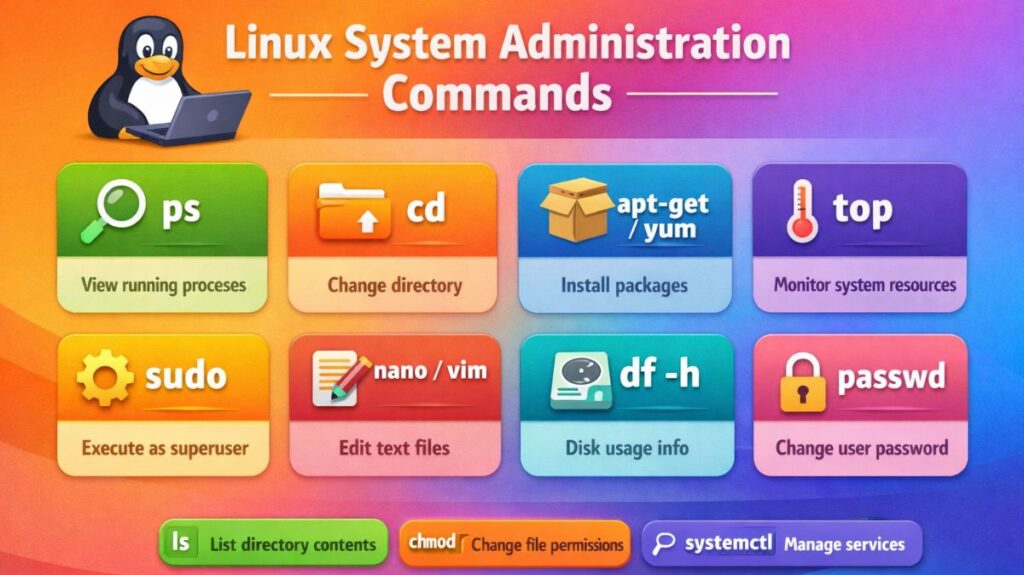
User Management Commands
Create a User
bash

sudo useradd john
Set Password
bash

sudo passwd john
Delete a User
bash

sudo userdel john
Create a Group
bash

sudo groupadd developers
Add User to Group
bash

sudo usermod -aG developers john
Also read about What Is Linux System Administration? How It Works & Types
File and Directory Management
List Files
bash

ls -l
Create Directory
bash

mkdir project
Remove Directory
bash

rm -r project
Copy Files
bash

cp file1.txt backup.txt
Move or Rename File
bash

mv old.txt new.txt
File Permission Commands
Change Permissions
bash

chmod 755 script.sh
Change Owner
bash

chown john:developers file.txt
View Permissions
bash

ls -l
Also read about Explain File Permissions In Linux & Ownership With Examples
Process Management Commands
View Running Processes
bash

ps aux
Real-Time Process Monitoring
bash

top
Kill a Process
bash

kill 1234
Force Kill
bash

kill -9 1234
Service Management (systemd)
Modern Linux systems use systemd.
Start Service
bash

sudo systemctl start sshd
Stop Service
bash

sudo systemctl stop sshd
Restart Service
bash

sudo systemctl restart sshd
Enable at Boot
bash

sudo systemctl enable sshd
Check Status
bash

sudo systemctl status sshd
Disk Management Commands
Check Disk Usage
bash

df -h
Check Directory Size
bash

du -sh foldername
View Partitions
bash

lsblk
Format Partition
bash

sudo mkfs.ext4 /dev/sdb1
Also read about Networking in Linux: Types, Advantages, and Disadvantages
Network Management Commands
Check IP Address
bash

ip addr
Test Connectivity
bash

ping google.com
Check Open Ports
bash

ss -tulnp
DNS Lookup
bash

nslookup google.com
Package Management Commands
Debian/Ubuntu (APT)
bash

sudo apt update
sudo apt install nginx
RHEL/CentOS (YUM/DNF)
bash

sudo yum install httpd
Log Management Commands
View System Logs
bash

journalctl
View Service Logs
bash

journalctl -u sshd
View Log File
bash

cat /var/log/syslog
System Information Commands
Check Kernel Version
bash

uname -r
System Uptime
bash

uptime
Memory Usage
bash

free -h
CPU Information
bash

lscpu
1. Scheduled Tasks (Cron)
Edit Cron Jobs
bash

crontab -e
Example:
bash

0 2 * * * /home/john/backup.sh
(Runs daily at 2 AM)
2. Shutdown and Reboot Commands
Shutdown System
bash

sudo shutdown now
Reboot System
bash

sudo reboot
Also read about Explain User And Group Management In Linux With Examples
Important Commands Every Linux Admin
| Category | Important Commands |
|---|---|
| Users | useradd, usermod, passwd |
| Files | ls, cp, mv, rm |
| Permissions | chmod, chown |
| Processes | ps, top, kill |
| Services | systemctl |
| Network | ip, ping, ss |
| Disk | df, du, lsblk |
| Logs | journalctl |
Linux system administration commands cheat sheet
Service Management (systemd)
These are the modern commands used to manage the background “workers” (services).
| Command | Action |
systemctl start <name> | Starts a service immediately. |
systemctl stop <name> | Stops a service immediately. |
systemctl restart <name> | Stops and then starts a service. |
systemctl enable <name> | Sets service to start automatically at boot. |
systemctl disable <name> | Prevents service from starting at boot. |
systemctl status <name> | Shows if a service is running or has errors. |
System Monitoring & Resources
Use these to see if your “engine” is running hot or out of fuel (RAM/Disk).
| Command | Action |
top or htop | Real-time view of CPU and Memory usage. |
df -h | Shows how much Disk Space is left (Human readable). |
free -m | Shows total, used, and free RAM in Megabytes. |
uptime | Shows how long the server has been running. |
du -sh * | Shows the size of folders in the current directory. |
User & Permission Management
The “Security” layer of your administration.
| Command | Action |
sudo <command> | Run a command with administrative (root) privileges. |
useradd <name> | Create a new user account. |
passwd <name> | Change a user’s password. |
chmod 755 <file> | Change file permissions (Read/Write/Execute). |
chown user:group <file> | Change who owns a file or folder. |
Networking & Connectivity
Checking the “pipes” to make sure data can flow.
| Command | Action |
ip addr | Show the IP address of the machine. |
ping <address> | Check if another computer is reachable. |
ss -tuln | Show all active “listening” ports (web, ssh, etc.). |
nmcli | Manage network connections (Wi-Fi/Ethernet). |
curl -I <url> | Test if a website is responding (shows headers). |
Logs & Troubleshooting
The “History Book” of your system.
| Command | Action |
journalctl -xe | Show the most recent system error messages. |
journalctl -u <name> -f | Follow the logs of a specific service in real-time. |
tail -f /var/log/syslog | Watch the main system log as it happens. |
dmesg | Show kernel-level hardware messages (USB, Disk errors). |
Package Management (Software)
The commands vary slightly based on your Linux “flavor.”
Linux system administrator interview questions and answers
You must exhibit both technical expertise and troubleshooting reasoning if you want to ace a Linux System Administrator interview. The majority of interviewers focus on your ability to handle pressure and your depth of knowledge regarding the relationship between the kernel, services, and hardware.
These are the most typical interview questions, broken down by subject.
Also read about Linux Boot Process Step By Step And Interview Questions
Boot Process & Service Management
Q1: List the steps involved in the Linux boot process.
Answer:
- BIOS/UEFI: Conducts POST hardware checks.
- The boot loader is located by MBR/GPT.
- The kernel is loaded into RAM by GRUB2.
- Kernel: Launches the initial process (
initorsystemd) and mounts the root filesystem. - Systemd: Uses the default target (e.g.,
multi-user.target) to launch all other services.
Q2: What is a “Unit File” in systemd?
Answer: The system is instructed on how to handle a service, mount point, or timer by this declarative configuration file, which is often located in /etc/systemd/system/. It takes the place of SysVinit’s outdated, intricate shell scripts.
Performance & Resource Troubleshooting
Q3: A server is “slow.” What are the first 3 commands you run?
Answer:
- To determine whether process is using more CPU or RAM, use
toporhtop. - To look for disk I/O bottlenecks while awaiting the hard drive, use
iostatoriotop. - To see if the system is “swapping” that is, running out of physical RAM use
free -m.
Q4: What is “Load Average” in the top command?
Answer: The average number of processes that are either runnable or uninterruptible is what it stands for. The system is over-saturated if the 1-minute load average exceeds the number of CPU cores.
File and Storage Systems
Q5: What is an Inode, and what happens if you run out of them?
Answer: An inode is a data structure that holds a file’s metadata, such as its size, owner, and rights, but not the filename or the actual data. Even with gigabytes of free storage space, you will be unable to create new files if your inodes run out.
Q6: Explain the difference between a Hard Link and a Soft Link (Symlink).
Answer:
- Hard Link: Directly points to the inode. The data is retained even if the original file is erased.
- Soft Link: Indicates the name of the file. The link breaks (also known as a “dangling link”) if the original file is removed.
Networking & Security
Q7: How do you check which ports are listening on a server?
- Answer: I use
ss -tuln(preferred) ornetstat -tuln. This shows TCP, UDP, Listening ports, and Numerically (IPs instead of names).
Q8: What is the purpose of the /etc/hosts file?
- Answer: It is a local file used to map IP addresses to hostnames. It is checked before the system queries a DNS server, making it useful for local testing or manual overrides.
User Permissions & Ownership
Q9: What do the permissions 754 mean on a file?
- Answer: It breaks down into three groups: Owner, Group, Others.
- 5 (Group): Read and Execute (4+1).
- 7 (Owner): Read, Write, and Execute (4+2+1).
- 4 (Others): Read only (4).
Q10: What is the “Sticky Bit”?
- Answer: It is a permission bit used on directories (like
/tmp). It ensures that only the owner of a file (or root) can delete or rename that file, even if other users have write permissions on the directory.
| Concept | Key Tool to Mention |
| Troubleshooting Logs | journalctl or tail -f /var/log/messages |
| Network Testing | ping, traceroute, dig, curl |
| Disk Issues | df -h, du -sh, fdisk -l |
| Process Killing | kill -9 <PID> (SIGKILL) vs kill -15 (SIGTERM) |
| Permissions | chmod, chown, umask |
Also read about Kill Process Linux: Commands, Signals And Real Examples