

AppArmor Commands with examples
AppArmor provides command-line tools to manage profiles, switch modes, troubleshoot issues, and generate policies. Below is a practical list of commonly used AppArmor commands with examples (mainly used in Ubuntu, Debian, and openSUSE).
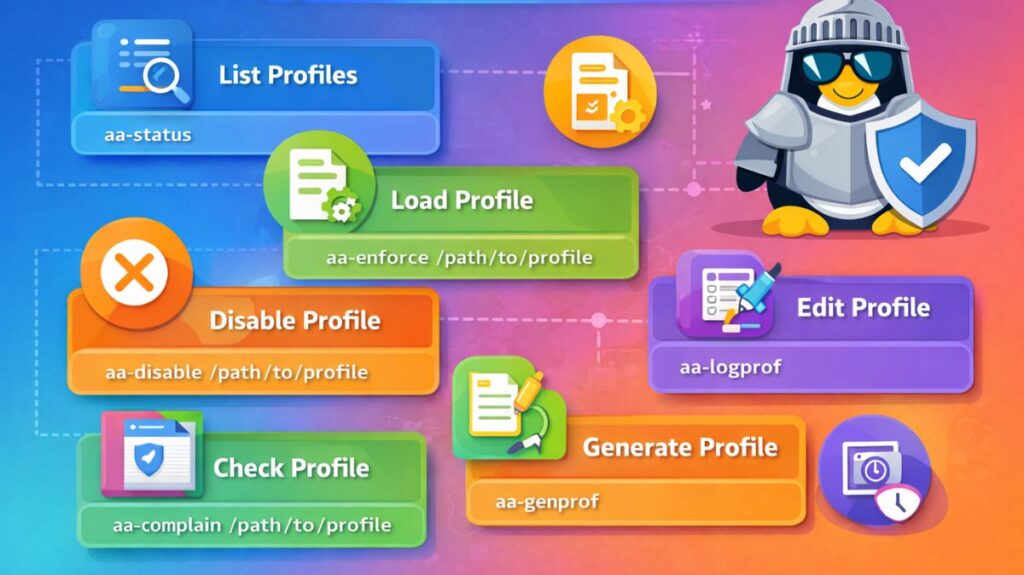
Check AppArmor Status
View Overall Status
bash

sudo aa-status
Output shows:
- Whether AppArmor is enabled
- Loaded profiles
- Profiles in enforce/complain mode
- Running processes under protection
Enable or Disable a Profile
Put Profile in Enforce Mode
bash

sudo aa-enforce /etc/apparmor.d/usr.sbin.nginx
Actively blocks violations.
Put Profile in Complain Mode
bash

sudo aa-complain /etc/apparmor.d/usr.sbin.nginx
Logs violations but does not block.
Generate a New Profile
Automatically Create Profile
bash

sudo aa-genprof /usr/bin/myapp
- Runs the application
- Observes behavior
- Suggests required permissions
Update Profile Based on Logs
Refine Existing Profile
bash

sudo aa-logprof
- Reads system logs
- Suggests rule additions
- Helps fix denied operations
Also read about What Is Garuda Linux? History, Advantages and Disadvantages
Reload a Profile
Reload After Editing
bash

sudo apparmor_parser -r /etc/apparmor.d/usr.sbin.nginx
-r = Replace existing profile
Remove (Unload) a Profile
bash

sudo apparmor_parser -R /etc/apparmor.d/usr.sbin.nginx
Disable a Profile Permanently
bash

sudo ln -s /etc/apparmor.d/usr.sbin.nginx /etc/apparmor.d/disable/
sudo apparmor_parser -R /etc/apparmor.d/usr.sbin.nginx
Re-enable a Disabled Profile
bash

sudo rm /etc/apparmor.d/disable/usr.sbin.nginx
sudo apparmor_parser -r /etc/apparmor.d/usr.sbin.nginx
Restart AppArmor Service
bash

sudo systemctl restart apparmor
Check status:
bash

sudo systemctl status apparmor
Check AppArmor Logs
View Kernel Messages
bash

dmesg | grep apparmor
Check System Logs
bash

sudo grep apparmor /var/log/syslog
List Loaded Profiles Only
bash

sudo aa-status | grep profiles
Also read about Networking in Linux: Types, Advantages, and Disadvantages
Install AppArmor (If Not Installed)
On Ubuntu/Debian:
bash

sudo apt update
sudo apt install apparmor apparmor-utils
Check If specific program Is confined
Example:
bash

ps aux | grep nginx
Then:
bash

sudo aa-status
Check if nginx is listed under enforced profiles.
Temporarily Disable AppArmor (Testing Only)
Stop service:
bash

sudo systemctl stop apparmor
Not recommended for production systems.
Logging and Troubleshooting
Logs are typically found in:
bash

/var/log/syslog
You can also use:
bash

dmesg | grep apparmor
Tools like:
bash

aa-logprof
aa-genprof
help generate and refine profiles.
Also read about What Is Linux System Administration? How It Works & Types
Apparmor commands list
| Command | Purpose |
|---|---|
aa-status | Show AppArmor status |
aa-enforce | Enable enforcement |
aa-complain | Enable complain mode |
aa-genprof | Generate profile |
aa-logprof | Update profile from logs |
apparmor_parser -r | Reload profile |
apparmor_parser -R | Remove profile |
systemctl restart apparmor | Restart service |
How do I enable AppArmor?
In fact, AppArmor is enabled by default on the majority of contemporary Linux distributions, including Ubuntu, Debian, and openSUSE. You can use these procedures to enable it, though, if it has been turned off or if you are using a distribution like Arch Linux.
Step 1: Check if it is already running
Before doing anything, check if it’s already active by running this command in your terminal:
bash

sudo aa-status- If it says “apparmor module is loaded”: It is already enabled.
- If it says “command not found”: You need to install it first.
Step 2: Install AppArmor (If missing)
If your system doesn’t have it, install the necessary packages:
For Ubuntu/Debian:
bash

sudo apt update
sudo apt install apparmor apparmor-utils apparmor-profiles
For Arch Linux:
bash

sudo pacman -S apparmor
Step 3: Enable the Service
Once installed, you need to tell the system to start the AppArmor service every time you boot up:
bash

sudo systemctl enable --now apparmor
Step 4: Enable at the Kernel Level (Crucial for some distros)
If aa-status still says it isn’t working (common on Arch or custom kernels), you must tell the Linux Kernel to load it during the boot process.
- Open your Grub configuration file:
sudo nano /etc/default/grub - Find the line starting with
GRUB_CMDLINE_LINUX_DEFAULT. - Add
apparmor=1 lsm=lockdown,yama,apparmorinside the quotes. It should look something like this:GRUB_CMDLINE_LINUX_DEFAULT="quiet splash apparmor=1 lsm=lockdown,yama,apparmor" - Update your Grub settings:
- Ubuntu/Debian:
sudo update-grub - Arch/Others:
sudo grub-mkconfig -o /boot/grub/grub.cfg
- Ubuntu/Debian:
- Reboot your computer.
Summary
| Action | Command |
| Check Status | sudo aa-status |
| Start Service | sudo systemctl start apparmor |
| Set to Auto-Start | sudo systemctl enable apparmor |
| View Profiles | ls /etc/apparmor.d/ |
What is the use of AppArmor?
- Limits Access: It instructs particular programs on which files they are permitted to open and which folders they are not allowed to enter.
- Stops Spreading: AppArmor prevents hacked web browsers from accessing your saved passwords or sensitive images.
- Utilizes Profiles: Each application has a “profile” that contains a list of permitted actions. AppArmor prohibits actions that aren’t on that list.
- Behavior Monitoring: In “Complain Mode,” it just observes and records what an application attempts to accomplish without preventing it from doing so.
- Enforces Rules: When in “Enforce Mode,” it firmly prohibits any actions that have not been authorized by the administrator beforehand.
Also read about Linux Security Features, Tools, and Why Linux Is Secure
Why Is It Useful?
| Feature | Simple Benefit |
| Path-Based Rules | It’s easy for humans to read and write the security rules. |
| Zero Trust | It assumes every app is a potential risk and limits it by default. |
| Kernel Level | Because it is built into the core of Linux, it is very hard for hackers to bypass. |
Advantages and Disadvantages of AppArmor
| Advantages | Disadvantages |
| Simplicity: Much easier to learn and deploy than SELinux. | Path Sensitivity: If an application is moved to a different folder, the profile may stop working. |
| Incremental Deployment: You can protect just one or two high-risk apps (like a web browser) without touching the rest of the system. | Less Granular than SELinux: It lacks the advanced Multi-Level Security (MLS) features needed by military organizations. |
Excellent Tooling: aa-logprof makes it easy to update profiles based on real-world usage logs. | Implicit Trust: It assumes the file system path is secure; it doesn’t verify the “label” of the file itself. |