

What is Bash Scripting?
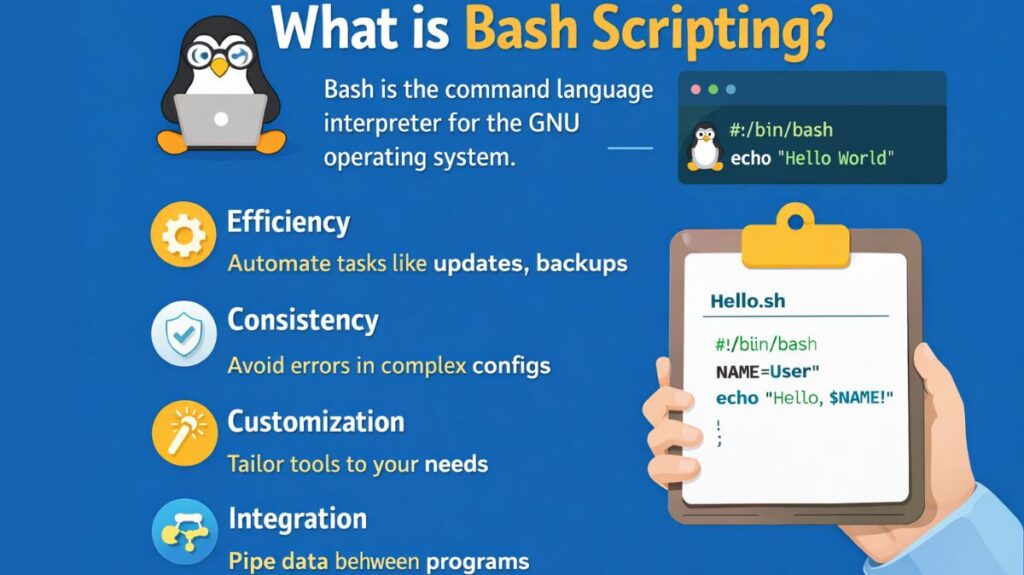
The GNU operating system’s command language interpreter is called Bash (Bourne Again SHell). In essence, a Bash script is a plain text file with a series of commands in it. The shell reads the file and runs the commands as though you had typed them directly into the terminal when you run the script.
Why Use It?
- Efficiency: Automate routine processes, such as system upgrades or backups.
- Consistency: Prevent human error in intricate configurations.
- Customization: Create workflows and tools that are specific to your requirements.
- Integration: Data can be easily piped between several utilities and programs.
Also read about What is Bash in Linux? How Does Bash Work, And Functions
Bash Script Commands & Examples
Every Bash script should start with a shebang (#!/bin/bash), which tells the system which interpreter to use.
1. Variables and Input
Variables store data for later use. No spaces around the = sign!
Bash

#!/bin/bash
NAME="User"
echo "Hello, $NAME!"
read -p "Enter your favorite hobby: " HOBBY
echo "That's cool! I like $HOBBY too."
2. Conditionals (If/Else)
Used for decision-making based on certain criteria.
Bash

#!/bin/bash
FILE="data.txt"
if [ -f "$FILE" ]; then
    echo "$FILE exists."
else
    echo "$FILE does not exist. Creating it now..."
    touch "$FILE"
fi
3. Loops (For/While)
Great for processing multiple files or repeating actions.
Bash
Bash

#!/bin/bash
# Renaming all .txt files to .bak
for file in *.txt; do
    mv "$file" "${file%.txt}.bak"
done
4. Functions
Organize your code into reusable blocks.
Bash

#!/bin/bash
check_status() {
    echo "System uptime is: $(uptime -p)"
}
check_status
Common Applications
- Automating security patches, log rotation, and user management are examples of system administration.
- DevOps/CI-CD: Managing Docker containers, setting up environments, and deploying code to servers.
- Data processing includes things like directory cleanup, CSV file reformatting, and log scraping.
- Cloud management is the use of CLI tools (such as AWS or Azure CLI) in scripts for infrastructure scaling.
Also read about Bash Commands Cheat Sheet With Examples For Beginners
Setting Up Your Environment
You don’t need a heavy IDE; a simple terminal and a text editor will do.
- Check for Bash: Most Linux and macOS systems have it by default. Type
bash --versionin your terminal. - Pick an Editor:
- Terminal-based:
vim,nano. - GUI-based: VS Code (with the “Bash IDE” extension) or Sublime Text.
- Terminal-based:
- Create your first script:
touch myscript.sh- Add your code starting with
#!/bin/bash.
- Grant Permissions: This is the step most people miss. You must make the file executable:
chmod +x myscript.sh - Run it:
./myscript.sh
Bash Scripting Cheat Sheet
A Bash cheat sheet is a lifesaver when you can’t remember if a bracket needs a space or how to extract a filename. Here is a concentrated guide to the most used syntax and logic.
The Essentials
- Shebang: Always the first line.
#!/bin/bash - Comments: Use
#for single-line notes. - Permissions: Make it runnable:
chmod +x script.sh - Execution:
./script.shorbash script.sh
Variables & Expansion
| Syntax | Description |
VAR="value" | Assign: No spaces around =. |
$VAR | Access: Reference the variable value. |
${VAR}_suffix | Braces: Protect the variable name from surrounding text. |
$(command) | Command Substitution: Save command output to a variable. |
read NAME | Input: Prompt the user for a value. |
Special Parameters (Arguments)
| Parameter | Meaning |
$0 | Name of the script itself. |
$1 to $9 | First through ninth arguments passed to the script. |
$# | Number of arguments passed. |
$@ | All arguments as a list. |
$? | Exit status of the last command (0 = success). |
File & String Comparisons
Used inside [[ ... ]] or [ ... ].
Note: Always leave spaces inside the brackets!
File Checks
-f $FILE: True if the file exists and is a regular file.-d $DIR: True if the directory exists.-e $FILE: True if file/folder exists regardless of type.-s $FILE: True if file exists and is not empty.
Also read about Linux DevOps Commands Cheat Sheet With Practical Examples
String & Numeric Checks
[[ $A == $B ]]: Strings are equal.[[ $A != $B ]]: Strings are not equal.[[ -z $A ]]: String is empty.$A -eq $B: Integers are equal.$A -lt $B: A is less than B. (-gtfor greater,-lefor less/equal).
Control Flow
If Statements
Bash

if [[ $1 -gt 10 ]]; then
  echo "Greater than 10"
elif [[ $1 -eq 10 ]]; then
  echo "Exactly 10"
else
  echo "Less than 10"
fi
For Loops
Bash

# Iterate over a list
for ITEM in apple banana cherry; do
  echo "Fruit: $ITEM"
done

# Iterate over files
for FILE in *.log; do
  echo "Processing $FILE"
done
While Loops
Bash

counter=1
while [ $counter -le 5 ]; do
  echo "Count: $counter"
  ((counter++))
done
Logic Operators
&&: AND (e.g.,cmd1 && cmd2— run cmd2 only if cmd1 succeeds).||: OR (e.g.,cmd1 || cmd2— run cmd2 only if cmd1 fails).!: NOT (e.g.,if [[ ! -f $FILE ]]).
Useful One-Liners
- Redirect Output:
command > file.txt(overwrite) orcommand >> file.txt(append). - Silence Error Output:
command 2> /dev/null. - Pipe Output:
cat file.txt | grep "error"(send output of one to the input of another).
Also read about What Is Linux In Cloud & DevOps? Importance, And Commands
Bash Scripting interview questions and answers
A combination of theoretical understanding (the shell’s operation) and hands-on “whiteboard” coding (data manipulation) is needed to prepare for a Bash scripting interview.
These are the most often asked interview questions, arranged by level of difficulty, along with the succinct, “human-sounding” responses you need to ace them.
1. Core Concepts (The “What” and “How”)
Q1: What is the difference between var=value and export var=value?
- Answer:
var=valuecreates a local shell variable. It is only available within the current shell session.export var=valuecreates an environment variable, which is passed down to any child processes or sub-shells started from that terminal.
Q2: What is the difference between $* and $@?
- Answer: Both represent all command-line arguments. However, when wrapped in double quotes:
"$*"views the entire list as a single string (e.g., “arg1 arg2 arg3”)."$@"views the arguments as separate quoted strings (e.g., “arg1”, “arg2”, “arg3”). This is generally safer for loops.
Q3: What does 2>&1 mean in a command?
- Answer: It redirects Standard Error (stderr/file descriptor 2) to the same location as Standard Output (stdout/file descriptor 1). It’s commonly used to capture all output (both successes and errors) into a single log file.
Practical Scripting (Logic & Syntax)
Q4: How do you check the exit status of the previous command?
- Answer: You use the special variable
$?. A value of0means success, while any non-zero value (1-255) indicates an error.
Q5: How do you debug a Bash script without running it line-by-line manually?
- Answer: You can run the script with the
-xflag:bash -x script.sh. This prints every command to the terminal before executing it, showing you exactly where a variable is assigned or where a loop fails.
Q6: Explain the difference between [ and [[.
- Answer:
[(ortest) is a built-in command that is more restrictive.[[is a “keyword” enhancement that is more powerful; it supports regular expression matching (=~), logical operators like&&and||without extra escaping, and is generally less prone to errors with empty variables.
Data Manipulation (The “Toolbox”)
Q7: How do you find and replace a string in a file using Bash?
- Answer: Use
sed(Stream Editor).- Example:
sed -i 's/old-text/new-text/g' file.txt - The
-iflag makes the change “in-place” (saving it to the file).
- Example:
Q8: How would you list only the 5th column of a space-separated file?
- Answer: Use
awk.- Example:
awk '{print $5}' filename.txt
- Example:
Scenario-Based Questions
Q9: “Your script is hanging.” How do you find the process ID (PID) and kill it?
- Answer: Use
ps aux | grep script_nameto find the PID, then usekill -9 <PID>to force-terminate it. Alternatively, usepgrep -f script_name.
Q10: “Write a script to delete all files in a folder older than 30 days.”
- Answer: Use the
findcommand.Bashfind /path/to/folder -type f -mtime +30 -delete
Also read about What Is A Linux Shell? And Different Types Of Shell In Linux