

SSH Secure Shell
The major mechanism for controlling Linux servers, cloud instances, and virtual machines in 2026 is still SSH (Secure Shell). It replaces outdated, unsafe techniques like Telnet and rlogin by offering a secure, encrypted tunnel for communication over unprotected networks.
What is SSH in Linux?
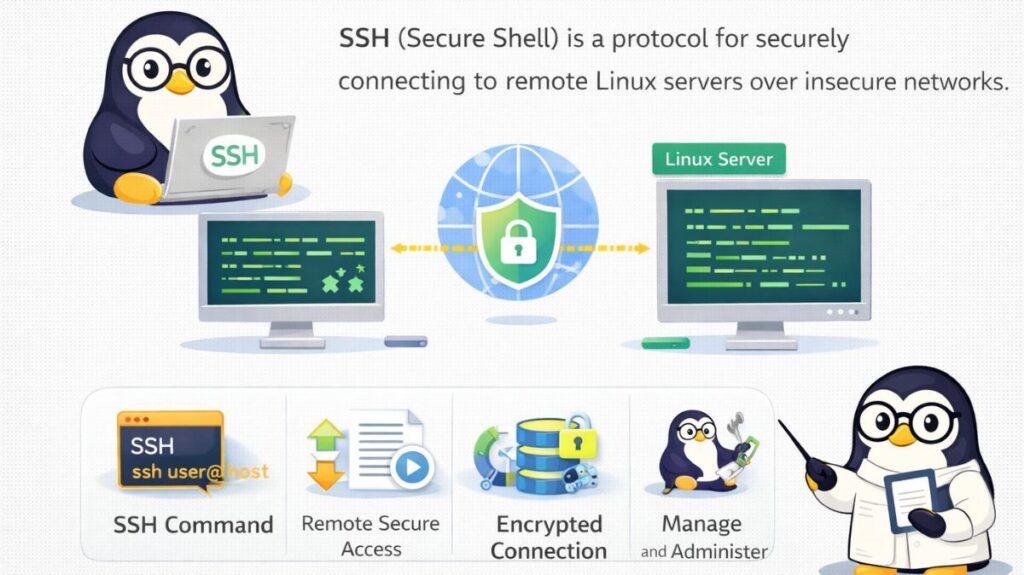
A cryptographic network protocol called SSH is used to run network services safely across an unprotected network. An SSH client connects to an SSH server via a Client-Server architecture.
Use Cases
- Entering a server to execute commands or update software is known as remote administration.
- Secure File Transfer: Transferring files between computers via SCP or SFTP.
- Accessing a database or web service that is concealed by a firewall is known as port forwarding or tunneling.
- Automated Scripts: Using automation tools like Ansible to carry out remote backups or deployment activities.
SSH Key Authentication
Passwords are simple, but they are susceptible to brute-force attacks. The security of SSH keys is much higher. They make use of two cryptographic keys: a private key that is stored on your local computer and a public key that is stored on the server.
Setting Up SSH Keys
Generate the Key Pair:
ssh-keygen -t ed25519 -C "your_email@example.com" (Note: Ed25519 is the modern, faster, and more secure standard in 2026.)
Copy the Key to the Server:
ssh-copy-id username@remote_host
SSH Configuration and Security
The behavior of the SSH server is controlled by the file /etc/ssh/sshd_config. Hardening this file is the first step in securing any Linux system.
Critical Security Tweaks
Edit the config file: sudo nano /etc/ssh/sshd_config
- Disable Root Login: Set
PermitRootLogin no(Forces users to log in as a standard user first). - Disable Password Auth: Set
PasswordAuthentication no(Forces the use of SSH keys). - Change Default Port: Change
Port 22to a custom number (e.g.,Port 2222) to stop automated bots from finding you.
Also read about What is Linux Virtualization? Types, Tools, and Use Cases
Tools and Commands
Essential Commands
- Basic Login:
ssh username@remote_host - Log in to Custom Port:
ssh -p 2222 username@remote_host - Copy a File to Server:
scp localfile.txt username@remote_host:/home/username/ - Check SSH Status:
sudo systemctl status ssh
SSH Clients
- The native Linux/macOS client is called OpenSSH.
- Termius: A contemporary cross-platform client that syncs with the cloud.
- Although most people now use the built-in Windows Terminal, PuTTY is the traditional Windows option.
SSH in Virtualization Technologies
SSH and virtualization are closely related. SSH is usually used to communicate with virtual machines (VMs) in KVM and containers in Docker.
- KVM/Libvirt: You can SSH straight into the IP address of the guest virtual machine (VM) or utilize the virsh terminal after SSHing into the host.
- Cloud (AWS/GCP): These services allow you to log in instantly without a password by injecting your Public Key into the Linux instance during construction.
- Vagrant: Configures development environments within virtual machines (VMs) automatically using SSH.
Setting Up an SSH Server
If you have a fresh Linux install and want to access it remotely, follow these steps:
Step 1: Install OpenSSH Server
Bash

sudo apt update
sudo apt install openssh-server -y
Step 2: Start and Enable the Service
Bash

sudo systemctl enable --now ssh
Step 3: Allow SSH Through the Firewall
Bash

# For Ubuntu (UFW)
sudo ufw allow ssh
# For Fedora/CentOS (Firewalld)
sudo firewall-cmd --permanent --add-service=ssh
sudo firewall-cmd --reload
Also read about What Are The Advanced Linux Performance Monitoring Tools?
Configuring and protecting your SSH server
The first step to becoming a competent Linux administrator in 2026 is to set up an SSH (Secure Shell) server. Through an encrypted connection, you may control your computer from anywhere in the world.
This is a simple guide on setting up, configuring, and protecting your SSH server.
Installation
Most Linux server distributions (like Ubuntu Server) come with SSH pre-installed. However, on desktop versions or minimal installs, you may need to add it manually.
On Ubuntu / Debian / Kali:
Bash

sudo apt update
sudo apt install openssh-server -y
On Fedora / RHEL / CentOS:
Bash

sudo dnf install openssh-server -y
On Arch Linux:
Bash

sudo pacman -S openssh
Managing the Service
Once installed, you need to ensure the service is active and set to start automatically when the computer boots.
- Start the service:
sudo systemctl start ssh - Enable on boot:
sudo systemctl enable ssh - Check status:
sudo systemctl status ssh
Also read about Cron Jobs in Linux: Syntax, Commands & Modern Alternatives
Configuring the Firewall
A running SSH server is useless if the system’s firewall blocks incoming connections on Port 22.
Using UFW (Ubuntu/Debian):
Bash

sudo ufw allow ssh
sudo ufw enable
Using Firewalld (Fedora/RHEL):
Bash

sudo firewall-cmd --permanent --add-service=ssh
sudo firewall-cmd --reload
Hardening & Security (The Config File)
Leaving an SSH server with default settings is a major security risk. You should modify the configuration file located at /etc/ssh/sshd_config.
Key Security Steps:
- Open the file:
sudo nano /etc/ssh/sshd_config - Disable Root Login: Change
PermitRootLogin yestono. (Always log in as a normal user, then usesudo). - Change Default Port: Change
Port 22to something else (e.g.,Port 2222) to avoid 90% of automated bot attacks. - Limit Users: Add a line
AllowUsers yourusernameso only specific people can enter.
Apply Changes:
Whenever you edit this file, you must restart the service:
Bash

sudo systemctl restart ssh
Connecting from Another Machine
To connect, you need the IP address of the server. You can find it by typing ip a on the server terminal.
From a Client Terminal:
Bash

# Standard connection
ssh username@192.168.1.50

# Connection if you changed the port to 2222
ssh -p 2222 username@192.168.1.50| Step | Command / File | Purpose |
| Install | openssh-server | The core software. |
| Status | systemctl status ssh | Confirm it is running. |
| Firewall | ufw allow ssh | Open the “door” for traffic. |
| Config | /etc/ssh/sshd_config | Secure the server settings. |
| Keys | ssh-copy-id | Enable passwordless login (Recommended). |
Also read about Understanding Linux Use Cases With Examples and Commands