

Backup and restore in Linux
The process of making copies of data (Backups) and the capacity to restore that data to its original or a new state (Recovery) following a loss are known as Backup and Recovery in the Linux environment. A strong backup plan is a system administrator’s only defense against a cyberattack, hardware malfunction, or configuration error.
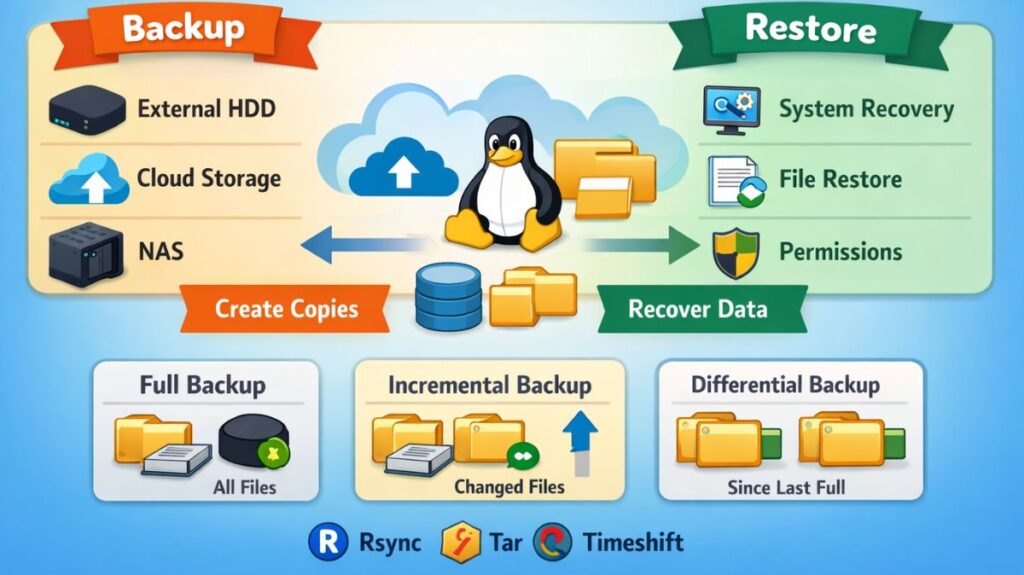
What is Linux Backup & Restore?
Backup: Copying files, databases, or whole disk partitions to a different storage medium (cloud, external HDD, or NAS) is known as backup.
Restore: The process of getting that data back and making sure the system is operational again is called recovery. This frequently entails properly restoring ownership (UID/GID), symbolic links, and permissions in Linux.
How it Works
- Typically, Linux backup programs read data from the block device or file system and stream it into an archive format.
- Selection: Finding important information (typically databases,
/etc,/home,/var/www). - Transportation: Transferring the data using local bus (SATA/USB), SSH, or FTP protocols.
- Verification: Using checksums (MD5/SHA) to make sure the backup is not corrupted.
Also read about Explain File Permissions In Linux & Ownership With Examples
Types of Backups
It’s crucial to comprehend these kinds in order to control recovery time and storage space:
Full Backup: Copies each and every file. Although it requires the greatest time and space, it is the most comprehensive.
Incremental Backup: Only files that have changed since the last backup (of any kind) are copied using incremental backup. It is quick, but in order to recover, the entire backup plus all increments are needed.
Differential Backup: Only files that have changed since the last complete backup are copied in a differential backup. It is quicker to restore than incremental, but it gets bigger with time.
Essential Tools
Linux provides a range of tools based on the task’s complexity:
Rsync: The industry standard for incremental backups and file synchronization is Rsync.
Tar: This program archives several files into a single “tarball.”
DD: A low-level program for “cloning” whole partitions or hard drives (block-level).
Timeshift: Well-liked by desktop users, it produces system snapshots that resemble Windows System Restore.
Bacula/Bareos: Large data centers can use Bacula/Bareos, enterprise-grade network backup solutions.
| Tool | Level | Best For | Recovery Speed |
| Rsync | File | Frequent syncing / Mirrors | Very Fast |
| Tar | File | Long-term archives / Backups | Medium |
| DD | Block | Full System Clones / OS migration | Slow |
| Timeshift | System | Desktop OS “Undo” button | Fast |
Backup and restore in Linux commands
A. Using Rsync (Local or Remote)
Rsync is preferred because it only sends the differences between files.
Local Backup:
rsync -avz /home/user/documents/ /backup/documents/
( -a: Archive mode, -v: Verbose, -z: Compress during transfer )
Remote Backup over SSH:
rsync -avz -e ssh /var/www/ user@remote-ip:/backups/www/
B. Using Tar (Archiving and Compressing)
Create a compressed backup:
tar -cvzf backup_2026.tar.gz /etc/ /home/user/
Extract/Recover from a backup:
tar -xvzf backup_2026.tar.gz -C /recovery_destination/
How to Backup:
bash

tar -cvzf my_backup.tar.gz /path/to/important_folder-c: Create.-z: Compress (using gzip).-f: Filename.
How to Restore:
bash

tar -xvzf my_backup.tar.gz -C /destination/folder/
Also read about Explain User And Group Management In Linux With Examples
C. Using DD (Disk Cloning)
Clone Drive A to Drive B:
sudo dd if=/dev/sda of=/dev/sdb bs=64K conv=noerror,sync
( Warning: This will overwrite everything on the destination drive. )
How to Backup (Drive to Image):
bash

sudo dd if=/dev/sda of=/path/to/image.img bs=64K conv=noerror,syncif: Input file (the drive).of: Output file (the image).bs: Block size (speeds up the process).
Features of a Professional Backup Plan
- Automation: Cron tasks run daily backups at 2:00 AM.
- Encryption: Before transmitting backups to the cloud, use programs like GPG to encrypt them.
- Off-site Storage: Adhering to the 3-2-1 Rule, which calls for three copies of data on two distinct media and one off-site copy.
- Versioning is the process of storing several “points in time” such that a file from three days or three weeks ago can be restored.
The Rsync Command
rsync (Remote Sync) is the industry standard for file-level backups. It uses a “delta-transfer” algorithm, meaning it only copies the parts of files that have changed, saving massive amounts of time and bandwidth.
Core Flags to Remember
-a(Archive): Preserves permissions, ownership, timestamps, and symbolic links.-v(Verbose): Shows you exactly what is being copied.-z(Compress): Compresses data during transfer (best for remote backups).--delete: Removes files at the destination that no longer exist at the source (creates an exact mirror).-P: Shows a progress bar and allows resuming interrupted transfers.
Practical Examples
Local Mirroring: rsync -av --delete /home/user/documents/ /mnt/backup_drive/documents/
Remote Backup over SSH: rsync -avz -e ssh /var/www/html/ backup-user@192.168.1.50:/remote/backup/
Dry Run (Safety Check): rsync -av --dry-run /src/ /dest/ (Always do this before using --delete!)
How to Backup:
To back up your home directory to an external drive:
bash

rsync -av --delete --progress /home/user/ /run/media/user/ExternalDrive/backup/
How to Restore:
Simply reverse the source and destination:
bash

rsync -av /run/media/user/ExternalDrive/backup/ /home/user/
Also read about XFS File System Commands And Ext4 Vs XFS File System
Linux Backup Strategies: The 3-2-1 Rule
It is insufficient to have one backup. The 3-2-1 Strategy is used by experts to guarantee data resilience:
3 Copies of Data: Two backups and the initial live data.
2 Different Media: Keep your backups on two different pieces of hardware, such as an external SSD and a NAS.
1 Copy Offsite: To guard against local calamities like fire or theft, keep one copy offsite in the cloud or in a different physical place.
Immutable backups are now used by a lot of systems. The best security against ransomware is provided by these “locked” files, which cannot be removed or altered for a certain amount of time.
System Snapshot Tools: The “Undo” Button
Backups are not the same as snapshots. Snapshots record the full state of your system at a particular point in time, whereas backups copy files. Fixing a “broken” update or a setup error is ideal with this.
The Best Tools for 2026
Timeshift: The most widely used desktop application. To build restore points, it leverages native snapshots on Btrfs or rsync and hard links on Ext4.
- Ideal For: Restoring a system with malfunctioning drivers or one that won’t boot.
How to Backup:
- Install:
sudo apt install timeshift - Create: Run
sudo timeshift --create --comments "Before Update". - Storage: These snapshots should ideally be kept on a different drive or partition.
How to Restore:
If the system continues to boot:
- Click Restore after opening the Timeshift GUI and choosing a snapshot.
If your computer is unable to start up:
- Use a Linux Live USB to boot up.
- On the Live USB, install and launch Timeshift.
- It will allow you to restore the system to a functional state by scanning your hard disk for existing snapshots.
Snapper: The standard on Btrfs for users of Fedora and SUSE. It automatically captures a picture both before and after you install software using dnf or zypper.
- Use the
snapper listcommand to view restore points or thesnapper rollbackcommand to reverse changes.
ReaR (Relax-and-Recover): An enterprise-grade program called ReaR (Relax-and-Recover) makes a bootable ISO image of your current system so that “Bare Metal Recovery” on fresh hardware is possible.
Key Commands
| Task | Command Example |
| Fast Local Sync | rsync -ahP /source/ /destination/ |
| Create Snapshot | sudo timeshift --create --comments "Before Update" |
| Compress Archive | tar -cvzf backup_$(date +%F).tar.gz /home/user/ |
| List Snapshots | sudo timeshift --list |
Also read about Difference Between User And Group Management In Linux
Strategy for 2026
| Need | Recommended Tool | Frequency |
| Daily Documents | Rsync | Every night (via Cron) |
| System Stability | Timeshift | Before every major update |
| Full Disk Clone | dd | Once a year or when upgrading SSDs |
| Cloud Storage | Rclone | Weekly |