

User and Group Management in Linux
User and group management is a basic aspect of Linux system administration. It regulates who has access to the system, what resources they may utilize, and what they can do. System security, stability, and well-organized access control are guaranteed by effective user and group management.
What Is User Management in Linux?
Creating, changing, and removing user accounts as well as specifying their rights are all included in user management. Every person or service that interacts with a Linux system operates under a user account.
Each user has:
- A unique username
- A user ID (UID)
- A home directory
- By default, a shell
- A collection of rights
Linux employs users to safeguard system resources and segregate processes.
Also read about Explain File Permissions In Linux & Ownership With Examples
Types of Users
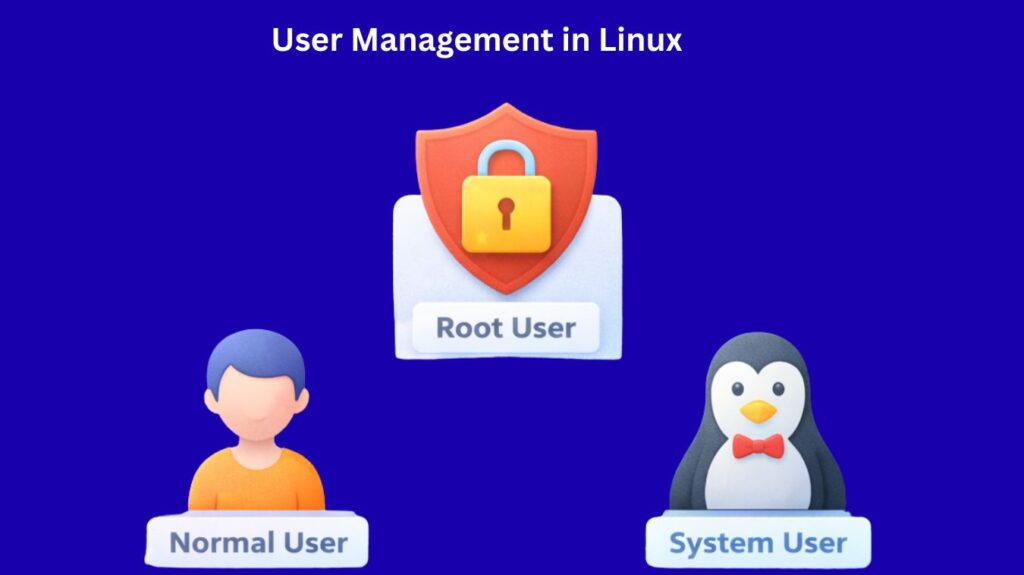
Not every “user” in Linux is a human sitting at a keyboard. Three separate categories exist:
- Root User (UID 0): The “Superuser.” Root has absolute power over the system, can view any file, and run any command. It is the sole user who gets past every permission check.
- Normal Users: These are created for human beings. They have a Home directory (
/home/username) and limited access to ensure they don’t break the system. UID usually starts from 1000.
- System Users: The OS creates these “ghost” users to run particular services (such as
apache,mysql, orbin). They normally don’t have a login shell or a home directory, which prevents hackers from logging into them.
Features and Use Cases
- Security: You can give users the precise authority they require without making them full administrators by assigning them to particular groups (such as lp for printing or docker for containers).
- Scalability: On servers with hundreds of users, groups make it easy to offer access to a new project folder to 50 people at once.
- Automation: System users allow background tasks to run securely without having a human to log in and start them.
User management commands in linux with examples
Linux provides simple commands to manage users.
useradd – Create a New User
Used to create a new user account.
Example:
nginx

useradd john
With home directory:
nginx

useradd -m john
Set shell:
bash

useradd -s /bin/bash john
Also read about Basic Linux Commands For Beginners With Easy Examples
userdel – Delete a User
Removes a user account.
Example:
nginx

userdel john
Delete with home directory:
css

userdel -r john
usermod – Modify a User
Used to change user properties.
Change username:
nginx

usermod -l newname oldname
Add user to group:
nginx

usermod -aG developers john
Change shell:
bash

usermod -s /bin/zsh john
passwd – Change Password
Used to set or change passwords.
Example:
nginx

passwd john
Expire password:
nginx

passwd -e john
Also read about How To Create A Startup Service In Linux Using Systemd
Group Management in Linux
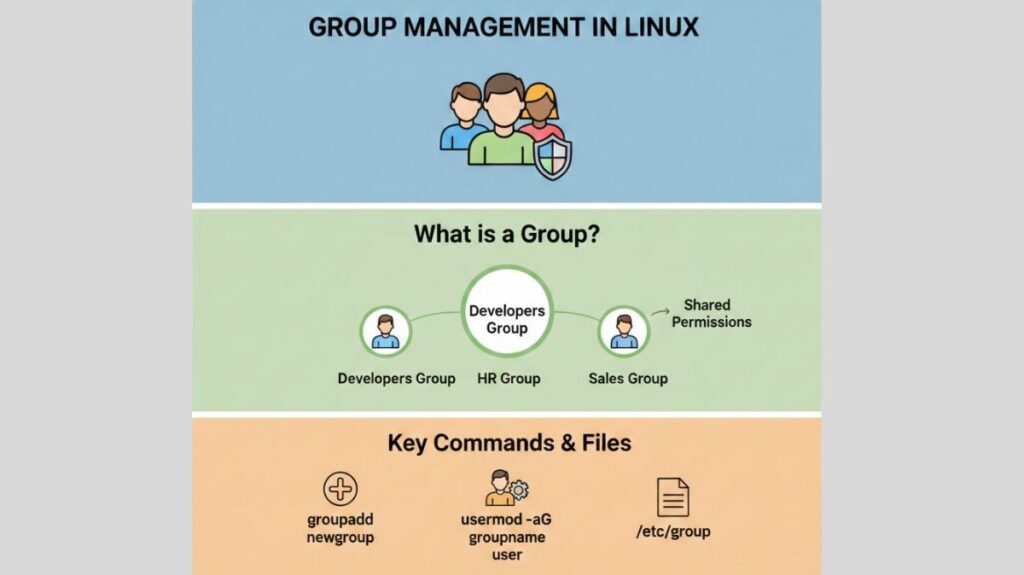
Groups are collections of users. They make permission management easier by assigning access to multiple users at once.
Each file or directory belongs to:
- One owner
- One group
Group management commands in linux
groupadd – Create a Group
Example:
nginx

groupadd developers
groupdel – Delete a Group
Example:
nginx

groupdel developers
groupmod – Modify a Group
Rename group:
nginx

groupmod -n newgroup oldgroup
Change group ID:
nginx

groupmod -g 1050 developers
Also read about Linux Boot Process Step By Step And Interview Questions
Important Configuration Files
Linux stores user and group data in text files. In Linux, “everything is a file,” including user data. These three files are the heart of identity management:
/etc/passwd
Stores basic user information.
Format:
username:x:UID:GID:comment:home:shellExample:
john:x:1001:1001:John Doe:/home/john:/bin/bash/etc/shadow
Stores encrypted passwords.
Only accessible by root.
Contains:
- Password hash
- Password expiry rules
- Account locking info
This file protects passwords from being read by normal users.
/etc/group
Stores group information.
Format:
groupname:x:GID:membersExample:
developers:x:1002:john,mary| File | Purpose | Key Data Included |
/etc/passwd | User Account Info | Username, UID, GID, Home Folder, Shell. |
/etc/shadow | Secure Passwords | Encrypted passwords and account expiry dates. |
/etc/group | Group Info | Group names, GIDs, and a list of members. |
Sudo Access and Privileges
Sudo allows normal users to run commands with root privileges.
Example:
sudo apt updateThis runs the command as root after password verification.
Sudo Configuration File
Main file:
/etc/sudoersEdit safely using:
visudoGrant sudo access:
john ALL=(ALL) ALLThis means user john can run any command as root.
Best Practices
- Never utilize root for daily work
- Always use sudo instead of logging in as root
- Use strong passwords
- Remove unneeded users and groups
- Assign permissions through groups, not individuals
- Keep an eye on sudo activity
Summary
System security and access control in Linux depend on user and group administration. Controlling users, groups, and privileges helps administrators maintain security, efficiency, and order. Usermod, groupadd, and sudo make Linux powerful but manageable for corporations and individuals.
Also read about What Is GRUB Bootloader? Linux Boot Process And Commands