

Cron Jobs in Linux & Task Scheduling
Linux task scheduling is no longer just about the classic cron. While cron remains the industry standard for simple, recurring tasks, modern systems have shifted toward systemd timers for production-level reliability, logging, and dependency management.
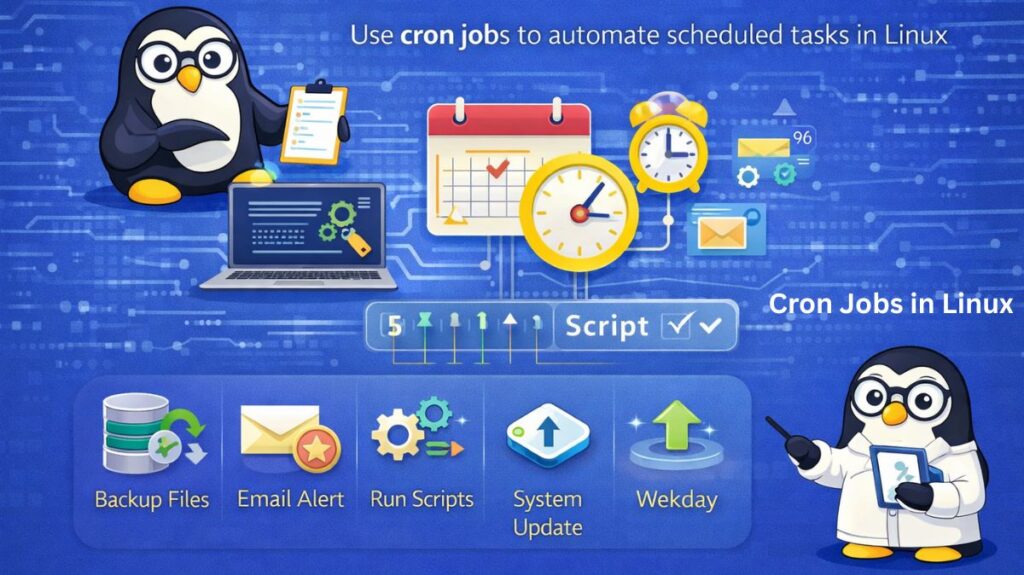
Crontab in Linux: Scheduling Jobs
The cron daemon (crond) is a background service that executes commands at specific intervals. These schedules are stored in a crontab (cron table) file.
The Cron Syntax
A crontab entry consists of five time-and-date fields followed by the command to execute: * * * * * /path/to/command
| Field | Meaning | Range |
| 1 | Minute | 0 – 59 |
| 2 | Hour | 0 – 23 |
| 3 | Day of Month | 1 – 31 |
| 4 | Month | 1 – 12 (or JAN-DEC) |
| 5 | Day of Week | 0 – 6 (0 is Sunday) |
Also read about Understanding Linux Use Cases With Examples and Commands
Essential Commands
crontab -e: Opens your user’s crontab for editing.crontab -l: Lists all scheduled jobs.crontab -r: Removes your current crontab file.
Cron vs At vs Systemd Timers
Choosing the right tool depends on whether your task is recurring, a one-off event, or requires system-level precision.
| Feature | Cron | At | Systemd Timers |
| Recurrence | Periodic (Every X mins/days). | One-time only. | Periodic or Event-based. |
| Persistence | Skips jobs if PC is off. | Runs on next boot. | Can “catch up” (Persistent=true). |
| Logging | Needs manual redirection. | Sent to local mail. | Integrated with journalctl. |
| Dependencies | None (runs blindly). | None. | Can wait for network/database. |
| Ease of Use | High (one-line setup). | High (simple CLI). | Low (requires two files). |
Automating Tasks Using Cron (Real-World Examples)
To automate a script, you must use absolute paths for both the script and any commands inside it, as cron uses a limited environment.
Example A: Daily Database Backup (3:00 AM)
Bash

0 3 * * * /usr/bin/python3 /home/user/scripts/backup.py
Example B: Clear Cache Every 15 Minutes
The slash (/) is a step operator, meaning “every X interval.”
Bash

*/15 * * * * /usr/bin/rm -rf /home/user/app/cache/*
Example C: Run Only on Weekdays at 9:00 AM
Bash

0 9 * * 1-5 /usr/local/bin/check_updates.sh
Also read about What is Bash in Linux? How Does Bash Work, And Functions
The Modern Standard: Systemd Timers
Systemd timers are the preferred method in 2026 for critical services because they provide superior observability. A timer requires two files in /etc/systemd/system/:
- The Service File (
mytask.service): Defines what to run. - The Timer File (
mytask.timer): Defines when to run it.
Advantages:
Persistent=true: If your server is off at 2:00 AM when a backup is scheduled, systemd will detect this and run the job immediately once the server boots.- Randomized Delays: Use
RandomizedDelaySec=30mto prevent 100 servers from hitting your database at the exact same second. - Resource Limits: You can limit the CPU or RAM that the automated task is allowed to use.
Troubleshooting
If your automated task isn’t running, check these four things:
- Environment: Does the script rely on variables like
$PATH? (Cron doesn’t load your.bashrc). - Permissions: Is the script executable? (
chmod +x script.sh). - Logs: Check the system logs for errors:
- Absolute Paths: Always use
/usr/bin/python3instead of justpython3.
Moving from Cron to Systemd: Modern Automation Guide
To convert a cron job into a systemd timer, it needs to create two separate files: a Service unit (the “What”) and a Timer unit (the “When”).
Let’s take a common example: a daily backup script located at /home/user/scripts/backup.sh. That was originally scheduled in crontab as 0 2 * * *.
Step 1: Create the Service File
This file tells systemd exactly what command to run.
- Create the file:
sudo nano /etc/systemd/system/db-backup.service - Paste the following:
Ini, TOML

[Unit]
Description=Daily Database Backup
Wants=db-backup.timer

[Service]
Type=oneshot
ExecStart=/bin/bash /home/user/scripts/backup.sh
User=user

[Install]
WantedBy=multi-user.target
Also read about How To Create A Startup Service In Linux Using Systemd
Step 2: Create the Timer File
This file replaces the cron schedule logic.
- Create the file:
sudo nano /etc/systemd/system/db-backup.timer - Paste the following:
Ini, TOML

[Unit]
Description=Run Database Backup daily at 2:00 AM

[Timer]
# This replaces the '0 2 * * *' cron syntax
OnCalendar=*-*-* 02:00:00
# If the computer was off, run it immediately upon boot
Persistent=true
# Randomly delay by up to 5 mins to prevent CPU spikes
RandomizedDelaySec=300

[Install]
WantedBy=timers.target
Step 3: Enable and Start the Timer
Unlike cron, you must tell the system to look for these new files.
Bash

# Reload systemd to recognize the new files
sudo systemctl daemon-reload

# Enable and start the timer (NOT the service)
sudo systemctl enable --now db-backup.timer
How to Monitor Your New Timer
One of the biggest advantages of systemd is the visibility. Use these commands to check your work:
- List all active timers:
systemctl list-timers(This shows exactly when the job last ran and when the next execution is scheduled.) - Check the logs (the “output”):
journalctl -u db-backup.service - Manually test the job right now:
sudo systemctl start db-backup.service
Why is this better than Cron:
- Persistent: If your laptop was closed at 2:00 AM, systemd will notice and run the backup as soon as you open it. Cron would simply skip it.
- Dependency Awareness: You can tell the service to wait until the network is online before running.
- Logging: All errors and output are automatically saved in the system journal.
Also read about What is Linux Virtualization? Types, Tools, and Use Cases
How to edit crontab in Linux
Editing the crontab is the standard way to manage scheduled tasks for your user account. In Linux, each user has their own private crontab file, which is managed through a specific command rather than by opening a text file directly.
The Basic Command
To open your crontab for editing, run:
Bash

crontab -e- First-time run: If it is your first time, Linux will ask you to choose an editor. Nano is the easiest for beginners (usually option 1).
- Saving in Nano: Press
Ctrl+OthenEnterto save, andCtrl+Xto exit.
Crontab Syntax (The 5-Star Rule)
Inside the file, each line represents one job. The format is five time fields followed by the path to your script:
Plaintext

.---------------- minute (0 - 59)
|  .------------- hour (0 - 23)
|  |  .---------- day of month (1 - 31)
|  |  |  .------- month (1 - 12)
|  |  |  |  .---- day of week (0 - 6) (Sunday=0)
|  |  |  |  |
* * * * * /path/to/command
Common Editing Examples
Here are a few lines you might add to your crontab:
Run a script every day at 5:30 PM:
30 17 * * * /home/user/myscript.sh
Run every Sunday at midnight:
0 0 * * 0 /home/user/backup.sh
Run every 15 minutes:
*/15 * * * * /usr/bin/python3 /home/user/app.py
Run at reboot:
@reboot /home/user/start_service.sh
Also read about Bash Scripting Cheat Sheet: Commands, Syntax, and Examples
Other Useful Crontab Commands
List your jobs: See what is currently scheduled without opening the editor.
Bash

crontab -l
Remove all jobs: Be careful; this deletes your entire crontab.
Bash

crontab -r
Edit another user’s crontab (requires sudo):
Bash

sudo crontab -u username -e
Simple Tips for Editing
Use Absolute Paths: Cron doesn’t know your user environment. Always use /usr/bin/python3 instead of python3, and /home/user/script.sh instead of ./script.sh.
Log the Output: Since cron runs in the background, you won’t see errors on your screen. Always redirect output to a log file:
* * * * * /path/to/script.sh >> /home/user/cron.log 2>&1
Check Permissions: Ensure the script you are calling is executable:
chmod +x /home/user/script.sh
Also read about What Is A Linux Container? How Do Containers Work On Linux?