

Hostnames in Linux
The distinctive name given to a computer on a network is called a hostname in Linux. Rather of utilizing complicated IP addresses, it helps identify a system in a way that is legible by humans. A system’s hostname makes it easy for administrators and apps to identify and connect to it, regardless of whether it’s a personal laptop, business server, or cloud instance.
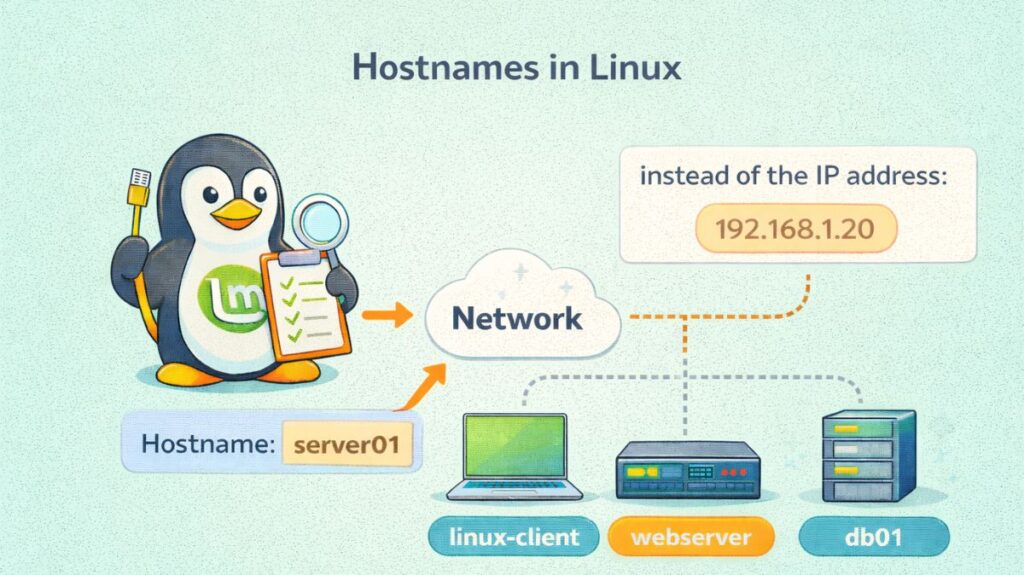
What is a Hostname?
A hostname is a label given to a Linux system so it can be identified within a network. Instead of remembering an IP address like 192.168.1.20, users can refer to the system by a name such as webserver, db01, or linux-client.
In simple terms, a hostname acts like a computer’s identity.
Example:
</> bash

user@server01:~$
Here, server01 is the hostname.
How Hostname Works Internally
Step 1: Stored in System Configuration
Linux stores the hostname in:
</> code

/etc/hostname
This file contains a single line:
</> code

server01
Step 2: Loaded During Boot
When the system boots:
- The Linux kernel starts.
- The init system (usually systemd) reads
/etc/hostname. - The hostname is set in the kernel using the
sethostname()system call. - The hostname becomes active.
You can check it using:
</> bash

hostname
or
</> bash

hostnamectl
Step 3: Stored in Kernel Memory
After boot:
- The hostname is stored in kernel memory.
- It remains active until reboot.
- Temporary changes affect only runtime unless saved.
How Hostname Works in Networking
When your system communicates:
- The hostname is attached to network services (SSH, web server, etc.).
- Other systems resolve it using:
/etc/hosts- DNS server
Example /etc/hosts:
</> code

127.0.0.1   localhost
192.168.1.10   server01
If DNS is configured, hostname → IP resolution happens automatically.
Types of Hostnames in Linux
Linux systems support three main hostname types:
1. Static Hostname
- Stored in
/etc/hostname - Persistent across reboots
- Set manually by the administrator
- Used for servers and production systems
Example:
cpp

hostnamectl set-hostname server01
2. Transient Hostname
- Assigned temporarily
- Often set automatically by DHCP
- Lost after reboot
- Common in dynamic environments
3. Pretty Hostname
- Human-friendly version
- Can include spaces and special characters
- Used for display purposes
Example:
sql

hostnamectl set-hostname "Development Server" --pretty
Managing Hostnames
The modern way to manage these names is via the hostnamectl command.
| Goal | Command |
| View Hostnames | hostnamectl status |
| Change Static Name | sudo hostnamectl set-hostname [new-name] |
| Set Pretty Name | sudo hostnamectl set-hostname "[name]" --pretty |
| Check Local Mapping | cat /etc/hosts |
Functions in the Operating System
- Identification: Distinguishes the machine in log files (
/var/log/syslog) so administrators know which server generated an error. - Network Communication: Allows services like SSH, Mail servers, and Web servers to identify the source and destination of data.
- Shell Prompting: Provides context to the user in the Command Line Interface (CLI).
- Security: Used in SSL/TLS certificates to verify that the server you are connecting to is actually who it claims to be.
Benefits of Hostname
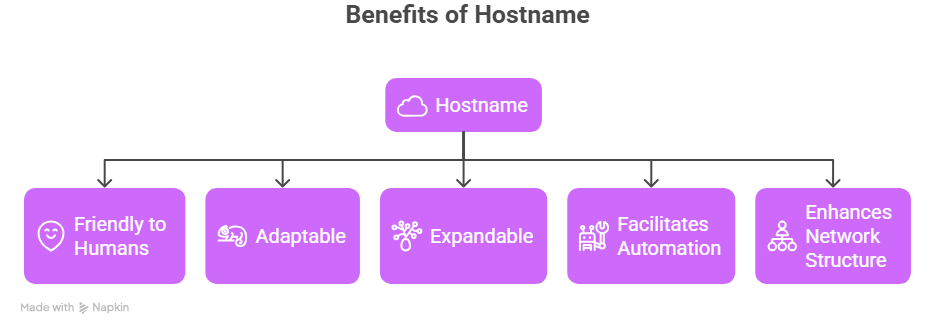
- Friendly to Humans: More memorable than IP addresses.
- Adaptable: While the hostname stays the same, IP addresses can change.
- Expandable: Beneficial in settings with hundreds of servers at huge enterprises.
- Facilitates Automation: Hostnames are necessary for configuration management tools and scripts.
- Enhances Network Structure: Makes infrastructure readable and organized.
Drawbacks of hostnames
- Reliance on DNS: Hostname resolution may not work if DNS fails.
- Problems with Misconfiguration: Network issues may result from improper hostname configuration.
- Name Duplication: Conflicts may arise if two systems have the same hostname.
- Exposure to Security: System roles (like db-server) may be disclosed by public hostnames.
Hostname vs IP Address
| Feature | Hostname | IP Address |
| Format | Alphanumeric (server-01) | Numeric (192.168.1.5) |
| Memorability | High | Low |
| Consistency | Permanent (usually) | Can change (DHCP) |
| Use Case | Human interaction | Machine routing |
How to change Hostname in linux
Changing a hostname in Linux is a straightforward process, but the “correct” way depends on whether you want the change to be temporary or permanent. On modern systems (Ubuntu, Debian, Fedora, CentOS/RHEL 7+), the hostnamectl command is the standard tool.
The Modern Way (Permanent)
The hostnamectl command is part of systemd. It updates the hostname in the kernel and ensures it stays changed after a reboot by automatically editing the necessary configuration files.
The Command:
bash

sudo hostnamectl set-hostname <new-hostname>
Example: If you want to rename your machine to “jupiter-server”:
bash

sudo hostnamectl set-hostname jupiter-server
Verify the Change
Run the status command to see the new static hostname and system details:
bash

hostnamectl status
Also read about CentOS Features And Differences Between CentOS vs Ubuntu
The Traditional/Manual Way
On older distributions or if you prefer manual editing, you must update two specific files to ensure the change survives a reboot.
Step A: Edit /etc/hostname
Open the file and replace the old name with your new name.
bash

sudo nano /etc/hostname
Step B: Edit /etc/hosts
This is a critical step. If you don’t update this file, some applications (like sudo) may hang or throw errors because they can’t “resolve” the new name back to the local machine.
bash

sudo nano /etc/hosts
Find the line that looks like this: 127.0.1.1 old-hostname Change it to: 127.0.1.1 new-hostname
The Temporary Way (Instant)
If you only need to change the hostname for the current session (it will revert back to the old one after a restart), use the hostname command:
bash

sudo hostname <new-name>
Setting a “Pretty” Hostname
Modern Linux allows for a “Pretty” hostname that supports spaces, capital letters, and special characters (used for display in file managers or discovery services).
bash

sudo hostnamectl set-hostname "Gerrit's Main Workstation" --pretty- Allowed Characters: Ideally, hostnames should only consist of hyphens (-), integers (0–9), and letters (a–z). A hyphen should not be used at the beginning or end of them.
- Case Sensitivity: Although most hostnames are case-insensitive, Linux uses lowercase as a universal standard to prevent confusion.
- Terminal Refresh: Your terminal prompt may remain display the previous hostname even after you have changed it. To view the update, just exit the terminal and launch a new one, or use exec bash.
Also read about Linux Networking Commands Interview Questions And Answers