

Linux Mint Installation Process
A 16GB USB drive and Linux Mint ISO (Cinnamon is recommended) are needed to begin.
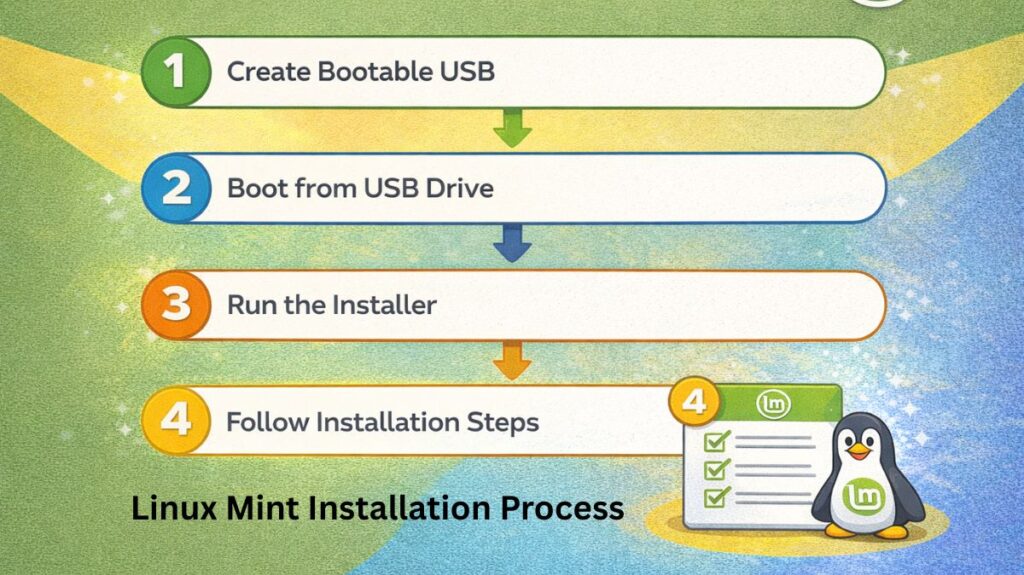
Phase A: Preparation
- Download: Linuxmint.com offers the ISO.
- A flash To “burn” the ISO onto your USB device, use a program such as Etcher or Rufus.
- Boot: Restart PC. Select the USB drive as the primary boot device by pressing F2, F12, or DEL in BIOS.
Phase B: The Live Session
Mint boots into a “Live Environment.” This operates totally from your USB and does not change your hard disk yet.
- Make sure Bluetooth, sound, and Wi-Fi work.
- Launch: Double-click “Install Linux Mint” on the desktop.
Phase C: The Installer
- Language & Keyboard: Select your options.
- Check this box for multimedia codecs. It assures you can play MP4s, DVDs, and Spotify out of the box.
- Kind of Installation:
- Erase disk: Mint is installed after everything is deleted.
- Install alongside: Keeps Windows/macOS and lets you select between them at boot (Dual Boot).
- User Setup: Choose a safe username and password. Check “Encrypt my home folder” to secure your confidential files.
Also read about What Is Linux Mint? And Why Choose Mint Over Ubuntu? Explain
Linux Mint Advantages and Disadvantages
Advantages
- The “Mint Tools”: From the Update Manager to the Software Store, Mint’s native apps are cleaner and more logical than nearly any other OS.
- Windows reboots without permission, while Mint never does.
- A 2016 laptop can feel like a 2026 model using Mint.
- Privacy Excellence: There is zero telemetry. Your data stays on your desk.
Disadvantages
- Conservative Software: You might not receive the “bleeding edge” versions of software on the day they launch since Mint prioritizes reliability.
- Gaming Anti-Cheat: While 90% of games operate via Steam/Proton, some competitive shooters with “kernel-level” anti-cheat (like Valorant) still won’t run.
- No Official Pro Support: There isn’t a “corporate” help desk, in contrast to Ubuntu or Red Hat. You rely on the community (which is, thankfully, quite active).
Backup & Recovery: Your Safety Net
System Snapshots and Personal Data are the two divisions of “Backup” in Mint.
System Snapshots (Timeshift)
- Timeshift is pre-installed. Consider it an OS “Time Machine”. It saves the system files but not your photos/documents.
- How to set it up: Open “Timeshift” from the menu → Select RSYNC → Choose a drive (external is recommended).
- The Benefit: If an update damages your driver or you botch up a system setting, just launch Timeshift, click “Restore,” and your PC is back to normal in 2 minutes.
Personal Data (Backup Tool)
For your actual files (Documents, Pictures, Videos), use the Mint Backup Tool.
- Process: Select “Back up personal data” → Choose your Home folder → Select an external destination.
- Software List: You can export a list of your installed applications with this utility. If you ever move to a new PC, you can “Restore” this list, and Mint will automatically download all your apps for you.
Complete Disaster Recovery
If the system won’t even boot:
- Plug in your original Linux Mint USB.
- Launch the Live environment.
- Open Timeshift. It will notice your snapshots on your hard drive and allow you to restore the system from the USB.
Also read about What Is Debian Package In Linux? Advantages & Disadvantages
Linux Mint use cases
Daily Web Browsing
- You can use Firefox, Chrome, or Brave to access the web safely.
- Even after years of use, the system maintains its speed.
- You may do your online banking and shopping without worrying about built-in tracking.
Office Work and Study
- LibreOffice allows you to create spreadsheets and write documents.
- It is entirely compatible with Microsoft Word and Excel files.
- Students may simply participate in Zoom or Teams meetings, conduct research, and submit essays.
Reviving Old Computers
- It restores the speed and newness of computers from ten years ago.
- It prevents outdated devices from ending up in the trash.
- The “Xfce” version is specially built to run on very weak or outdated PCs.
Gaming
- You can play thousands of games with Steam and Proton.
- It works nicely with most game controllers and contemporary graphics cards.
- It provides a reliable environment where updates rarely disrupt your games.
Media and Entertainment
- You can watch Netflix, YouTube, and Disney+ in great resolution.
- It comes with VLC Player to play any movie or music file you have.
- You can manage enormous collections of images and home films conveniently.
Privacy and Security
- The OS never watches what you click or collects your personal data.
- You don’t need to buy expensive antivirus software to keep protected.
- When updates are installed on your computer is entirely up to you.
Also read about What Is The Difference Between Linux And Windows? Explain
What is Linux Mint vs Ubuntu?
| Feature | Linux Mint | Ubuntu |
|---|---|---|
| Target Users | Beginners and Windows users | General users, developers |
| User Interface | Traditional, Windows-like (Cinnamon) | Modern, GNOME-based |
| Ease of Use | Very easy, beginner-friendly | Slight learning curve |
| Pre-installed Software | Comes with codecs and tools | Minimal, requires setup |
| Performance | Faster on low-end systems | Heavier on resources |
| Stability | Very stable, fewer changes | Frequent UI changes |
| System Updates | Safe, user-controlled | More aggressive |
| Software Manager | Simple and clean | More complex |
| Driver Support | Auto-detects easily | Manual in some cases |
| Customization | High (themes, layouts) | Limited without tweaks |
| Privacy | No telemetry | Some data collection |
| Learning Curve | Very low | Moderate |
| Ideal For | Home users, students | Developers, enterprises |
| Default Desktop | Cinnamon | GNOME |
| Based On | Ubuntu or Debian | Debian |
Is Linux Mint completely free?
Linux Mint is fully free. There are no download, license, or update fees.
In software, this is called “Free as in Beer” (free) and “Free as in Speech” (you can do what you want with it).
Are there “Pro” or “Enterprise” versions?
Ubuntu and Zorin OS have expensive “Pro” editions, however Linux Mint gives all users the same flagship experience. Student or multi-million dollar organization, the software is the same and costs $0.
Can I use it professionally?
Yes. You can lawfully install Mint on 1,000 office computers, profit from it, or sell pre-installed Mint machines. There are no “commercial use” limits.
How is business maintained?
If it’s free, you may question how coders eat. Linux Mint endures:
- Users donate via PayPal, Patreon, or Cryptocurrency.
- Sponsorships: Hosting or hardware companies who want their names on the project.
- Partnerships: Mint receives a small portion of revenue from browser-based web search engines like DuckDuckGo.
- Unlike Windows 11, your Start menu will never have a “suggested app” or an ad.
“Fine Print” (Proprietary Software)
Mint lets you install proprietary software like NVIDIA drivers and media codecs during setup, even though the OS is free.
- These remain free.
- These drivers are not “Open Source” (owned by the vendor), but Mint includes them to make your hardware run smoothly.
| Feature | Windows 11 | Linux Mint |
| Initial Cost | ~$139+ (or hidden in hardware price) | Free |
| Updates | Free (but includes ads/tracking) | Free (No ads) |
| License Keys | Required | None |
| Data Collection | High | Zero |
Also read about What Is The GNOME Terminal In Linux? GNOME-Terminal Uses