

How to configure network in Linux command line?
In Linux, network configuration is handled through plain text files. While modern desktops use graphical tools or NetworkManager, the underlying system still relies on these files to define how the computer connects to the world.
The location and format of these files often depend on your Linux “family” (Debian/Ubuntu vs. RHEL/CentOS).
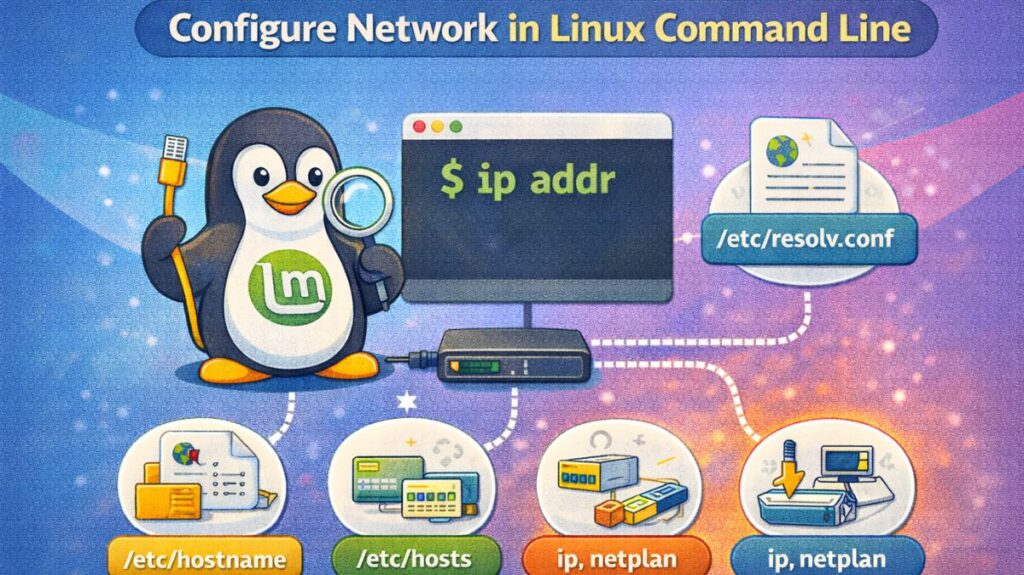
The Core Files (Common to All Distros)
These files handle basic identity and name resolution.
/etc/hostname
This file contains only one thing: the name of your computer on the network.
- Example:
linux-server - Command to change:
hostnamectl set-hostname new-name
/etc/hosts
This is a local “address book.” Before the computer asks the internet (DNS) for an IP address, it looks here first. It is often used to map local IPs to friendly names.
- Example entry:
192.168.1.50 nas-storage
/etc/resolv.conf
This file tells Linux where to go to translate domain names (like google.com) into IP addresses.
- Example:
nameserver 8.8.8.8(Google’s DNS) - Note: In modern systems, this file is often managed automatically by a service like
systemd-resolved.
Interface Configuration (The “How-To” Connect)
This is where you define if an interface uses a Static IP or DHCP.
Debian / Ubuntu (Old Style: /etc/network/interfaces)
Classic Debian systems use this single file to list all network cards.
- DHCP Example: “`bash iface eth0 inet dhcp
Ubuntu (Modern Style: Netplan)
Newer Ubuntu versions use YAML files located in /etc/netplan/*.yaml.
- Format: It uses strict indentation. After editing, you must run
sudo netplan apply.
RHEL / CentOS / Fedora
These systems store a separate file for every single interface in /etc/sysconfig/network-scripts/.
- File naming:
ifcfg-eth0orifcfg-enp0s3 - Key Parameters:
BOOTPROTO=static,ONBOOT=yes,IPADDR=192.168.1.10
Also read about What Is Kali Linux And How Does It Work? Its Key Features
Network Services Configuration
/etc/nsswitch.conf (Name Service Switch)
This file tells the OS the order in which to look for information. For example, it tells the computer to check the /etc/hosts file before checking DNS.
/etc/ssh/sshd_config
While not a “network” file in the traditional sense, it controls how your machine accepts remote network connections via SSH.
Why is Linux used in networking?
Linux is the best option for networking since it is very versatile, quick, and free.
- It is very stable: Routers that need to be online all the time can use it for years without needing to be restarted.
- It is free to use: Businesses can create network devices without having to pay costly license costs because the software is open-source.
- High performance: The kernel, the Linux “engine,” is built to transfer data packets rapidly and with little latency.
- Top-tier security: Hackers find it extremely difficult to get past Linux’s built-in “walls” (firewalls).
- Works on any hardware: It is compatible with a wide range of hardware, from a large supercomputer to a little home router.
- Complete control: Network administrators have the ability to modify any single configuration to customize the network to their exact specifications.
- Fantastic features: It includes well-known “diagnostic” tools that enable engineers to quickly identify and resolve issues with internet connections.
Linux network commands cheat sheet
Interface Information & IP Addressing
These commands allow you to see your network cards and assigned IP addresses.
ip addr: The modern standard to view all network interfaces and IP addresses. (Replacesifconfig).ip -brief addr: Provides a condensed, easy-to-read summary of IP addresses.ip link: Shows the status of your network interfaces (up/down) and MAC addresses.hostname -I: Quickly displays only the local IP addresses of the machine.ifconfig: Legacy command for interface configuration (still used on older systems).
Connectivity & Path Testing
Use these to find out if you can reach a destination and where the connection might be failing.
ping <destination>: Checks if a remote host is reachable (e.g.,ping google.com).traceroute <destination>: Traces the path packets take to reach a host, showing every “hop” (router) in between.mtr <destination>: A powerful combination ofpingandtraceroutethat updates in real-time.nmcli dev wifi: Lists available Wi-Fi networks (if using NetworkManager).
Port & Socket Statistics
These commands show you which services are “listening” for connections and who is currently connected.
ss -tulpn: The modern, fast way to see listening ports (TCP/UDP) and the specific programs using them.netstat -plntu: The classic command for viewing network connections (mostly replaced byss).lsof -i :80: Shows which process is currently using a specific port (e.g., Port 80 for web traffic).
Also read about What Is Fedora Linux? Benefits & Drawbacks, Fedora vs Ubuntu
DNS & Name Resolution
Used for troubleshooting how domain names (like website.com) are converted into IP addresses.
dig <domain>: The professional tool for querying DNS records (A, MX, TXT).nslookup <domain>: A simpler, classic tool for quick DNS queries.host <domain>: Provides a quick summary of a domain’s IP address.resolvectl status: Shows the current DNS servers used by the system (systemd-resolved).
Network Modification (Temporary)
These changes vanish after a reboot unless saved in config files.
sudo ip addr add 192.168.1.50/24 dev eth0: Manually assigns an IP to an interface.sudo ip link set eth0 up/down: Manually turns a network card on or off.sudo ip route add default via 192.168.1.1: Sets the default gateway (internet exit).
Packet Inspection (Advanced)
tcpdump -i eth0: Captures and displays live network traffic on an interface.tcpdump -i eth0 port 80: Only shows traffic on a specific port (HTTP).curl -I <url>: Fetches only the “headers” of a website great for checking if a web server is responding correctly.