

Important Hostname Files in Linux
In Linux, hostname configuration and resolution depend on a few important system files. These files control how your system identifies itself and how it resolves other hostnames on the network.
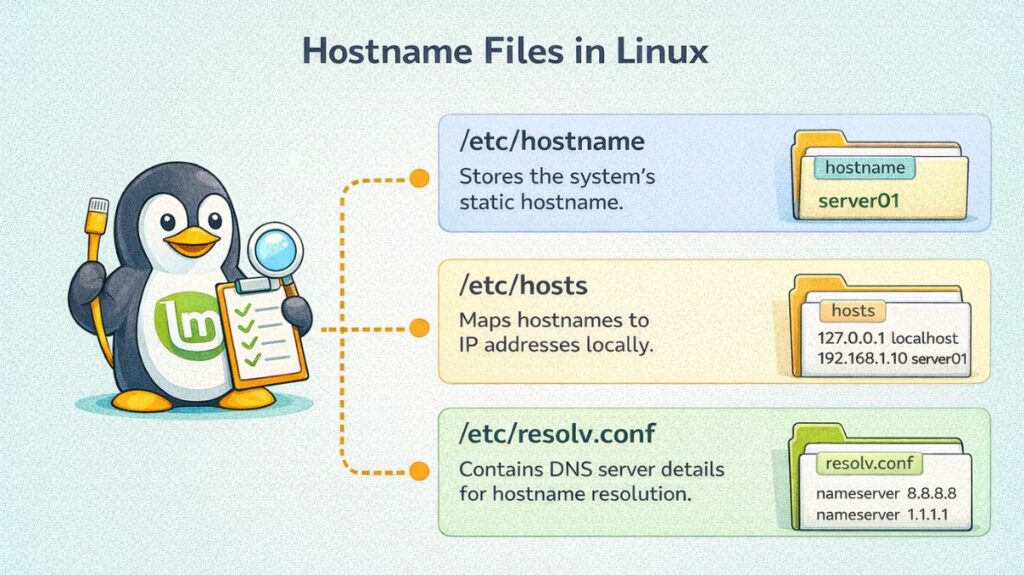
/etc/hostname
Purpose
Stores the static hostname of the system.
What It Contains
Only the system’s hostname (single line).
Example:
</> code

server01
or
</> code

prod-web01
How It Works
- Read during system boot
- Sets the permanent hostname
- Used by system services and the kernel
To view:
</> bash

cat /etc/hostname
To change permanently (recommended method):
</> bash

sudo hostnamectl set-hostname new-hostname
Modern distributions like Ubuntu, Debian, and CentOS manage this file automatically.
/etc/hosts
Purpose
Maps IP addresses to hostnames locally (before DNS lookup).
Example:
</> code

127.0.0.1   localhost
127.0.1.1   server01
192.168.1.10   web01
How It Works
- Checked before DNS (based on
/etc/nsswitch.conf) - Used for local resolution
- Helpful for development and testing
To edit:
</> bash

sudo nano /etc/hosts
Common use case:
</> code

127.0.0.1   myapp.local
This creates a local virtual hostname.
/etc/resolv.conf
Purpose
Defines DNS servers used for hostname resolution.
Example:
</> code

nameserver 8.8.8.8
nameserver 1.1.1.1
search example.com
How It Works
- Specifies DNS server IP addresses
- Used when resolving external hostnames
- May be managed automatically by NetworkManager or systemd-resolved
To view:
</> bash

cat /etc/resolv.conf
/etc/nsswitch.conf (Important for Resolution Order)
Purpose
Controls how hostname lookups are performed.
Example:
</> code

hosts: files dns
This means:
- Check
/etc/hosts - Then check DNS
Also read about How To Change Hostname In Linux Permanently Command Line
How Hostname Resolution Works in Linux
When you type:
</> bash

ping server01
Linux checks in this order:
/etc/hosts- DNS server from
/etc/resolv.conf - Returns IP address
| File | Purpose | Scope |
|---|---|---|
/etc/hostname | Stores system hostname | Local system |
/etc/hosts | Maps IP to hostname | Local resolution |
/etc/resolv.conf | DNS server configuration | Network resolution |
/etc/nsswitch.conf | Lookup order configuration | System-wide |
How to Create a Virtual Hostname in Linux
A virtual hostname usually refers to one of the following:
- Creating an additional hostname mapped to your system (using
/etc/hostsor DNS). - Creating a virtual host for a web server (like Apache or Nginx).
- Setting a hostname inside a container or virtual machine.
The method depends on what you mean by “virtual hostname.” Below are the most common scenarios.
Create a Virtual Hostname Using /etc/hosts (Local Testing)
This method allows you to assign multiple hostnames to the same Linux machine without changing the main system hostname.
Step 1: Open /etc/hosts
bash

sudo nano /etc/hosts
Step 2: Add a New Virtual Hostname
Example:
lua

127.0.0.1   myapp.local
127.0.0.1   test.local
Or if using a server IP:
lua

192.168.1.100   myapp.local
192.168.1.100   api.local
Step 3: Save and Exit
Step 4: Test
bash

ping myapp.local
This creates a local virtual hostname used for development and testing.
Create a Virtual Host in Apache (Web Hosting)
If you’re hosting multiple websites on one server using Apache, you configure Virtual Hosts.
Step 1: Install Apache (if not installed)
bash

sudo apt install apache2
Also read about Networking in Linux: Types, Advantages, and Disadvantages
Step 2: Create a Virtual Host Configuration File
bash

sudo nano /etc/apache2/sites-available/myapp.conf
Step 3: Add Configuration
apache

<VirtualHost *:80>
    ServerName myapp.local
    DocumentRoot /var/www/myapp

    <Directory /var/www/myapp>
        AllowOverride All
        Require all granted
    </Directory>

    ErrorLog ${APACHE_LOG_DIR}/myapp_error.log
    CustomLog ${APACHE_LOG_DIR}/myapp_access.log combined
</VirtualHost>
Step 4: Create Website Directory
bash

sudo mkdir /var/www/myapp
sudo chown -R www-data:www-data /var/www/myapp
Step 5: Enable Virtual Host
bash

sudo a2ensite myapp.conf
sudo systemctl reload apache2
Step 6: Add Entry in /etc/hosts
lua

127.0.0.1 myapp.local
Now visit:
arduino

http://myapp.local
Create Virtual Host in Nginx
Step 1: Create Config File
bash

sudo nano /etc/nginx/sites-available/myapp
Step 2: Add Configuration
nginx

server {
    listen 80;
    server_name myapp.local;

    root /var/www/myapp;
    index index.html;

    location / {
        try_files $uri $uri/ =404;
    }
}
Step 3: Enable Site
bash

sudo ln -s /etc/nginx/sites-available/myapp /etc/nginx/sites-enabled/
sudo systemctl reload nginx
Add to /etc/hosts:
lua

127.0.0.1 myapp.local
Also read about How To Configure Network In Linux Command Line for Beginners
Create Virtual Hostname via DNS Server
In production environments:
- Add A record in DNS server.
- Point hostname to server IP.
Example:
myapp.example.com → 192.168.1.100This method is used in enterprise environments.
Set Hostname Inside a Container (Docker Example)
bash

docker run --hostname mycontainer -it ubuntu bash
This creates a container with a custom hostname.
System Hostname and Virtual Hostname
| Type | Purpose |
|---|---|
| System Hostname | Main name of Linux machine |
| Virtual Hostname | Additional domain mapped to same system |
| Web Virtual Host | Multiple websites on one server |
| DNS Hostname | Public domain pointing to server |
Linux get hostname from IP
To find the hostname from an IP address in Linux, you can use reverse DNS lookup tools.
Using nslookup
</> bash

nslookup 192.168.1.10
If reverse DNS is configured, it will show:
</> code

name = server01.example.com
Using dig (Recommended)
</> bash

dig -x 192.168.1.10 +short
-x→ Reverse lookup+short→ Displays only hostname
Using host Command
</> code

host 192.168.1.10
Example output:
</> code

10.1.168.192.in-addr.arpa domain name pointer server01.example.com.
Using getent (Checks System Resolver)
</> bash

getent hosts 192.168.1.10
This checks:
/etc/hosts- DNS
- System resolver configuration
Also read about Fdisk Command In Linux With Examples, Features & Advantages
Hostname command in Linux with examples
The hostname command is a simple yet powerful utility in Linux used to view or temporarily change the system’s host name and domain name. It is part of the net-tools package and is one of the most frequently used commands by system administrators to identify machines in a network.
Basic Syntax
The basic syntax for the command is:
bash

hostname [options] [new_hostname]
Common Examples
A. View the Current Hostname
Simply typing the command without any arguments will display the name of your machine.
bash

hostname
# Output: my-linux-server
B. View the Fully Qualified Domain Name (FQDN)
If your system is part of a domain, this command shows the hostname followed by the domain name.
bash

hostname -f
# Output: my-linux-server.example.com
C. View the System’s IP Addresses
You can use hostname to quickly see the IP addresses associated with the host.
bash

hostname -I
# Output: 192.168.1.15 172.17.0.1
D. View the Domain Name
To see only the DNS domain name of the machine:
bash

hostname -d
# Output: example.com
E. Change the Hostname (Temporary)
You can change the hostname instantly. Note that this change is temporary and will revert to the original name after a reboot.
bash

sudo hostname new-server-name
Linux hostname examples
Professional Data Center (Structured)
In enterprise environments, hostnames follow a functional logic so any admin knows exactly what the server does.
prod-us-web-01: Production environment, US region, Web server, instance 1.dev-eu-db-mstr: Development environment, Europe region, Database Master.stg-asia-app-04: Staging environment, Asia region, Application server 04.ops-mon-grafana: Operations team, Monitoring server, running Grafana.
Also read about Mkfs Command in Linux: Complete Guide With Examples, Types
Home Lab & Small Office (Thematic
For smaller setups where you can remember each machine, “thematic” naming is common. It’s easier to remember than random strings of numbers.
- Planets:
mercury,mars,jupiter,saturn. - Scientists:
tesla,curie,einstein,lovelace. - Mythology:
zeus,odin,thor,athena. - Colors/Elements:
carbon,cobalt,neon,argon.
Network & Infrastructure Devices
Devices that act as the “gateways” for your network usually have names that define their hardware position.
gw-office-01: Gateway for the office.rt-edge-north: Edge Router for the northern segment.fw-external-primary: Primary external Firewall.sw-core-stack-a: Core Switch in Stack A.
Virtual Machines & Containers
Since these are often deleted and recreated (ephemeral), their names usually include a unique ID or the parent host’s name.
docker-worker-8af2: A Docker worker node with a unique hex suffix.vm-101-ubuntu: Proxmox/ESXi VM with ID 101.k8s-node-worker-03: Kubernetes worker node.
Personal Devices
For your own computer, the name is usually simple and descriptive of the hardware.
t480-laptop: Named after the ThinkPad model.main-desktop: Primary workstation.rpi-pihole: A Raspberry Pi running Pi-hole.gerrit-pc: Named after the owner.
Hostname Naming “Checklist”
Before you pick a name, check it against these rules:
| Example | Valid? | Reason |
web-server | Yes | Uses only letters and hyphens. |
web_server | No | Underscores are technically illegal in many DNS configs. |
1-server | No | Most systems dislike hostnames starting with a number. |
Server-01 | Maybe | Valid, but lowercase is the global standard to avoid issues. |
Also read about Basic Networking Commands In Linux With Practical Examples