

Linux security distro
Depending on your particular objective whether you want to operate a secure corporate server or hide from worldwide surveillance you can choose a secure Linux distribution in 2026.
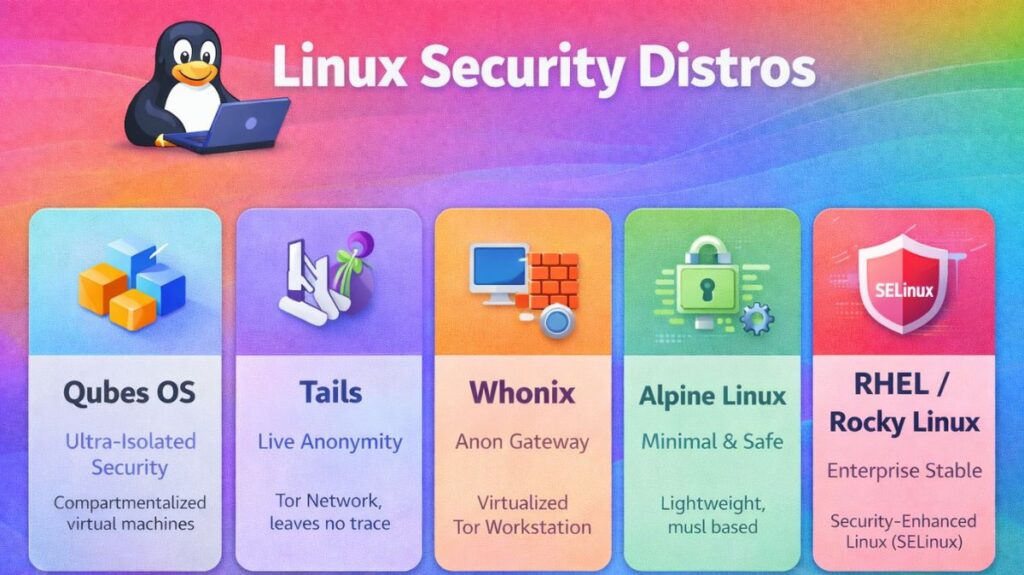
The Ultra-Isolated: Qubes OS
Most people agree that Qubes OS is the world’s most secure desktop operating system. They call it “Security by Compartmentalization.”
- It operates by using a technology known as Xen Hypervisor, which runs everything in distinct “Qubes” (small virtual machines).
- The Advantage: If you click on a fraudulent email in your “Email Qube,” the hacker is stuck there. It is impossible for them to see your “Work Qube” or “Banking Qube.”
- Ideal for: Reporters, high-stakes security experts, and journalists.
The Ghost: Tails
The acronym for the Amnesic Incognito Live System is Tails. It is made to disappear from the computer you are using.
- It operates solely on a USB stick and makes use of your RAM (temporary memory) rather than your hard drive.
- The Benefit: Everything you accomplished on the computer, including files, history, and passwords, is immediately erased when you shut it down. Additionally, it hides your location by forcing all internet traffic to go via the Tor Network.
- Ideal for: Preserving anonymity when traveling or utilizing public computers.
The Professional Fortress: Whonix
Though it is made to run on your standard computer in a virtual machine, Whonix is comparable to Tails.
- The way it operates is that you use a “Workstation” to accomplish your work and a “Gateway” to manage the internet.
- Benefit: Since only the Gateway is able to communicate with the internet, even if a virus were to infect your workstation, it would be unable to determine your true IP address.
- Best for: Repeatedly browsing anonymously without having to restart your entire computer.
The Minimalist: Alpine Linux
Alpine was designed with servers and containers in mind, whereas the others are for desktops.
- It functions as follows: It is really little (about 5MB). Unlike conventional versions, it makes use of a unique library called musl libc, which is far more difficult to attack.
- The advantage is that there are fewer “doors” for a hacker to knock on because it is simple. In 2026, it is considered the gold standard for safe online apps.
The Enterprise Standard: Red Hat (RHEL) / Rocky Linux
Security for enterprises is defined as “Stability and Compliance.”
- How it operates: By default, these systems run Security-Enhanced Linux, or SELinux. This robust system was created by the NSA to secure all files and processes.
- Its formal certification for usage in military and government systems guarantees that it satisfies the strictest legal security requirements.
How do I secure my Linux?
The “Zero-Trust” strategy understands that your Linux system may be vulnerable and implements numerous levels of security to restrict it in 2026.
These easy measures can harden your system, starting with the most crucial.
Also read about Linux Security Features, Tools, And Why Linux Is Secure
Lock the Front Door (SSH & Access)
Networks are the site of most attacks. If you use SSH to log in, you must immediately harden it.
- Disable Passwords: SSH keys should be used instead of passwords. A key is an unguessable, long file that works similarly to a password consisting of 100 characters.
- Turn off Root Login: Off root login to prevent “root” logins. Start with a regular login.
- Change the Port: SSH on something random like 4291 instead of 22 blocks 99 percent of automated hacking bots.
Command: Edit your settings at /etc/ssh/sshd_config
and set PasswordAuthentication no and PermitRootLogin no.
Set Up a Gatekeeper (The Firewall)
Before you give them permission, a firewall stops any “knocks” on your digital door.
- UFW is the most user-friendly tool.
- Deny by default: Block everything initially, then open just the files that are required.
Automate Your Armor (Updates)
AI helps hackers find software bugs faster in 2026. Waiting for manual upgrades is impossible.
- Unattended Upgrades: Set up unattended Linux upgrades to automatically install security updates.
- Kernel Livepatch: “Livepatching” upgrades the kernel without restarting a server.
Enable the “Bodyguards” (SELinux or AppArmor)
Mandatory access control is like a guard watching every move, unlike conventional permissions, which are like locks.
- Check AppArmor’s “Enforce” mode. Your private system files are protected from being accessed by a compromised software, such a web browser.
- To provide each file and process a security tag, SELinux is used in increasingly complex systems.
Also read about Linux System Administration Commands With Examples Guide
Use a “Black Box” Recorder (Auditing)
And if someone does get in, you have to find out exactly what they did.
- Install Auditd: This application records modifications to files, commands run, and user logins, among other important system operations.
- Log rotation: Keep your logs organized so they don’t overflow your hard disk while yet preserving enough data to investigate a problem.
Linux Security Commands with Examples
User and Authentication Security
adduser / useradd – Create a New User
bash

sudo useradd username
sudo passwd username
Creates a user and sets a password.
passwd – Change Password
bash

passwd
Changes the current user’s password.
chage – Set Password Expiry
bash

sudo chage -l username
Displays password aging details.
who – Show Logged-In Users
bash

who
Displays active user sessions.
File Permission and Ownership Commands
chmod – Change File Permissions
bash

chmod 755 script.sh
Gives owner full access and read/execute to others.
chown – Change File Owner
bash

sudo chown user:group file.txt
Changes file ownership.
ls -l – View File Permissions
bash

ls -l
Shows file permissions and ownership.
Firewall and Network Security Commands
ufw – Manage Firewall (Ubuntu)
bash

sudo ufw enable
sudo ufw allow 22
Enables firewall and allows SSH port.
iptables – Configure Firewall Rules
bash

sudo iptables -L
Lists firewall rules.
ss – Check Open Ports
bash

ss -tuln
Displays listening ports and services.
System Monitoring and Log Commands
top – Monitor Running Processes
bash

top
Shows real-time system usage.
ps – View Running Processes
bash

ps aux
Displays all active processes.
journalctl – View System Logs
bash

sudo journalctl -xe
Shows recent system events and errors.
last – View Login History
bash

last
Shows previous login records.
Intrusion Detection & Integrity Checking
aide – File Integrity Check
(After installation)
bash

sudo aide --check
Checks for file changes.
AIDE stands for Advanced Intrusion Detection Environment.
fail2ban-client – Manage Fail2Ban
bash

sudo fail2ban-client status
Shows banned IP addresses.
Also read about Understanding Services And System Management In Linux
Disk and File Security
df -h – Check Disk Usage
bash

df -h
Shows disk space usage.
mount – View Mounted File Systems
bash

mount
Displays mounted partitions.
umask – Default Permission Settings
bash

umask
Shows default permission mask.
Security Modules (MAC)
Linux supports advanced security modules such as:
- SELinux
- AppArmor
Check SELinux Status
bash

sestatus
Check AppArmor Status
bash

sudo aa-status
Package and Update Security
bash

sudo apt update
sudo apt upgrade
bash

sudo dnf update
Keeping systems updated fixes security vulnerabilities.
Network Scanning and Testing
nmap – Scan Open Ports
bash

nmap localhost
Scans open ports on local system.
Root Access and Privilege Control
sudo – Execute as Superuser
bash

sudo command
Runs a command with elevated privileges.
Linux Security Commands
| Category | Commands |
|---|---|
| User Security | useradd, passwd, chage, who |
| Permissions | chmod, chown, ls -l |
| Firewall | ufw, iptables |
| Monitoring | top, ps, journalctl, last |
| Intrusion Detection | aide, fail2ban |
| Updates | apt, dnf |
| Network | ss, nmap |
Also read about Networking in Linux: Types, Advantages, and Disadvantages