

Understanding AppArmor in linux
The “Security Guard” of Linux:
“Who can access what?” is the main focus of conventional Linux permissions (Read, Write, Execute); “What can this specific application do?” is the focus of AppArmor (Application Armor). Programs are restricted by this Mandatory Access Control (MAC) scheme, which limits their use to a specific set of resources.
The default security framework for Ubuntu, Debian, and openSUSE is AppArmor, which was first created by Immunix and subsequently maintained by Novell and Canonical.
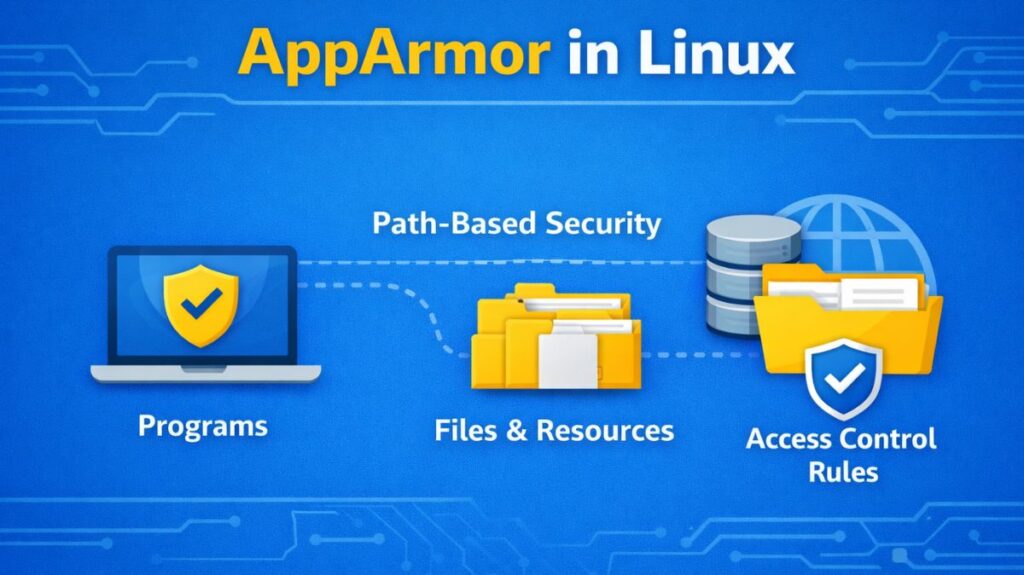
What is AppArmor?
A kernel-based security module called AppArmor enables system administrators to limit the functionality of specific applications. AppArmor is path-based, in contrast to SELinux, which labels all files on the system. This indicates that security rules are directly attached to the executable’s disk location (e.g., /usr/bin/firefox).
In the event that a hacker compromises a program, AppArmor makes sure the attacker is unable to leave the “sandbox” that has been established for that particular application.
How AppArmor Works: Profiles and Modes
Profiles are used by AppArmor to function. A basic text file called a profile is kept in /etc/apparmor.d/ that specifies precisely which network ports, files, and libraries that application is permitted to access.
The Two Operational Modes
There are two operational modes in which each AppArmor profile can operate:
Complain Mode: No actions are blocked by the system. Rather, it records every action taken by the program that deviates from the profile. Testing and creating new profiles are done with this.
Enforce Mode: The system records the “denied” attempt and actively prevents any unwanted activity. This is the typical production security mode.
The Path-Based Logic
The kernel examines the executable’s path when a program launches. For that path, the kernel loads the rules into memory if a profile is present. Before being permitted, any system call such as “open file” or “connect to network” is compared to that internal list.
Example rule:
bash

/var/www/html/** r,
This allows read access to all files under /var/www/html.
Also read about Explain File Permissions In Linux & Ownership With Examples
Important AppArmor Features
- Control Based on Paths: Rather than labels, security rules are based on file paths.
- Profiles That Are Easy to Read: Profiles are text files that are readable by humans.
- Mode of Learning: Rules based on actual application behavior are generated with the aid of complain mode.
- Security via Per-Application: Every program has a unique profile of its own.
- Minimal Effect on Performance: Designed with the least amount of system overhead possible.
- Limitations on Capability: Restricts Linux’s capabilities, such as: Raw access to the network, Mounting operations, Loading of kernel modules.
- Support for Containers: Provides isolation through the use of container technology.
Apparmor profile syntax
A typical profile looks like this:
bash

#include <tunables/global>profile myapp /usr/bin/myapp {
  /usr/bin/myapp r,
  /etc/myapp.conf r,
  /var/log/myapp.log w,
  network inet stream,
}
Main components:
- Profile name
- File access rules
- Network permissions
- Capability rules
- Execution rules
Managing AppArmor: Essential Commands
If you are using an Ubuntu or Debian system, these commands are your primary interface:
aa-status: Shows which profiles are loaded and whether they are in “Enforce” or “Complain” mode.aa-enforce [path]: Switches a specific profile to Enforce mode.aa-complain [path]: Switches a profile to Complain mode (useful if an app is breaking and you need to see why).aa-genprof: The “Wizard” that helps you create a new profile from scratch.systemctl reload apparmor: Reloads all profiles after you have edited them.
Also read about What Is SELinux In Linux? Architecture, Modes And Commands
How to create a simple AppArmor profile for a script
To create an AppArmor profile, you generally use a “Learning” approach. You run the script, AppArmor watches what it does, and you then “approve” those actions to build the wall.
For this example, it will create a script that is allowed to read from /tmp but is blocked from reading your private documents.
Step 1: Create the “Target” Script
First, let’s create a simple Bash script located at /usr/local/bin/myscript.sh.
Make the script executable: sudo chmod +x /usr/local/bin/myscript.sh
Step 2: Install AppArmor Utilities
You need the “utils” package, which contains the profiling wizard.
Step 3: Start the Profiling Wizard
Run the aa-genprof command. This tool puts the script into “complain” mode and starts a scan.
Important: Do not close this terminal yet. It is currently “listening” for the script’s behavior.
Step 4: Run the Script (The “Learning” Phase)
Open a second terminal and actually run your script so AppArmor can see it in action.
Step 5: Scan the Logs and Set Permissions
Go back to your first terminal (where aa-genprof is running) and press “S” to scan the system logs for the events that just happened.
The wizard will ask you what to do for each action the script took. You will likely see prompts for:
- Executing /bin/bash: Select (I)nherit (this allows the script to use the shell).
- Reading /tmp/public.txt: Select (A)llow with Read permissions.
- Reading /root/secret.txt: Select (D)eny.
Once finished, press “F” to Finish and save the profile.
Also read about What Is A Shell Script In Linux? How It Works And Examples
Step 6: Verify the Created Profile
AppArmor has now created a text file at /etc/apparmor.d/usr.local.bin.myscript.sh.
Step 7: Test the Enforcement
Now, run the script again. Even if you run it with sudo, AppArmor will override the “root” power based on your profile.
Expected Result:
- The script will successfully display
/tmp/public.txt. - The script will return a “Permission Denied” error when trying to access
/root/secret.txt.
Common Profile Flags to Remember
When editing these profiles manually, you use these shorthand codes:
- r: Read access.
- w: Write access.
- px: Discrete Profile Execute (run another program with its own profile).
- ix: Inherit Execute (the sub-program stays under this current profile).
- ux: Unconfined Execute (the sub-program runs with no restrictions dangerous!).
AppArmor vs SELinux
| Feature | AppArmor | SELinux |
|---|---|---|
| Control Method | Path-based | Label-based |
| Complexity | Moderate | High |
| Default In | Ubuntu, Debian | RHEL, Fedora |
| Granularity | Medium | Very High |
| Container Security | Good | Excellent |
Also read about How to Install SELinux on RHEL, CentOS, Ubuntu And Fedora