

Linux containers vs virtual machines
It is useful to consider Hardware vs. Software in order to comprehend the distinction between a Virtual Machine (VM) and a Container. A container simulates a single application environment, whereas a virtual machine (VM) mimics a whole actual computer.
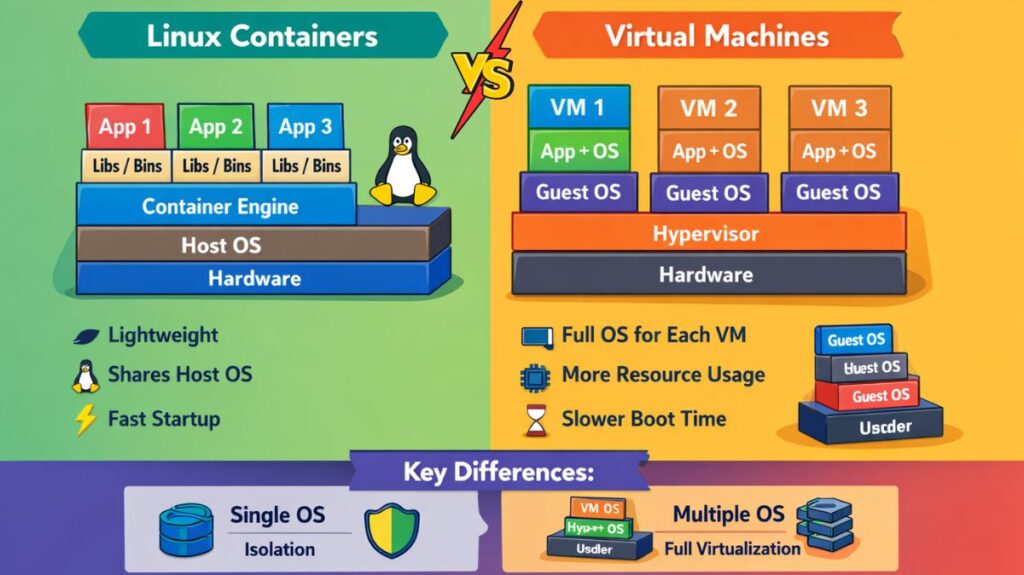
The Core Difference: Architecture
Virtual Machines (The Heavyweight)
A full guest operating system, the required binaries and libraries, and the application are all included in a virtual machine (VM). It is supported by a hypervisor (such as VMware, VirtualBox, or KVM) that divides the actual hardware.
- High isolation. Every VM has a unique kernel. The other virtual machines are usually safe in the event of a crash or hack.
- Startup Time: Minutes (much like a real PC, it needs to “boot up”).
- Gigabytes (GB) in size.
Containers (The Lightweight)
The host OS kernel is shared by containers. Only the application and its particular requirements are packaged. Since the OS is already running, they don’t need to “boot.”
- Process-level isolation. It uses the host’s engine even though it is “jailed.”
- Milliseconds to seconds is the startup time.
- Size: Megabytes (MB).
Real-World Examples
Example A: The “Multi-Tenant” Web Server
Consider that you run a web hosting business.
- VM Approach: You provide a 2GB RAM virtual machine to each client. That 2GB is “locked” and cannot be used by anyone else, even if the customer’s website is not in use.
- Container Approach: You use containers to manage 50 client websites. The server uses that “free” RAM to power the ten active websites if forty of them are not in use. It’s far more effective.
Example B: Cross-Platform Development
VM: You need to test a particular Red Hat Enterprise Linux version on a Windows laptop. To mimic that same hardware environment, you build a virtual machine.
Container: You need to run a Python 3.10 application and a Node.js 14 application simultaneously on Ubuntu without their libraries conflicting. In seconds, you can spin up two containers.
Which one should you use?
- Use a virtual machine (VM) if you need to run a different operating system (such as Windows on a Linux server), operate hardware directly, or require complete isolation.
- If you want to deploy microservices, optimize server density, or make sure your program functions the same on your laptop as it does on the cloud, use a container.
VM vs Container
| Feature | Virtual Machine (VM) | Linux Container (Docker/LXC) |
| Operating System | Full Guest OS (e.g., Windows on Linux) | Shares Host Linux Kernel |
| Resource Usage | High (Reserved RAM/CPU) | Low (Uses only what it needs) |
| Portability | Hard to move (huge files) | Easy (small images, “Run anywhere”) |
| Best Use Case | Running a different OS (e.g., Windows) | Scaling web apps/microservices |
Linux Containers commands with examples
Working with Linux containers usually means interacting with LXC (the system container manager) or Docker/Podman (application containers). Since most people diving into containers today are looking for Docker or its daemonless twin Podman, I’ll focus on those they use almost identical syntax.
Image Management
Before you can run a container, you need an image (the template).
- Search for an image:
docker search ubuntu - Pull an image from a registry:
docker pull nginx:latest - List local images:
docker images - Remove an image:
docker rmi [image_id]
Lifecycle Commands
These are the “bread and butter” commands for starting and stopping your environments.
| Command | Description | Example |
| Run | Create and start a container | docker run -d --name my-web nginx |
| Stop | Gracefully shut down | docker stop my-web |
| Start | Restart a stopped container | docker start my-web |
| Restart | Stop and start again | docker restart my-web |
| Pause | Suspend processes | docker pause my-web |
| RM | Delete a container | docker rm -f my-web |
Also read about Linux Security Features, Tools, And Why Linux Is Secure
Inspection & Monitoring
If things aren’t working, or you just want to see what’s happening inside the “box.”
List running containers:
docker ps
List ALL containers (including stopped ones):
docker ps -a
Check logs:
docker logs -f [container_name]
View resource usage (CPU/Memory):
docker stats
Inspect metadata (IP address, config):
docker inspect [container_id]
Interaction
Sometimes you need to “jump inside” or move files around.
Execute a command inside a running container:
docker exec -it [container_name] /bin/bash
(This gives you a shell inside the container.)
Copy files from host to container:
docker cp localfile.txt my-web:/var/www/html/
Check file changes in the container filesystem:
docker diff [container_name]
Networking & Ports
Containers are isolated by default. You have to “poke holes” to reach them.
Map a port (Host: Container):
docker run -p 8080:80 nginx
(Accessing localhost:8080 on your browser hits port 80 in the container.)
List networks:
docker network ls
Also read about Linux DevOps Commands Cheat Sheet With Practical Examples
What are the different types of containers in Linux?
In the Linux ecosystem, “containers” aren’t a single technology but a collection of kernel capabilities (such as Namespaces and Cgroups) used in diverse ways. You will select one of these three primary categories based on whether you wish to bundle an entire operating system or simply a single microservice:
Application Containers
These are the most widely used kinds, made popular by Podman and Docker. Packaging a single process or application along with all of its dependencies is their aim.
- They use the host kernel, are disposable, and don’t run
systemd. - Key Tools: Docker, Podman, and Kubernetes CRI-O.
- Perfect for microservices, web scaling, and CI/CD workflows.
System Containers
Consider these as a compromise between an application container and a virtual machine. They function similarly to a complete stand-alone Linux system.
- Features: They use a complete init system (
systemd,OpenRC). They allow you to run numerous services within a single container, install various packages, and SSH into them. - LXC (Linux Containers) and LXD are essential tools.
- Ideal for: running multiple Linux distributions on a single kernel, “lift and shift” of legacy software, and development environments that must resemble a true VPS.
Sandbox / Desktop Containers
These place a strong emphasis on end-user application security and isolation. They guarantee that a program (such as a chat app or web browser) cannot snoop on other processes or access your private files.
- Features: They employ stringent permissions for hardware access (webcams, microphones) and frequently package GUI libraries.
- Flatpak, Snap, and AppImage are important tools.
- Ideal For: Protecting your home directory from untrusted code and installing desktop software on Linux without “dependency hell.”
How they work under the hood
All of them are based on two fundamental Linux kernel pillars:
- Namespaces: Create the “illusion” of isolation so that the container believes it has its own PID tree, Network, and Users.
- Control groups, or Cgroups, regulate resource limits to prevent a single container from using up all of the CPU or RAM.
Linux Container Distros
| Distro | Base Size | Package Manager | Best For |
| Alpine Linux | ~5 MB | apk | Ultra-lightweight, security-focused microservices. |
| Wolfi | ~Variable | apk | Modern “Undistro” focused on 0-vulnerability (CVE) supply chains. |
| Ubuntu (LTS) | ~25 MB | apt | Compatibility, developer familiarity, and vast library support. |
| Red Hat UBI | ~75 MB | dnf/yum | Enterprise-grade apps requiring RHEL support and stability. |
| Debian (Slim) | ~30 MB | apt | A middle ground between Ubuntu and Alpine; very stable. |
| Distroless | < 2 MB | None | High-security production; contains only your app and its runtime. |
Also read about What Is Linux System Administration? How It Works & Types