

Linux Package Management Commands
Managing software on Linux might feel like learning a new language, but it’s actually more like using different dialects of the same tongue. Whether you are on Ubuntu, Fedora, or RHEL, the logic remains the same: you ask a “Package Manager” to fetch, install, or delete software from a central library called a repository.
The three major players in the Linux world are broken down here.
APT: The Debian & Ubuntu Standard
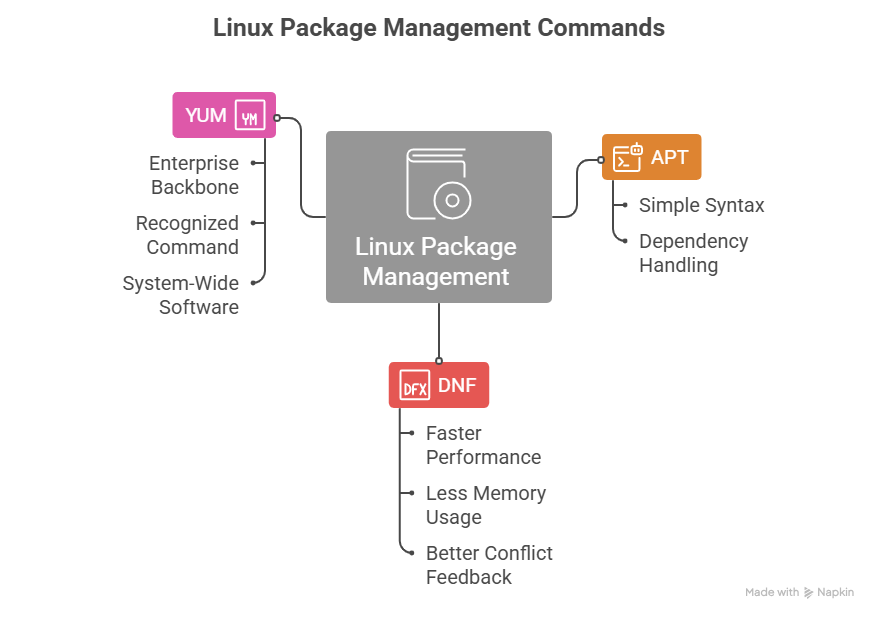
APT (Advanced Package Tool) is the most widely used package manager globally. It is famous for its simple syntax and its ability to handle complex “dependencies,” the extra bits of software a program needs to function.
Apt commands Linux
| Category | Command | Description |
| Maintenance | sudo apt update | Refreshes the local database of available packages from the repositories. |
| Upgrading | sudo apt upgrade | Installs available updates for all currently installed packages. |
| Upgrading | sudo apt full-upgrade | Performs an upgrade but can also remove packages if necessary to resolve conflicts. |
| Installation | sudo apt install <package> | Downloads and installs a specific package along with its dependencies. |
| Removal | sudo apt remove <package> | Uninstalls a package but keeps its configuration files intact. |
| Removal | sudo apt purge <package> | Completely removes a package including all its configuration files. |
| Cleanup | sudo apt autoremove | Removes packages that were installed as dependencies but are no longer needed. |
| Cleanup | sudo apt clean | Clears out the local cache of downloaded package files (.deb files). |
| Search | apt search <keyword> | Searches the descriptions of all available packages for a specific term. |
| Information | apt show <package> | Displays detailed information about a package (version, size, dependencies). |
| Listing | apt list --installed | Lists every package currently installed on your system. |
| Completely removes a package, including all its configuration files. | apt list --upgradable | Shows a list of all packages that have an update available. |
How the Process Works
Understanding the flow of package management helps prevent errors. Usually, the workflow follows a specific cycle:
- Update: You sync your local list with the server.
- Install/Upgrade: The manager calculates which files are needed.
- Resolve: The manager automatically downloads “dependencies” (helper apps).
- Configure: The software is unpacked and set up on your drive.
DNF: The Modern Powerhouse (Fedora)
DNF (Dandified YUM) replaced the aging YUM in Fedora 22. It was designed to be faster and use less memory while providing better feedback when a conflict occurs.
If APT is the reliable workhorse of the Debian world, DNF (Dandified YUM) is the high-performance engine of the Fedora and RHEL ecosystems. It was built to solve the performance bottlenecks of the older YUM manager, offering better dependency resolution and a more efficient memory footprint.
When using DNF, you will almost always need to use sudo it for any command that modifies the system (installing, removing, or updating).
Also read about What Are The Runlevels In Linux? & Common Systemd Targets
DNF Commands Linux
| Category | Command | Description |
| Maintenance | sudo dnf check-update | Checks for available updates without actually downloading them. |
| Upgrading | sudo dnf upgrade | Downloads and installs all available updates for the system. |
| Installation | sudo dnf install <package> | Installs a specific package and all required dependencies. |
| Removal | sudo dnf remove <package> | Uninstalls a package and removes its unneeded dependencies. |
| Reinstallation | sudo dnf reinstall <package> | Reinstalls a currently installed package (useful for fixing corrupted files). |
| Search | dnf search <keyword> | Searches package names and summaries for the specified keyword. |
| Information | dnf info <package> | Provides detailed information (version, size, repo) about a package. |
| Listing | dnf list installed | Lists every package currently installed on the system. |
| Listing | dnf list available | Lists all packages in the enabled repositories that are not yet installed. |
| History | dnf history | Displays a list of all previous DNF transactions (installs, updates, etc.). |
| Rollback | sudo dnf history undo <ID> | Reverts a specific transaction using its ID from the history list. |
| Cleanup | sudo dnf clean all | Removes all cached package data and temporary files to save space. |
| Groups | sudo dnf groupinstall "<group>" | Installs a collection of related packages (e.g., “Development Tools”). |
DNF is particularly smart about “transaction history,” allowing you to undo an installation easily if it breaks your system.
Why DNF is “Dandified”
DNF introduced several features that make it feel more modern than its predecessors:
- Strict Dependency Resolution: It uses a state-of-the-art “satisfiability” (libsolv) algorithm to ensure that installing one program doesn’t accidentally break another.
- Transaction History: One of DNF’s best features is
dnf history. If an update causes a problem, you can literally “undo” the last action to return your system to its previous state. - Automatic Cleanup: Unlike APT, which often requires a separate
autoremovecommand, DNF is generally better at cleaning up orphaned dependencies during the initial removal process.
YUM: The Enterprise Veteran (RHEL)
For decades, YUM (Yellowdog Updater, Modified) has been the backbone of Red Hat Enterprise Linux (RHEL), CentOS, and Amazon Linux. While newer versions of RHEL (8 and 9) use DNF as the default engine, yum remains the most recognized command in the enterprise world.
Because YUM handles system-wide software, you must prefix most commands with sudo to execute them with administrative privileges.
Also read about What Is Linux Mint? And Why Choose Mint Over Ubuntu? Explain
YUM Commands Linux
| Category | Command | Description |
| Maintenance | sudo yum check-update | Lists all packages that have available updates without installing them. |
| Upgrading | sudo yum update | Updates all currently installed packages to their latest versions. |
| Installation | sudo yum install <package> | Downloads and installs a specific package and its dependencies. |
| Removal | sudo yum remove <package> | Uninstalls a package from the system. |
| Search | yum search <keyword> | Searches the names and summaries of available packages for a match. |
| Information | yum info <package> | Displays version, architecture, and description for a specific package. |
| Listing | yum list installed | Displays a complete list of every package currently on your system. |
| Listing | yum list available | Shows all packages in your enabled repositories that you haven’t installed yet. |
| History | yum history | Shows a numbered list of past transactions (installs, updates, etc.). |
| Reverse | sudo yum history undo <ID> | Reverts a specific transaction using the ID from the history list. |
| Dependency | yum deplist <package> | Shows a detailed list of every library and file a package depends on. |
| Cleanup | sudo yum clean all | Clears the cached package files and headers to free up disk space. |
| Providing | yum provides <file_path> | Finds which package contains a specific file or command. |
The Architecture of YUM
YUM operates by communicating with remote “Repositories” (Repos). When you type an install command, YUM performs a multi-step process to ensure your system remains stable.
- Metadata Sync: YUM downloads a small database of what the server has.
- Dependency Calculation: It checks if the new software needs other libraries (like
libcoropenssl). - Transaction Check: It ensures the new software won’t break existing programs.
- Execution: It downloads the
.rpmfiles and installs them.
Key Differences at a Glance
If you’re jumping between systems, remember this shorthand:
- Ubuntu/Debian (APT): Uses
.debfiles. Known for being extremely stable and having the largest community support. - Fedora/RHEL (DNF/YUM): Uses
.rpmfiles. Known for enterprise-grade security and being the standard in corporate data centers.
The “Sudo” Requirement
Because these commands change the core files of your computer, they require root privileges. That is why almost every command starts with sudo (SuperUser DO). Without it, the system will politely (or bluntly) tell you that you don’t have permission to change things.
Also read about Linux Mint Installation Process Step By Step For Beginners