

Whether a system is a virtualized cluster, a cloud server, or a physical laptop, the first and most important line of protection in 2026 is a Linux firewall. As a gatekeeper, it examines each data packet that is attempting to enter or exit your network.
What is a Linux Firewall?
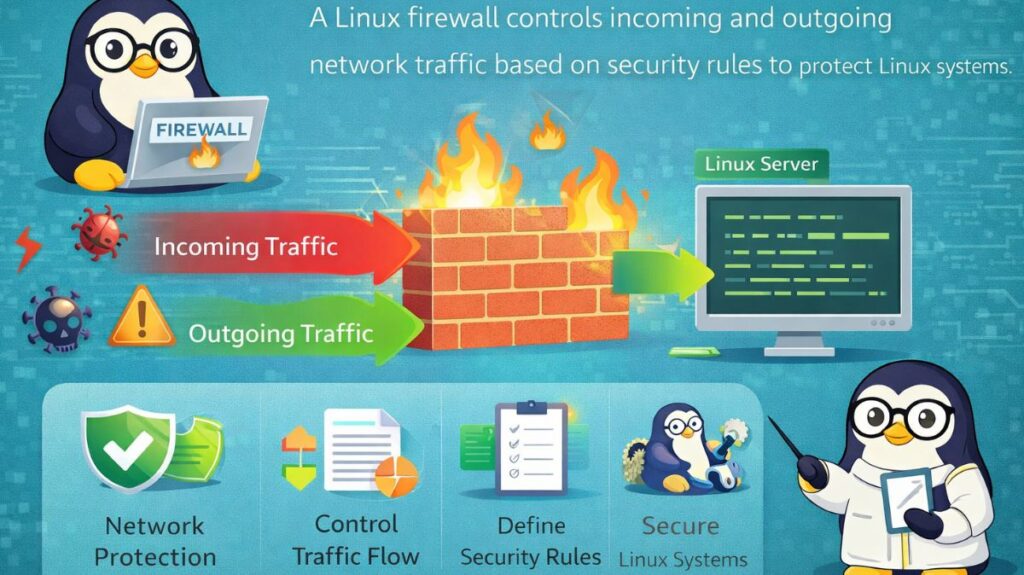
A Linux firewall is a type of security system that uses pre-established security rules to monitor and regulate incoming and outgoing network traffic. In Linux, a subsystem known as Netfilter performs the real “filtering” inside the kernel. Our tools, such as Firewalld and UFW, are only interfaces that instruct Netfilter on what to do.
Core Use Cases
- Blocking Unauthorized Access: Keeping hackers from attempting to access your database or SSH ports.
- Opening only the particular “doors” required for services (such as Port 80 for Web and Port 22 for SSH) is known as port management.
- Allowing just your home or workplace IP address to connect to a private server is known as IP whitelisting.
- NAT and routing, which are frequently used in routers, allow many network interfaces to share an internet connection.
Types of Linux Firewall
In the Linux environment, firewall administration is divided into three primary “layers”:
The Kernel Level (NFTables/IPTables):
The low-level engine is the Kernel Level (NFTables/IPTables). Because of the complicated syntax, most users don’t directly deal with this.
The UFW/Firewalld “User-Friendly” CLI:
- Ubuntu and Debian’s default firewall is called UFW (Uncomplicated Firewall). It emphasizes simplicity.
- Firewalld: CentOS, Fedora, and RHEL’s default. “Zones” are used to control various degrees of trust.
The Graphical Layer (GUFW):
For people who would rather click buttons than type commands, there is a visual interface called the Graphical Layer (GUFW).
Firewall in Linux command
Using UFW (Ubuntu/Debian)
UFW is designed to be human-readable.
- Check Status:
sudo ufw status - Enable Firewall:
sudo ufw enable - Allow SSH:
sudo ufw allow 22/tcp - Allow Web Traffic:
sudo ufw allow http - Block a specific IP:
sudo ufw deny from 192.168.1.50
Using Firewalld (Fedora/RHEL)
Firewalld uses a “permanent” flag to ensure rules survive a reboot.
- Allow HTTPS:
sudo firewall-cmd --permanent --add-service=https - Reload to apply:
sudo firewall-cmd --reload - Check active zones:
sudo firewall-cmd --get-active-zones
Also read about Important Hostname Files In Linux Explained With Examples
Firewall in Virtualization Technologies
Because the host and virtual machines (VMs) are frequently connected by a “Bridge” network, virtualization adds a layer of complexity.
KVM/QEMU: The Linux bridge (virbr0) typically manages the traffic when you establish a virtual machine. The host firewall must be set up to permit “Forwarding” in order for the virtual machine to connect to the internet.
Docker: To enable communication between containers, Docker automatically modifies your iptables rules. Docker frequently gets around UFW rules, which, if left unchecked, can result in security flaws.
Isolation: For “defense in depth,” each virtual machine (VM) (KVM) has its own internal firewall, while the host is typically configured with a stringent firewall.
Setting Up a Secure Firewall (Step-by-Step)
If you are setting up a new server today, follow this “Safe Start” sequence using UFW:
Set Defaults: Start by blocking everything coming in and allowing everything going out.
Bash

sudo ufw default deny incoming
sudo ufw default allow outgoing
Allow your Connection: CRITICAL. If you don’t do this, you will be locked out of your own server.
Bash

sudo ufw allow ssh
Turn it on:
Bash

sudo ufw enable
Verify:
Bash

sudo ufw status numbered
Linux firewall tools
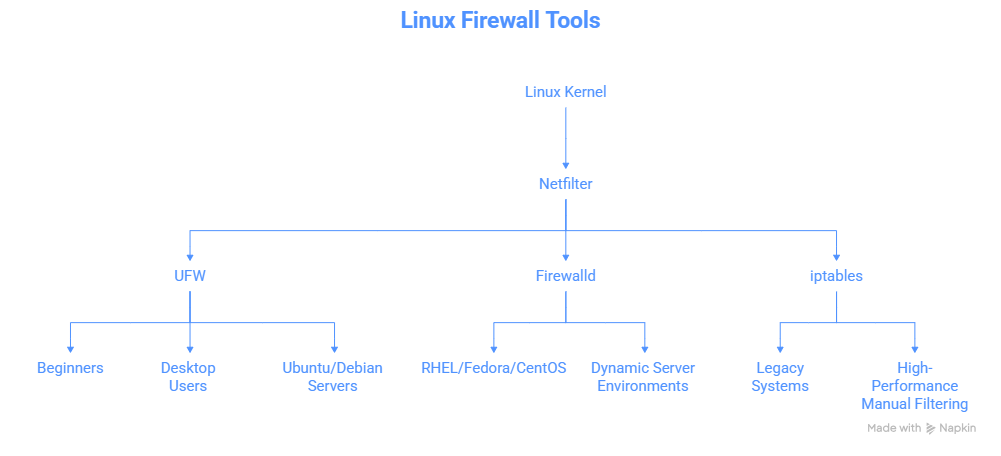
In 2026, Linux security relies on a layered defense. While the Linux kernel uses a subsystem called Netfilter to filter packets, we use different “front-end” tools to manage those rules. Depending on your distribution, Ubuntu, Fedora, or an enterprise server, you will encounter UFW, firewalld, or the classic iptables.
1. UFW (Uncomplicated Firewall)
Best for: Beginners, Desktop users, and Ubuntu/Debian servers.
UFW was created by Canonical to make firewall management “uncomplicated.” It uses a simple, English-like syntax that is easy to remember without looking up a manual.
- Status:
sudo ufw status - Enable:
sudo ufw enable - Allow a Service:
sudo ufw allow sshorsudo ufw allow 80/tcp - Deny an IP:
sudo ufw deny from 192.168.1.100
2. Firewalld
Best for: RHEL, Fedora, CentOS, and dynamic server environments.
Firewalld is the standard for the Red Hat ecosystem. Unlike UFW, it uses Zones. A “zone” defines the level of trust for a network connection. For example, you might have a “Public” zone for the internet and a “Trusted” zone for your home Wi-Fi.
- Key Concept: Changes are “Runtime” by default. Use
--permanentto make them stick after a reboot. - Allow HTTPS:
sudo firewall-cmd --permanent --add-service=https - Reload Rules:
sudo firewall-cmd --reload - Check Active Zones:
sudo firewall-cmd --get-active-zones
Also read about Linux Boot Process Step By Step And Interview Questions
3. iptables (The Classic Engine)
Best for: Legacy systems and high-performance manual filtering.
For decades, iptables it was the only way to manage Linux firewalls. It uses “Chains” (INPUT, OUTPUT, FORWARD) and “Tables” (filter, nat, mangle) to process packets. While modern systems are moving toward nftables, iptables commands are still widely used in Docker and older automation scripts.
- List Rules:
sudo iptables -L -n -v - Block Port 22:
sudo iptables -A INPUT -p tcp --dport 22 -j DROP - Flush All Rules:
sudo iptables -F
Which should you use?
| Feature | UFW | Firewalld | iptables |
| Primary OS | Ubuntu / Debian | RHEL / Fedora | Any (Legacy) |
| Complexity | Low (Very Easy) | Medium | High |
| Logic | Simple Allow/Deny | Zone-based | Chain/Table-based |
| Dynamic | No (Reload required) | Yes (D-Bus interface) | No |
| Recommended | Home users / Small VPS | Enterprise / Multi-NIC | Advanced Admins only |
Security Best Practices for 2026
Regardless of which tool you choose, follow these three rules to keep your Linux system safe:
- Default Deny: Always set your default policy to
DROPdenyREJECTfor incoming traffic. Only open the specific ports you need. - SSH Protection: Never leave Port 22 wide open to the world. Either change the port, use a VPN, or whitelist only your specific IP address.
- Logging: Enable logging (e.g.,
sudo ufw logging on) to see who is hitting your “closed doors.” You can find these logs in/var/log/ufw.logor viajournalctl.
Also read about What Is Linux Logging? How It Works, Log Files, And Features