

Kernel loading in linux
One of the most important steps in an operating system’s boot process is kernel loading. In order for the operating system kernel to start running, it must be loaded from permanent storage into the main memory (RAM). The computer system can only execute simple firmware-level code until the kernel is loaded; it cannot carry out actual computing operations.
The kernel serves as the operating system’s central component. It controls memory, processes, device drivers, file systems, system calls, and hardware resources. The kernel must be loaded before any other system software or user application can execute since every component of the operating system depends on it.
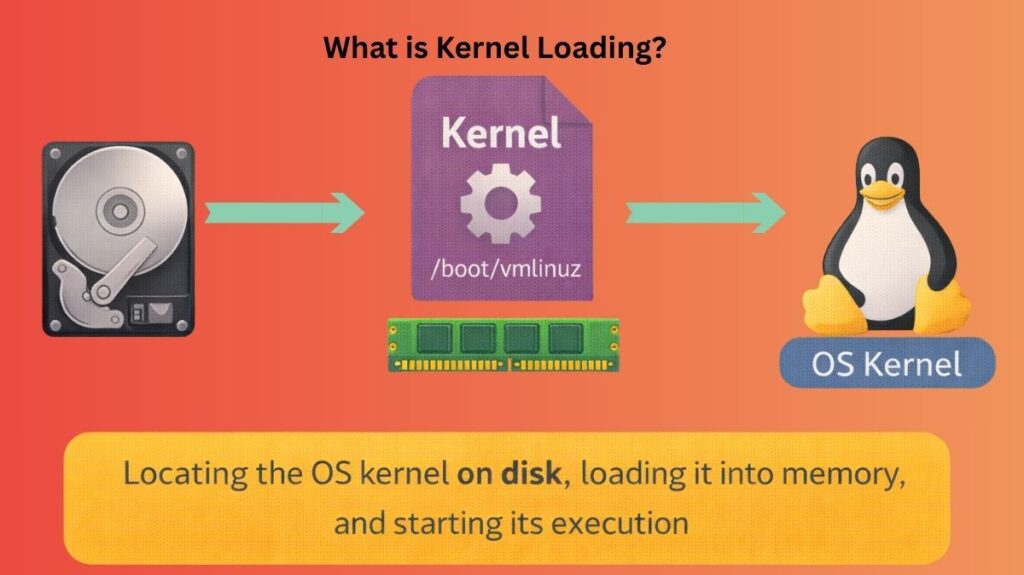
What is Kernel Loading?
The bootloader loads the kernel image into RAM and gets the system ready to begin running it during the kernel loading stage.
This procedure takes place following:
- Hardware checks are completed by the system firmwaare (UEFI or BIOS).
- The bootloader is started, such as GRUB.
The actual operating system doesn’t start until the kernel has finished loading.
Also Read About What Is Linux Kernel? Why It Is Important And Its Components
Importance of Kernel Loading
The precise point at which a computer turns into an operating system is known as kernel loading. It creates a regulated computing environment from unprocessed hardware. The proper loading of the kernel is essential for all system functions, including security, performance, stability, networking, and user interaction. The operating system cannot function without a successful kernel loading.
Where Is the Kernel Stored?
The kernel is kept in the /boot directory of the majority of Linux systems as a compressed file.
Typical filenames for the kernel:
vmlinuz(Linux kernel image)bzImage(older compressed format)
Example:
/boot/vmlinuz-6.5.0-25-genericThe kernel is not executed directly from disk. It must be copied into memory first.
Role of the Bootloader in Kernel Loading
The kernel loading process is initiated by the bootloader. Its primary responsibilities are:
- Find the kernel on the disk.
- Put the kernel into RAM.
- The starting RAM disk (initramfs) should be loaded.
- Give the kernel the boot settings.
- Give the kernel command.
The bootloader’s work is complete once control is transferred.
Bootloader vs kernel
| Feature | Bootloader | Kernel |
| Execution Order | Runs first (after firmware). | Runs second (started by bootloader). |
| Lifespan | Temporary (stops once OS starts). | Persistent (runs until shutdown). |
| Main Goal | Locating and “handing off” the OS. | Managing hardware and resources. |
| User Interaction | Allows you to select an OS or Kernel. | Hidden; works in the background. |
| Location | MBR or EFI Partition. | The /boot directory. |
Also Read About XFS File System Commands And Ext4 Vs XFS File System
Kernel Loading Process
Step 1: Firmware Hands Control to Bootloader
After powering on:
- BIOS or UEFI runs hardware tests.
- Firmware finds the bootloader.
- Bootloader starts running.
Step 2: Bootloader Reads Kernel from Disk
The bootloader reads the kernel file from the disk using filesystem drivers.
Example in GRUB:
linux /boot/vmlinuz root=/dev/sda1 roThis tells GRUB:
- Which kernel to load
- Where the root filesystem is
Step 3: Kernel Is Decompressed
- Linux kernels are stored in compressed form to save space.
- Once loaded into RAM, the kernel decompresses itself.
This happens automatically and does not require user interaction.
Step 4: Initramfs Is Loaded
The initramfs (initial RAM filesystem) is a temporary filesystem loaded into memory.
It contains:
- Essential drivers
- Storage modules
- Filesystem tools
Purpose:
- To help the kernel access the real root filesystem.
- Without initramfs, the kernel may not know how to read your disk.
Step 5: Boot Parameters Are Passed
The bootloader sends arguments to the kernel, such as:
- Root device
- Debug options
- Quiet or verbose mode
Example:
root=/dev/sda1 quiet splashThese parameters control how the kernel behaves during startup.
Also Read About What Is GRUB Bootloader? Linux Boot Process And Commands
Step 6: Control Is Transferred to the Kernel
At this point:
- Bootloader exits.
- Kernel takes full control of the system.
- Kernel initializes internal subsystems.
This is the official start of the operating system.
What Happens Inside the Kernel After Loading?
The kernel carries out a number of internal operations after loading:
Hardware Identification
The kernel recognizes:
- Cores of the CPU
- RAM capacity
- Devices for storage
- Cards for networks
- USB gadgets
Memory Initialization
The kernel configures:
- Memory that is virtual
- Tables on pages
- Protection of memory
Device Driver Initialization
Every required driver has been loaded so that:
- The keyboard functions
- The output is shown on the screen
- The disk is accessible
Mounting the Root Filesystem
The primary filesystem (such as ext4 or xfs) is mounted by the kernel.
This turns into the directory /.
Starting the First Process
The first user-space process is started by the kernel:
- Customarily:
/sbin/init - Contemporary systems:
systemd
All other services are started by this process.
Also Read About What Is Btrfs File System In Linux? And Btrfs Vs Ext4 Vs XFS
Common Kernel Loading Problems
Failure to hand off the kernel to the bootloader usually stops the system. Since the kernel connects hardware and software, errors here might cause Kernel Panic, Linux’s “Blue Screen of Death.”
Here are the most common kernel loading faults and how to recognize them.
The Kernel Panic: “Unable to mount root fs”
This boot error is most common. It occurs when the kernel starts but cannot find the OS partition.
- The Cause: Typos in the GRUB configuration file, hardware updates, or disk UUID changes after partition resizing are common causes.
- The Symptom: A black screen filled with technical text ending in
Kernel panic - not syncing: VFS: Unable to mount root fs on unknown-block(0,0).
- The Fix: You must boot from a Live USB, identify the correct UUID using
blkid, and update the/etc/fstaband GRUB configuration.
Missing or Corrupt initramfs
Missing or corrupt initials First RAM filesystem, initramfs, contains drivers needed to “see” your hard drive.
- The Cause: It was either a full
/bootpartition or an interrupted system update that stopped the update process from finishing the file generation.
- The Symptom: It is that the system stops allowing you to exit the
initramfs(BusyBox) shell.
- The Fix: The solution is to run the command
update-initramfs -u(on Debian/Ubuntu) ordracut -f(on Fedora/RHEL) from the BusyBox prompt or a Live USB in order to regenerate the initialization files.
Missing Hardware Drivers (Modules)
Sometimes the kernel loads flawlessly, but it is missing a particular module (driver) for important hardware, like a new NVMe disk or a specialized RAID controller.
- The Cause: The reason is either using a “stripped-down” kernel that lacks the required modules or an older kernel version with brand-new hardware.
- The Symptom: The symptom is that the boot process either completely fails to recognize the storage disk or hangs forever.
- The Fix: The solution is to either utilize a “Mainline” kernel upgrade to obtain the most recent hardware support or boot into an earlier, functional kernel version via the GRUB “Advanced Options” menu.
Complete Boot Partition
The /bootdirectory is a distinct, little sector on a lot of Linux systems. Old kernels accumulate and occupy this space when you apply updates over time.
- The Cause: Since there is zero space remaining, new kernel updates cannot be completely written to the disk. As a result, kernel files become “truncated” or broken.
- The Symptom: A “Failed to load image” error during bootup or errors during the update process.
- The Fix: The solution is to either manually remove earlier
vmlinuzandinitrdfiles from/bootor use the commandsudo apt autoremove(or its equivalent) to remove outdated kernels.
Overview of the Diagnostic Procedures
Use this “emergency” checklist if your kernel won’t load:
- Check GRUB: Press
eon the boot menu to verify GRUB. Does your real disk ID match theroot=UUID=...?
- Try an Older Kernel: From the boot menu, choose “Advanced Options for Linux” and try the earlier version.
- Examine the initramfs: To determine whether your hard disks are even visible to the system, type
ls /devif you are presented with a(initramfs)prompt.
- Nomodeset: To get around GPU driver problems, add
nomodesetto the kernel boot parameters if the screen becomes black while the computer is still operating.
Also Read About Difference Between MBR Vs GPT Partition in Operating Systems
Kernel Loading in BIOS vs UEFI Systems
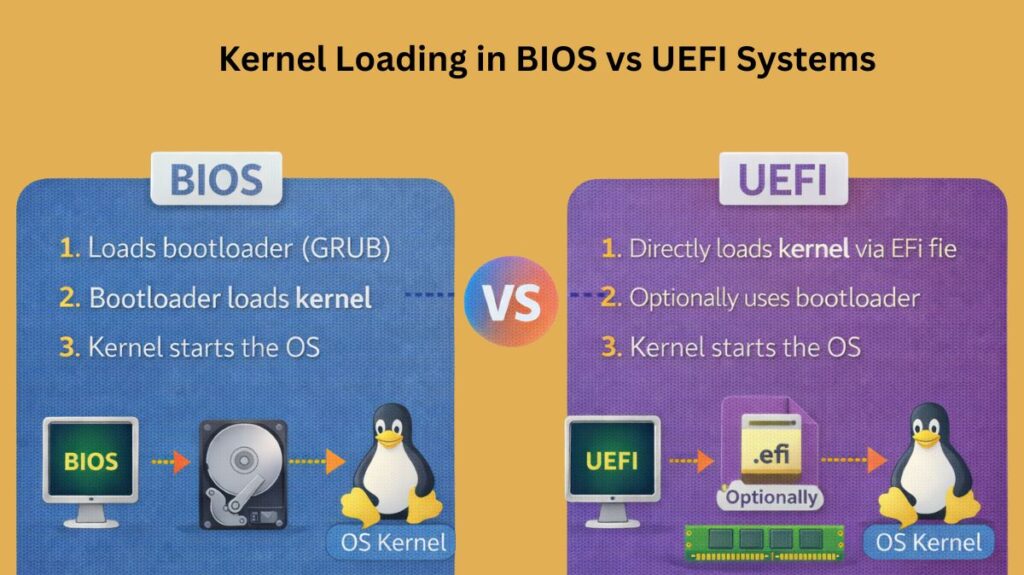
The primary distinction between BIOS and UEFI systems in terms of Linux kernel loading is who handles the hard lifting and where the data are stored. The mechanical hand-off is different even if the end effect is the same for a running kernel.
Kernel Loading in BIOS (Legacy)
The kernel in a BIOS system is passive. It is totally dependent on the bootloader (GRUB) as its “chauffeur.”
- The Bridge: BIOS lacks filesystem understanding and is extremely basic. It is limited to loading a disk’s first sector.
- The Hand-off: In order for GRUB to read your Linux partition (such as ext4), certain drivers must be included. GRUB manually copies the
initramfsand kernel (vmlinuz) into RAM after locating them. - GRUB tells the kernel to “Take it from here.” at its starting memory address.
- Location: The kernel and
initramfsare normally in the primary Linux partition’s/bootdirectory.
Kernel Loading in UEFI (Modern)
The kernel can be far more proactive in a UEFI system. In essence, UEFI is a little operating system that is aware of filesystems, particularly FAT32.
- The Bridge: Files from the EFI System Partition (ESP) can be read directly by UEFI.
- The EFISTUB: The EFISTUB feature is used in the compilation of contemporary Linux kernels. As a result, the kernel can function as a stand-alone UEFI program.
- Handoff: Many systems use GRUB as a manager, even though it’s no longer required. Instructions to start the Linux kernel directly by UEFI firmware can eliminate GRUB.
- The kernel may still be in
/boot, but the FAT32 EFI partition contains the instructions for finding it and sometimes the kernel.
BIOS vs UEFI
| Feature | BIOS (Legacy) | UEFI (Modern) |
| Knowledge | Doesn’t know what a “file” is. | Understands FAT32 filesystems. |
| Kernel Role | Passive (must be loaded by GRUB). | Active (can boot itself via EFISTUB). |
| Speed | Slower (sequential hardware check). | Faster (parallel initialization). |
| Address Space | 16-bit execution during hand-off. | 32-bit or 64-bit execution. |
| Secure Boot | Not supported. | Can verify the Kernel’s signature. |
Also Read About Difference Between BIOS And UEFI In Modern Computers