

The methodical process of locating, separating, and fixing hardware or software problems in an operating system based on Linux is known as Linux troubleshooting. Troubleshooting typically entails taking a logical path from the symptoms to the root cause because Linux is transparent and modular.
What is troubleshooting in Linux?
It is the process of figuring out why a system isn’t operating as it should. Using built-in tools, troubleshooting looks “under the hood” and applies a repair for issues like a slow server, a service that won’t start, or the system not booting at all.
How it Works
Usually, the procedure adheres to the “Bottom-Up” method or the OSI Model:
- Physical/Hardware Check: Verifying that RAM, drives, and connectors are in working order.
- Kernel/Boot Level: Using the Bootloader (GRUB) to verify that the OS loads properly.
- Service/Application Level: Checking for the presence of a particular piece of software (such as a web server).
- Network Level: Verifying the machine’s connectivity to the external environment.
Important Features
- Command-Line Centric: The Terminal (CLI) is used for the majority of diagnostics.
- Real-time Monitoring: Programs such as top or htop display the health of the system in real time.
- Verbosity: If you know where to look, Linux has thorough error messages.
- Modular Recovery: To repair a malfunctioning system without performing a complete reinstallation, you can boot into “Single User Mode” or “Rescue Mode”.
Importance and Functions in the OS
The “immune system” of an IT environment is troubleshooting. Among its purposes are:
- Keeping servers online for users is known as uptime maintenance.
- Resource Optimization: Recognizing CPU-stealing “zombie” programs.
- Finding out if a system slowness is a DDoS attack is known as security auditing.
- Data recovery: utilizing programs like fsck to restore corrupted file systems.
Linux Troubleshooting Types
Linux troubleshooting can be categorized into specific “layers” or types. Understanding these categories helps you narrow down where a problem lives, so you don’t waste time checking the network when the issue is actually a full hard drive.
1. Hardware Troubleshooting
This type focuses on physical components or their drivers.
- Signs: System won’t power on, random freezes, or “Device not found” errors.
- Common Actions: Checking cables, testing RAM with Memtest86, and checking disk health.
- Key Tool:
dmesg(shows hardware detection) andsmartctl(checks hard drive health).
Also read about AppArmor In Linux: What Is It, How It Works, And Features
2. Boot & Kernel Troubleshooting
This involves the process of the OS loading into memory.
- Signs: System stuck at the “GRUB” screen, “Kernel Panic” errors, or an infinite boot loop.
- Common Actions: Repairing the bootloader, editing
/etc/fstab, or booting into an older kernel version. - Key Tool:
journalctl -k(shows kernel logs) and the GRUB edit menu.
3. Performance Troubleshooting
This focuses on why a system is slow or unresponsive.
- Signs: Laggy interface, commands taking seconds to execute, or high fan noise.
- Common Actions: Identifying “runaway” processes, checking for RAM exhaustion, and finding disk bottlenecks.
- Key Tool:
top,htop, andiostat.
4. Storage & Filesystem Troubleshooting
This deals with disk space, file corruption, and mounting drives.
- Signs: “No space left on device,” files disappearing, or “Read-only file system.”
- Common Actions: Deleting temporary files, repairing partitions, and checking Inode usage.
- Key Tool:
df -h(disk space),du(directory size), andfsck(filesystem repair).
5. Network Troubleshooting
This involves connectivity between the server and other devices.
- Signs: Cannot browse websites, SSH connection timeout, or DNS failure.
- Common Actions: Checking IP addresses, testing the gateway, and inspecting firewall rules.
- Key Tool:
ping,ip addr,traceroute, andnetstat.
6. Permission & Security Troubleshooting
This focuses on access control and user rights.
- Signs: “Permission denied” errors or services failing to start because they can’t read a config file.
- Common Actions: Changing file ownership, adjusting
chmodbits, and checking SELinux/AppArmor blocks. - Key Tool:
ls -l,chown,chmod, andsestatus.
7. Application & Service Troubleshooting
This deals with specific software like web servers (Nginx) or databases (MySQL).
- Signs: Website shows a “502 Bad Gateway,” or a database service status is “failed.”
- Common Actions: Checking application logs, verifying config syntax, and restarting services.
- Key Tool:
systemctl statusandjournalctl -u [service_name].
| Type | Focus Area | Primary Command |
| Hardware | Physical Parts | lspci / lsusb |
| Boot | Startup Process | journalctl -b |
| Performance | Speed/Resources | htop |
| Storage | Disks/Files | df -h |
| Network | Connectivity | ip addr |
| Permissions | User Access | namei -l |
| Service | Specific Apps | systemctl |
Troubleshooting Specific Issues
A. Boot Issues
If Linux won’t start, the problem usually lies in the Bootloader (GRUB) or the Init system (systemd).
- Fix: Use a Live USB to “chroot” into the system or check
journalctl -xbto see exactly which service failed during the last boot attempt.
Boot problems can be diagnosed using:
bash

journalctl -b
Or check kernel logs:
bash

dmesg
Common boot issues include:
- Missing drivers
- Filesystem corruption
- Incorrect GRUB configuration
- Failed services
Log messages clearly indicate what failed during startup.
Also read about What Is Linux Logging? How It Works, Log Files, And Features
B. Disk and Memory Issues
- Disk Full: Use
df -hto see which partition is 100% full. Usedu -sh *it to find which specific folder is hogging space.
Symptoms:
- Slow performance
- Read/write errors
- Filesystem corruption
Check logs for:
- I/O errors
- Disk failure warnings
Use tools:
bash

smartctl
fsck
- Memory Leaks: If the “OOM Killer” (Out Of Memory) starts crashing apps, check
/var/log/syslogfor “Out of memory” strings.
Symptoms:
- System crashes
- “Out of memory” errors
Check:
bash

dmesg | grep -i memory
Kernel logs will show OOM (Out Of Memory) events.
C. Network Troubleshooting
- Connectivity:
pingchecks if a server is reachable. - Routing:
ip routeshows how data leaves your machine. - Ports:
ss -tulpnshows which applications are “listening” for connections on which ports.
Check:
bash

/var/log/syslog
journalctl -u NetworkManager
Useful commands:
bash

ip addr
ping
netstat -tulnp
ss -tulnp
Logs show detailed connection errors and service failures.
Also read about What Are The Different Types Of Linux Logs? Beginners Guide
Best Practices for Troubleshooting
- Check the Logs First: To see the precise error message, always use
journalctlor look at/var/log/syslog.
- Check Hardware Health: Before reinstalling software, use
smartctlto see if a hard disk is physically failing.
- Test Connectivity: To determine the precise location of a network connection drop, use
tracerouteormtr.
- Monitor Disk Space: To identify huge files that might be causing the system to freeze, run
du -sh /*regularly.
- Find bottlenecks: Use
iostatto determine whether a slow hard drive (I/O wait) is the source of a sluggish system.
- Fix Broken Packages: To fix interrupted software installs, use
sudo apt update --fix-missing.
- Audit Permissions: To determine the precise location of a “Permission Denied” error, use
namei -l /path/to/file.
- Control Services: To find out why a certain application didn’t start, use
systemctl status service_name.
- Check System Load: Examine the “load average”
topto determine the system load. If it exceeds the number of CPU cores, the system is overloaded.
- Isolate the Problem: To isolate the issue, temporarily turn off firewalls (such as
ufworiptables) to check if they are preventing a connection.
Advantages and Disadvantages of Linux Troubleshooting
Advantages
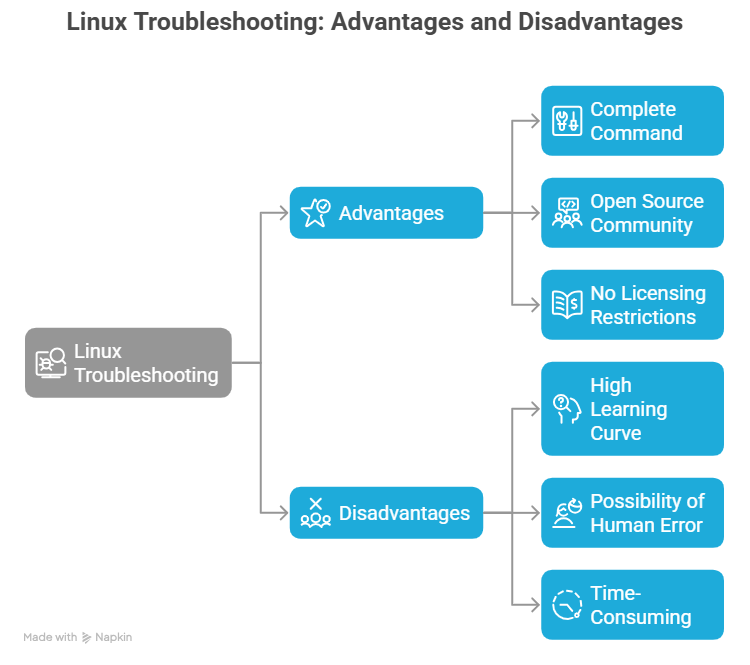
- Complete Command: To resolve an issue, you can alter any component of the operating system.
- Open Source Community: Nearly all error codes have been recorded online by other users.
- There are no licensing restrictions: “official” proprietary tools are not required to fix the system.
Disadvantages
- High Learning Curve: Needs command-line syntax expertise.
- The possibility of human error: a mistaken command during a “fix” (such as
rm -rf /) might wipe out the entire operating system. - Time-consuming: Log analysis of complex problems may take hours.
Also read about What Is Linux System Administration? How It Works & Types