

Linux Troubleshooting Commands with examples
Enterprise infrastructure, development environments, and servers all frequently employ Linux systems. Even though Linux is renowned for its dependability, difficulties like disk problems, network outages, excessive CPU consumption, or service breakdowns can still happen. The process of locating, evaluating, and resolving these problems is called troubleshooting.
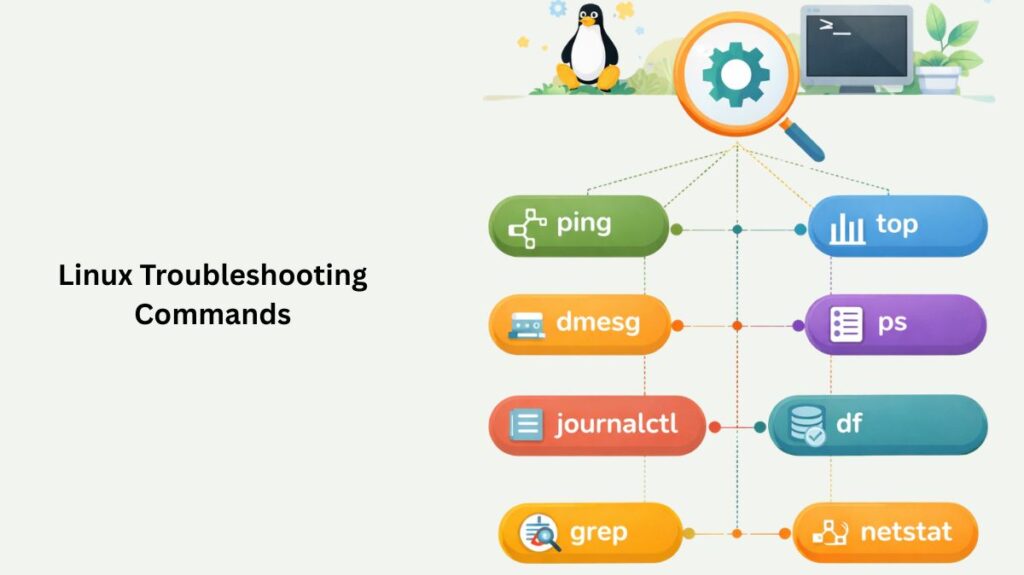
Numerous command-line tools that Linux offers assist administrators in rapidly identifying the cause of an issue. Users can examine system logs, keep an eye on processes, verify hardware conditions, and examine network connectivity with these commands.
This tutorial provides basic examples and explanations of frequently used Linux troubleshooting commands.
1. dmesg Command
The dmesg command displays messages from the Linux kernel ring buffer. It is useful for diagnosing hardware problems or driver issues.
Example
bash

dmesg
This shows kernel messages generated during system startup.
To view the most recent messages:
bash

dmesg | tail
Use Case: If a USB device or hard disk is not detected, dmesg it often shows related error messages.
2. journalctl Command
Modern Linux systems that use systemd store logs in a journal. The journalctl command is used to read these logs.
Example
View all system logs:
bash

journalctl
View logs from the current boot:
bash

journalctl -b
View logs for a specific service:
bash

journalctl -u ssh
Use Case: Helps identify why a service failed to start or crashed.
3. top Command
The top command provides a real-time view of system processes, CPU usage, memory usage, and load average.
Example
bash

top
Use Case: If the system becomes slow, top helps identify which process is consuming the most CPU or memory.
Also read about Linux Security Features, Tools, And Why Linux Is Secure
4. ps Command
The ps command displays information about active processes.
Example
bash

ps aux
Use Case: Useful for locating running applications or identifying suspicious processes.
To search for a specific process:
bash

ps aux | grep apache
5. df Command
The df command checks disk space usage on mounted file systems.
Example
bash

df -h
The -h option shows output in a human-readable format.
Use Case: Helps determine whether a disk is full, which can cause application or system failures.
6. du Command
The du command estimates disk usage for directories and files.
Example
bash

du -sh /var/log
Use Case: Used to identify which directory is consuming large amounts of disk space.
7. free Command
The free command displays information about system memory usage.
Example
bash

free -h
Use Case: If applications crash or the system becomes slow, checking available RAM can help diagnose the problem.
8. ping Command
The ping command tests network connectivity between two systems.
Example
bash

ping google.com
Use Case: Helps determine whether the network connection is working.
9. traceroute Command
The traceroute command shows the path that packets take to reach a destination host.
Example
bash

traceroute google.com
Use Case: Useful for diagnosing network delays or routing issues.
Also read about What Is Kernel Loading In Linux? Kernel Loading Process
10. netstat Command
The netstat command displays network connections, routing tables, and listening ports.
Example
bash

netstat -tuln
Use Case: Helps identify which services are listening on network ports.
11. systemctl Command
The systemctl command is used to manage services on systems running systemd.
Example
Check service status:
bash

systemctl status nginx
Restart a service:
bash

systemctl restart nginx
Use Case: Used to troubleshoot services that fail to start or stop unexpectedly.
12. lsblk Command
The lsblk command lists information about block devices such as disks and partitions.
Example
bash

lsblk
Use Case: Helps verify whether storage devices are detected by the system.
Linux Troubleshooting Cheat Sheet
Linux Troubleshooting Cheat Sheet, featuring the 10 most essential commands every administrator should know to diagnose and fix a system.
| Command | Category | Purpose |
top or htop | Performance | Shows real-time CPU, RAM usage, and running processes. |
dmesg | Kernel | Lists kernel-level messages (useful for hardware/driver errors). |
journalctl -xe | Logs | Shows the most recent system errors and service failures. |
df -h | Storage | Checks disk space usage in a human-readable format. |
free -m | Memory | Displays total, used, and available RAM in Megabytes. |
ip addr | Network | Verifies if network interfaces are up and have an IP address. |
ping -c 4 8.8.8.8 | Network | Checks if the server can reach the outside internet. |
lsblk | Storage | Lists all blocked devices (hard drives and partitions). |
ps aux | Process | Gives a detailed snapshot of every running program. |
netstat -tulpn | Network | Shows which services are listening on which ports. |
Also read about What Are The Runlevels In Linux? & Common Systemd Targets
Linux Troubleshooting Interview Questions
System Performance & Load
- Question: A server is running slowly. What is the first command you run?
- Answer: Use
toporhtopto check CPU usage, memory consumption, and the load average.
- Answer: Use
- Question: What does a high “iowait” in
topindicate?- Answer: It means the CPU is sitting idle because it is waiting for a slow disk (I/O) to finish reading or writing data.
- Question: How do you find which process is using the most memory?
- Answer: Run
ps aux --sort=-%mem | headto list the top memory-consuming processes.
- Answer: Run
Storage & Filesystems
- Question: How do you find which directory is consuming the most disk space?
- Answer: Use
du -sh /* | sort -hto calculate and sort the sizes of all top-level folders.
- Answer: Use
- Question: What do you do if
df -hit shows a full disk, but you can’t find the large files?- Answer: Run
lsof +L1to find “deleted” files that are still being held open by a running process.
- Answer: Run
- Question: How do you fix a “Read-only file system” error?
- Answer: Check for hardware errors in
dmesg, then try to remount it usingmount -o remount,rw /.
- Answer: Check for hardware errors in
Networking
- Question: A user cannot connect to a web server. How do you check if the port is open?
- Answer: Use
netstat -tulpnorss -tulpnto see if the service is listening on the expected port (e.g., 80 or 443).
- Answer: Use
- Question: How do you verify if a DNS issue is causing a connection failure?
- Answer: Use
nslookupordigfollowed by the domain name to see if it resolves to an IP address.
- Answer: Use
- Question: How can you tell if a firewall is blocking a specific IP address?
- Answer: Check the active rules with
iptables -L -norufw status numbered.
- Answer: Check the active rules with
Boot & Kernel
- Question: What is a “Kernel Panic” and how do you investigate it?
- Answer: It is a critical system crash; you investigate it by checking the
/var/log/messagesor serial console logs.
- Answer: It is a critical system crash; you investigate it by checking the
- Question: How do you change the boot parameters if the system fails to start?
- Answer: Press
eat the GRUB menu to edit the boot entry and addsingleorinit=/bin/bashto enter rescue mode.
- Answer: Press
- Question: Where can you find hardware-related error messages?
- Answer: Run the
dmesgcommand or check the/var/log/kern.logfile.
- Answer: Run the
Service Management
- Question: How do you check why a service failed to start?
- Answer: Run
systemctl status <service>followed byjournalctl -u <service> -efor detailed error logs.
- Answer: Run
- Question: What is the difference between
SIGHUP,SIGTERM, andSIGKILL?- Answer:
SIGHUPreloads configs,SIGTERMasks a process to stop gracefully, andSIGKILLforces it to stop immediately.
- Answer:
- Question: How do you see all logs generated in the last 10 minutes?
- Answer: Run
journalctl --since "10 min ago".
- Answer: Run
Practical Scenario Questions
- Scenario: “The system says ‘No space left on device’ but
df -hshows 50% free. Why?”- Answer: The filesystem has likely run out of Inodes; check this by running
df -i.
- Answer: The filesystem has likely run out of Inodes; check this by running
- Scenario: “You edited
/etc/fstab, and now the system won’t boot. How do you fix it?”- Answer: Boot into a Live USB or Maintenance Mode, mount the root partition, and fix the typo in the fstab file.
Also read about Basic Linux Commands For Beginners With Easy Examples